With WWDC this past week, I've spent some time sitting – stewing, somewhat – about the iPadOS 15 announcements and the subsequent sessions that have highlighted everything coming in the fall. As I watched the Keynote, I couldn't help but be slightly disappointed in what we didn't get.[1] At the time of writing this, and for at least until the public betas, I don't have anything installed. I'll let everyone else fall on that sword. But I'm still monitoring and saving bits of information that I see which are relevant to me, noting the things that will change for me once I get it loaded on my devices, and what it possibly means for the future of this device.
For a long time, I had the 11" iPad Pro in a Smart Keyboard Folio (when it wasn't paired with my monitor, external keyboard, and the Magic Trackpad). I wanted to move up in size, but I had been burned by not upgrading at the right time before all the way back to the 10.5" iPad Pro and was determined not to make that same mistake again. But I'm sitting here on the other side of WWDC wondering if buying the 12.9" M1 iPad Pro with 1TB of storage and the Magic Keyboard was the right decision: Apple gave us nothing with iPadOS 15 which requires it and there is no differentiation (yet) to warrant that much power. It's a device that is so capable from a hardware standpoint yet is missing so much in the software. And I'd be lying if I said I didn't have thoughts of what the hell Apple is thinking with the iPad and how it's not going the way many of us want. Ultimately, I do believe it was the right decision based on how long I keep my devices, and I'll do my best not to complain further.
When people start to complain about computing devices, they often turn to their favorite car analogy. But most of them get the wrong vehicle type when it comes to the iPad Pro. It's not a V8 sports car. It's not a motorcycle. It's not a bike. It's a modular computer which can do a lot of things well, makes trade-offs in certain areas to maintain flexibility and portability anywhere you want to go. So if you are going to target the iPad in this way, use an apt vehicle analogy:
The iPad is a Wrangler.
It does a lot of things well. It has different configurations to give you different experiences. It's not the smoothest on-road vehicle, but it's unmatched in the places you can take it anywhere in the world. The iPad Pro is not a powerful laptop, but it's a powerful, capable modular computer. It can be more than a laptop, but there are also trade-offs that Apple is currently making to keep it modular. A great example on a Wrangler is that they don't have power seats. There's an assessment of trade-offs as to why this isn't done, but I'm sure it's something assessed for future incorporation. It's not as easy as people would think: the Wrangler has other requirements to keep, and every change made requires an assessment of what it takes to implement the change. The engineers are forced to think differently when approaching these problems.
You can buy a ton of accessories for the Wrangler to change what you want it to do: you can lift it, put different tires on it, get really wild and put a tent on it, and more. And just like the Wrangler, you can buy different keyboards, input, and output devices which transform the use case. You can order a more powerful chip with more RAM (engine) and cellular connections (NAV system) directly from the factory to allow you to travel anywhere with ease. You can lift it on a stand and use it with an external monitor and keyboard to go more places, just like a lift kit. You can also use it in tablet mode, which feels like taking the top off and feeling the open air when you shed the confinement of the surrounding case. It's precisely this modularity that makes both the iPad and the Wrangler great. There are people out there that have lived out of a Wrangler, which to some seems like it's crazy – but just like a power user of the iPad Pro using extra accessories to get the job done, this is their preferred way to live. These types of people are pioneers of a new experience, and can open new ways of living which you never thought possible before.
At the end of the day, you have to choose the right vehicle/device to get what you want done in the way you want to work and what trade-offs you're willing to live with to get your work done. I wish they would add more. And I think they will start to do that. After listening to Upgrade[2], Jason had some great points about the groundwork that's been laid for the future (some of this is quotes, some paraphrasing, but you get the idea):
When I look at what they did in multitasking, I start to think that they're on to something, and that they're headed in a direction that could do more. But that the first thing they did in this release was get it functional and give them room to advance it later. They put a multitasking menu at the top of a window, which is similar to the traffic light dots on the Mac. Also, not mentioned in the Keynote, if you build [universal] apps with the menu bar for Mac, the iPad app has an icon in the toolbar containing your entire menu structure. And the Quick Note feature is literally a floating window. They also added a window that opens up that floats above other windows that you can also add to the Shelf. I look at all of this and I am disappointed that there isn't proper external display support, but literally every piece to do that is there. What that makes me believe is that Apple wanted to walk before it ran. When iPadOS 15 ships, they could literally turn this on at any point.
Am I disappointed that this isn't available now? Of course I am. But I do think that it will be here sooner rather than later. Apple added the external pointer support and released the Magic Keyboard, knowing that users would take this one step further. My own personal setup includes a 27" monitor, which looks comical right now with the pillarboxing and letterboxing. Yet, if I play a movie on just a 1/3 split-screen app, it plays in full 4K on my monitor like it's a native screen. The pieces are all there and Apple needed to fix their mistakes before they can really make it possible. Even with the faults, it can become a completely different experience to what a traditional laptop or computer experience can be if you're willing to put in some effort or follow the guide of those before you. The experience of using an iPad Pro is one that I appreciate and I feel that, despite the limitations of iPadOS, I can do more for the way that I work.
Like many, I'm disappointed in this moment that I effectively have a Hemi in my Jeep but the roads I'm forced to travel are limited in speed, have twists and turns creating indirect paths to my destination, and might even contain speed bumps so that I can't really open it up to its full potential.[3] But when it gets there, when Apple adds those pieces to the iPad Pro – hopefully in a point release – it's going to afford me a different computing experience which I can make my own and really open this up. There are a LOT of people that don't understand the Wrangler experience. It's not something that most people understand how to use in the full capacity unless you've taken trips and put it through its paces, especially when rocks, sand, and water are involved. But when you do understand the capability, it can open up a whole new horizon of exploration for you. And the iPad Pro is just like the Wrangler. It's no surprise that I love both of them.
Hey, look. COVID happened. It likely influenced a ton of what happened this past year in the development of the new features. The fact that anything shipped is good, and what we got is really good. But I think the M1 suggested that more was coming. But I digress… ↩︎
Time Stamp: 1:46:16 into the show, or the chapter on iPadOS 15. ↩︎
Yes, I do know that the Wrangler 392 exists. I've driven one. It's a monster, and it's fantastic. But that's not my point here. ↩︎
I remember the day back in 2011 where I drove up an hour and a half to go take a visit. "We're just going to look", I said. On the way up, we talked about what we wanted and how firm I was in some of my thoughts and ideas surrounding a life-changing decision: getting a dog. Getting a pet of any kind is an endeavor, and it comes with a lot of wants and desires for what puppy fits your family best.
For example, I didn't want one that shed. Like, at all. But all it took was about 30 seconds of meeting Alaska that I didn't want to let him go. So much for will power. We decided that's what we wanted to do, this was the puppy for us, and wanted him to come home. Of course, someone else had put their name down right before us, so that wasn't going to work out. I was so angry at the time that I didn't drive home. But when we were about 5 min from home, I got a call that the people had passed him over and he was ours. Just had to go back and get him.
And another hour and a half later, along with a trip to the pet store, we had our puppy. He looked like a little Kodiak bear, and that's why we changed his name to Koda. He took a while to train, and I spend many nights in the living room on an air mattress helping him out every couple of hours to pee. After a while, he was all good. He kept growing, and as we soon found out, shed. A lot. Sometimes trash bags full of undercoat. So much for my insistence.
But that quite literally was the only negative for him ever. He is the kindest dog ever. Just wants love. And bike rides where he would pull me at 16 miles an hour. As time went on, we took long walks, went to dog parks ()when that was a thing you could do), and he even made some really great dog friends that he was fond of.[1] He never had any issues, and was the lovable part of the family that brought joy into our lives.
And then last October, we got the cancer diagnosis.[2] Thankfully we found it when we did. We started some treatment, but the only real solution was a surgery, chemo, and radiation. And as much as I wanted to keep him around, I couldn't prolong his life without dignity. So we set a path to enjoy the time with him that we could. In November, we did a 5K with him. In December, I even did a 5 mile walk with him. Seemed like things were good. We did regular 4 mile walks in January, but then in February he couldn't go longer than 2 miles without falling way behind. In March, it was worse. then in April, it was less than a mile. He started not wagging his tail at times. He would half-sit to alleviate the pain he was feeling from the cancer, and you could see it in his face that he was suffering. He never yelped, never cried out. But you could tell it was there.
It's tough to make difficult decisions like this. Far too often, we make decisions based on our own needs/wants/desires and selfishly put ourselves over others. We want to hold on to things longer just so we don't lose them, so we don't have our feelings hurt, so that we feel better about everything. And when a difficult decision becomes the obvious one, it doesn't make it any less shitty.
And now he's feeling no pain, but I know I will for a while. This one hurts. But I'm going to do what I can to remember all the wonderful joy he brought to our lives for over 10 years. I'm going to think back to all of those times he got me out of the house, the times he wanted to keep going and push me, and I'm going to remember those fondly. I'm going to miss all the excitement of me coming home, of him wanting to play, and the shear power of the tail he wagged when he saw our family and friends.
Since the very recent release of Drafts 26 there have been a couple of changes to theming in Drafts that make creation, modification, and switching easier.
After appearing on the Automators podcast, I shared my module-switching action group, which included the scripts to switch themes based on workspaces. I wished that this feature get rolled into the workspace manager, and although there are a few complications with doing it this way, I think it will be better overall for users now that it has been added.
Within the workspace manager, choose any workspace, scroll to the bottom of the settings, and you'll find the place where you can set both the light and dark theme you want to load when that workspace is selected. This does come with one small catch: you'll need to do this with most of your workspaces. If you don't do that, when you switch to a different workspace that doesn't have one set, it will retain the set workspace. I personally have all mine set and have removed the scripts for the Module action group. You can set the Default workspace to your default themes as well.
But that's not the big news here. The big news is the new Drafts Theme Builder, an online tool which does a fantastic job of setting all the different colors you'd want in a theme. It's pretty easy to use, even without the tutorial explaining things. There are some very nice additions to it as well: you can import your own theme as a file, modify it, and either import into Drafts or export as a file. But the method that I like using is importing the theme from the Directory straight into the Theme Builder for modification using the provided link on the theme page. This means that you can take any of your favorite themes that you find on the directory, import it into the Theme Builder, modify it to create your own, and then import it to Drafts; if you like the way it looks, you can export that theme right to the Directory. I've done this a lot more frequently with my ownthemes, and the tool has made the whole process easier.
This means you don't need to use a JSON file editor to create your themes (though you will need to do that with syntaxes), and it's a much more visual, user-friendly way of creating them. My only wish for themes in its current implementation: an interface integrated into Drafts itself. But until that happens, I'm extremely pleased with this online creation tool and the improvements made to my workflow.
It's time for you to go forth and create your perfect theme!
In my second appearance on Automators (part of the Relay FM network),[1] I'm back to talk with David Sparks and Rosemary Orchard once again about Drafts. We dive in on some of the new stuff from version 26 which introduced custom themes and syntaxes. We also touch on a few other updates from the first version to now as well. I hope you enjoy it.
There were a couple of things in the episode that I wanted to follow-up on here, including the homework assignment David gave me. I'm thrilled that the time spent with David and Rosemary gave me the idea, which made me reconsider some things with my personal journaling and changed how I'm doing it going forward.
Theme Switching with Workspaces
Ever since I've used workspaces + action groups to create what I called modules, I've used a script actions to switch between them. Originally, I set each workspace, action group, and keyboard row individually; once the action and keyboard group options were added to the workspace manager, I simplified the actions. I keep the single action in every one of my action groups which I use in the keyboard row to use on the iPhone for quick access to switch. Where I use this switching method a lot is on my iPad, using a hardware keyboard. All of my modules are brought up with keyboard shortcuts, assigned to ⌘2 - 9; both ⌘1 and ⌘9 are reserved by Drafts for the draft and action list show/hide, respectively.
With the addition of themes, I've now modified the modules I have to include themes that I want to use in those different contexts. I'm sure I'll update this more over time. I primarily use dark mode, so that's what I currently have in there. But you could also modify the scripts to include light themes as well. Here's my Modules action group as it stands today for you to play with and make your own. You'll need to change the theme names in each of the module actions, else you might get an error.
I haven't quite yet cracked the switching of syntaxes based on themes. I have, however, leveraged Matt Gemmell's previous Switch Syntax action and created my own which provides a list of all the installed syntaxes. It's not automated, but it does the job when I need it. I'm sure Rosemary is working on something even more clever…
Automated Journaling
On the show, we talked about some of the automations I've used (in most cases, continued to use) frequently. One of my journal shortcuts saves the text of the journal as a PDF for future reading. That's when David brought up a great suggestion: using a Shortcuts automation at a specific time to automatically save the journal at night so I don't have to do it manually.
It took a few modifications to my original shortcut, but I have the automatic saving of journal entries figured out. The Journal • Save shortcut searches my Journal workspace for today's journal entry, gets the content of the draft, creates an entry title (formatted Journal Entry yyyy-MM-dd), creates a nicely-formatted PDF, and saves the PDF version to /iCloud Drive/Shortcuts/Journal/.[2] I manually move these once a week during my weekly review for now, until the Shortcuts team actually gives me that built in feature.[3] This action can be used with Shortcuts automation; if you choose to run the automation without asking, it will run automatically in the background. I have mine set to run at 11:00 pm every day, and in my testing since we recorded, it's been working fantastically.
This then lead me to change the way I've been journaling, so that I can just automate the creation of the journal entry and never miss a day. The old way of starting my journal is answering a couple of questions: did I wear my watch to sleep to get data out of AutoSleep – a feature that is broken due to an iOS 14.5 bug – and how did I feel when I woke up. Here's a secret: I'm not sure I sleep all that well generally, I never use the quantifiable data in any meaningful way, and I don't know that I need a reminder of how shitty all that can be and make me feel. If I want a pretty chart or other meaningful insights, I'd be better off going into AutoSleep or the Health app to get it. Weighing the importance of sleep tracking vs daily journaling, having a journal entry for every day that is just automatically there just makes more sense. Using the Journal • Start shortcut in conjunction with another Shortcuts automation which runs at 6:00am, and automatically starts a journal entry for me without any interaction on my part.[4]
I've been running this for the week, and it's been really great so far. Removing the friction of interacting every time I want to start and save a journal entry has made me want to journal more. Sometimes, it's those little things that get you change your mind. I'm calling this a win.
Thanks again David and Rosemary for having me on, and for the idea to be a better Automator!
I am having a shortcuts bug where the file from Shortcuts gets created with a -2 suffix, which is hyper annoying. I have to manually fix them. I'm sure it's something I could solve with a script, but I haven't had the time. It's a bug, and the Shortcuts team works it out. Additionally, I would like to have the ability in Shortcuts to save the entries to the Journal location I keep in iCloud Drive. Would make life a lot simpler. ↩︎
I tried to use a script in Scriptable to move the files from the Shortcuts folder to my preferred journal location in iCloud Drive, but it often took a while to run. I can quickly move the files once a week, so I'm not too worried about it. Maybe a future update of my journal workflow will happen if features come to iOS 15. ↩︎
if you want to use this exactly, you'll also need the Journal • Forecast shortcut as well. ↩︎
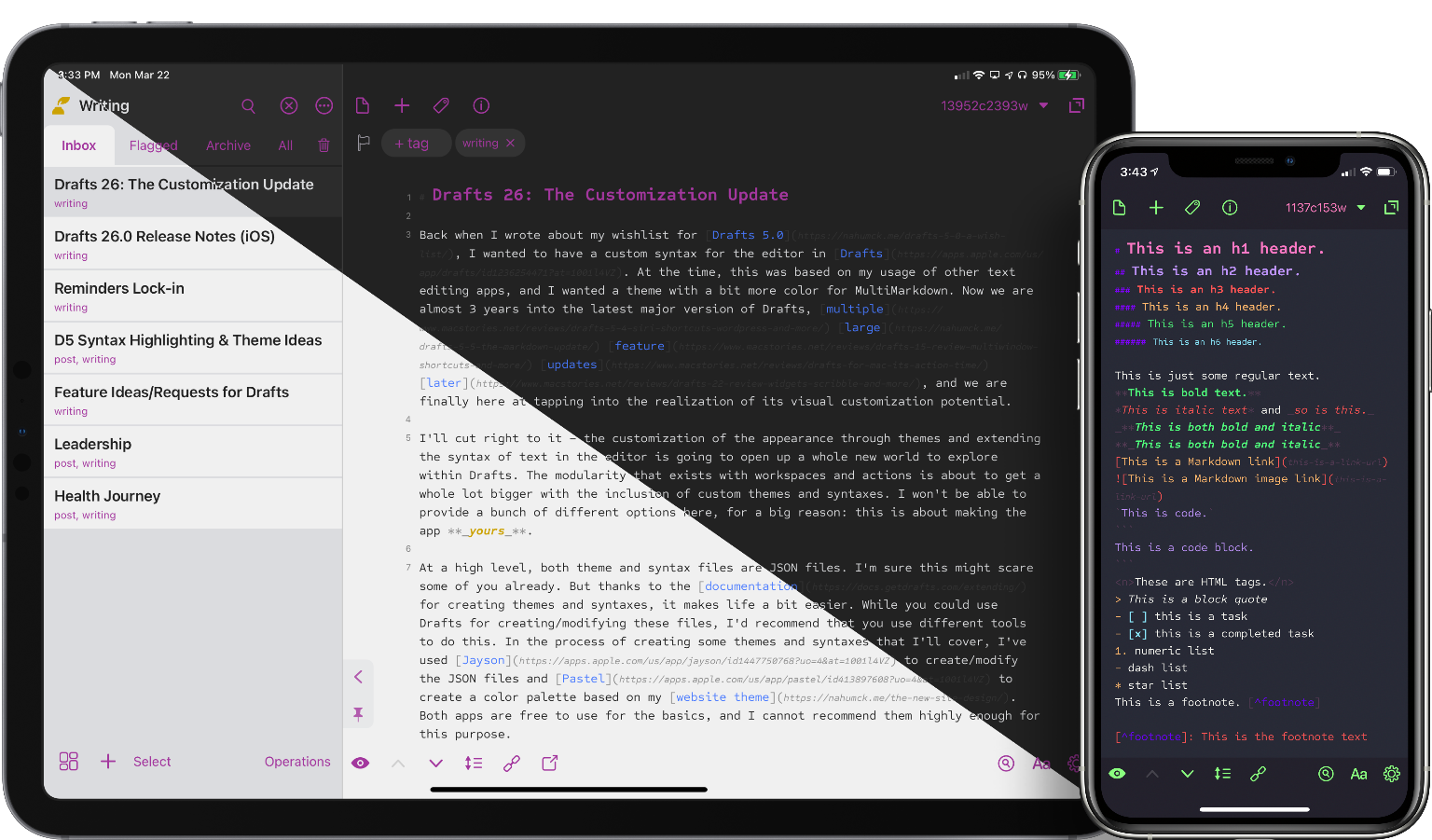
Back when I wrote about my wishlist for Drafts 5.0, I wanted to have a custom syntax for the editor in Drafts. At the time, this was based on my usage of other text editing apps, and I wanted a theme with a bit more color for MultiMarkdown. Now we are almost 3 years into the latest major version of Drafts, multiplelargefeatureupdateslater, and we are finally here at tapping into the realization of its visual customization potential with version 26.
I'll cut right to it – the customization of the appearance through themes and extending the syntax of text in the editor is going to open up a whole new world to explore within Drafts. The modularity that exists with workspaces and actions is about to get a whole lot bigger with the inclusion of custom themes and syntaxes. I won't be able to provide a bunch of different options here, for a big reason: this is about making the app yours.
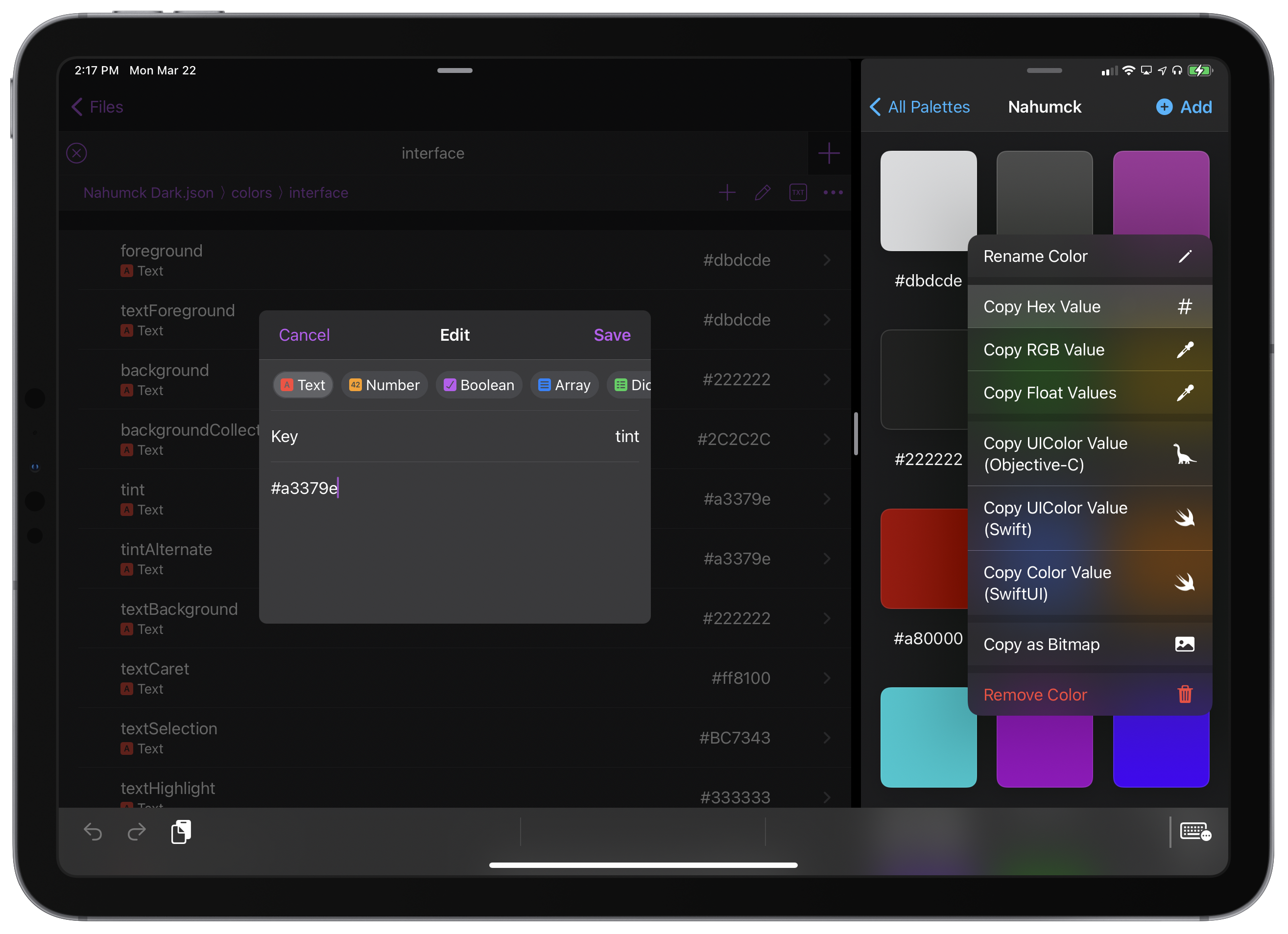
At a high level, both theme and syntax files are JSON files. I'm sure this might scare some of you already. But thanks to the documentation for creating themes and syntaxes, it makes life a bit easier. While you could use Drafts for creating/modifying these files, I'd recommend that you use different tools to do this. In the process of creating some themes and syntaxes that I'll cover, I've used Jayson to create/modify the JSON files and Pastel to create a color palette based on my website theme. Both apps are free to use for the basics, and I cannot recommend them highly enough for this purpose.
Creating themes and syntaxes is great when using both Jayson and Pastel on the iPad with a keyboard and trackpad.
Custom Themes
This is where I suspect most of you will be modifying Drafts to suit your needs. There is an extensive theme file where you can customize just about anything: there are two separate areas for editor and interface colors. If you already have an existing app or website theme that you want to start with, I'd be first begin at the Drafts Directory; you'll find many themes that might be close to what you're looking for already. If you can't find one there, then I would recommend that you start by creating a custom color palette in Pastel to make sure you have the hex codes associated to the colors at your fingertips. This makes the next part of the process a bit easier. As you explore the actual theme file in JSON, you can easily add colors to the palette to cover the different theme elements.
To create your own theme, start by exporting an installed theme.[1] To do this, select the editor preferences (the Aa icon in the bottom right), select the "Theme" tab at the bottom, and swipe right–to-left to export. If you have Jayson installed, you can use the share sheet to "Open as JSON"; from there, you can save the file. For each theme that I've used as a starting point, I've immediately gone in and edited the name, author, and the description; this saves you from confusion when you import that theme later. When you import your theme, you can then share it to the Directory.
There are many theme options available with the currently installed syntaxes. I suspect most of you will modify only a theme to start before stepping up to a custom syntax. The wonderful thing about themes is that it can change the way everything looks within the app. I personally wanted to have a custom theme base on my site, which wasn't difficult to create: I have both a dark and light theme for my site. But I also like coding actions in Drafts, and wanted to have a specific theme: one theme I like for coding is the Darker Dracula theme created by Jake Bernstein. Themes are also scriptable, so that if you want to change the way the entire app looks when you write vs when you code, you can can do this within an action to swap workspaces.
My current theme options
As I said, I think themes is where most people will go for Drafts customization in the short term. There's nothing like a fresh look to an app to make you want to use it more, and with the options that Drafts provides to change every color throughout the app, you can make it the custom theme you've always wanted. That said, theming isn't without its faults. One big item that I feel is missing is a built-in interface to create and modify theme colors based on the built-in syntaxes. This would make theming more accessible to users if everything was self-contained in the app. Though I love Jayson and Pastel, having to use other apps for this purpose is a point of friction for many people. I'd even settle for a web-based version which would save your theme to the directory, and allow an install via a link. But built-in is almost always better. My hope is that in the future, we will see this added.
Custom Syntaxes
Custom syntaxes are going to open up entirely new possibilities for using the app. I'm very excited to see how Drafts power users create new syntax definitions for their uses. Because this requires a good working knowledge of RegEx, I think this is something that is going to have more impact for the future; this is something that isn't for the faint of heart, and will require some trial and error to get done. But once you have what you're looking for in a syntax, you can do a lot more. I can see some interesting possibilities open up for users in the future, but more on that later.
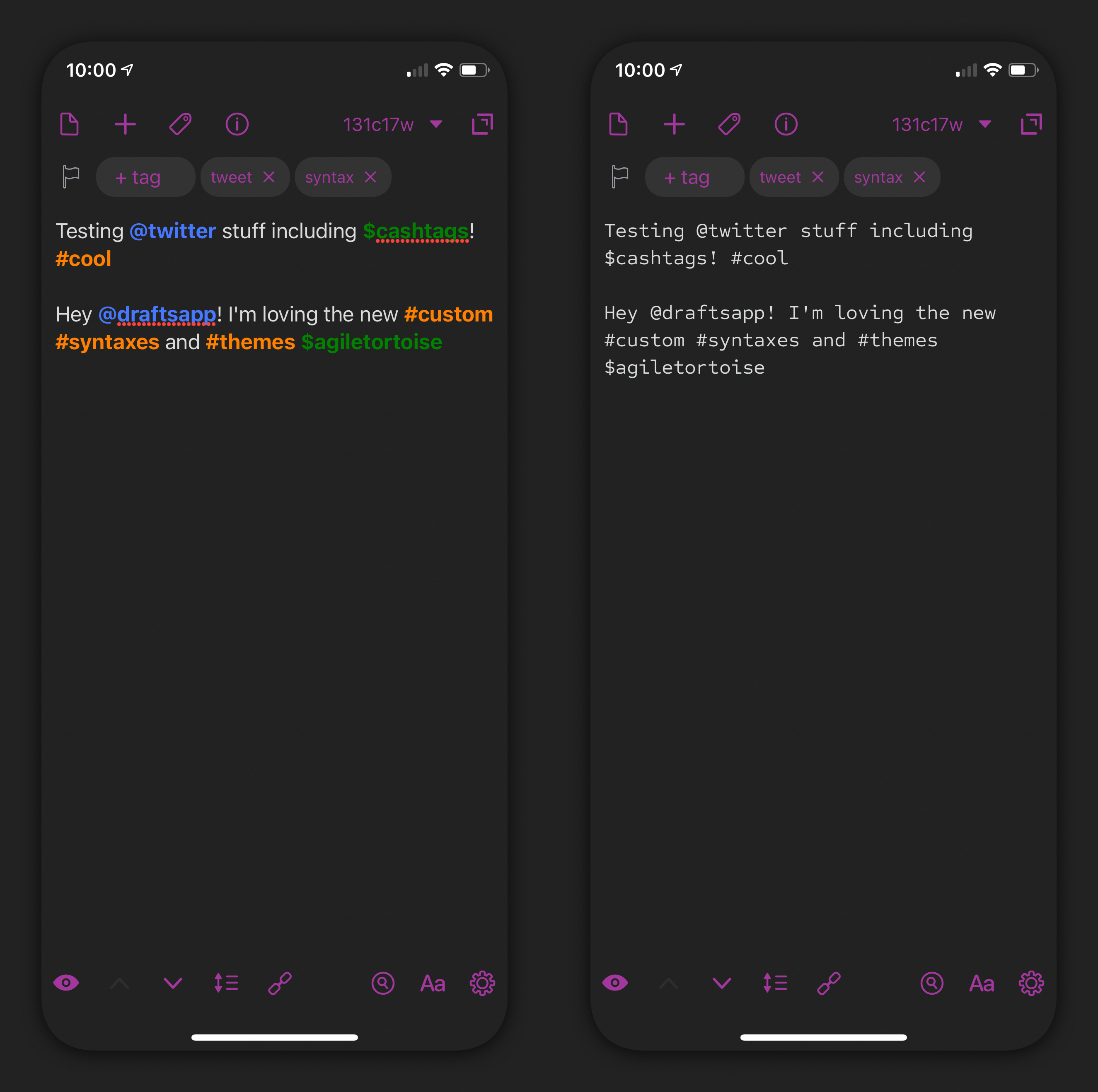
There are a couple of simple examples to cover here, which showcase some of the potential of the app. I'll start with a simple Twitter example. I often use Twitter to compose tweets; most time I delete them, but sometimes I sit on it for a bit and exercise restraint like a normal person. With a simple Twitter syntax to highlight usernames and hashtags, you can now see how your tweets will look before you post them. Or if you even post them at all. This could easily be modified to include cashtags $ for companies, assuming you know RegEx.[2]
Twitter markup is nice for when you don't want to be on Twitter.
Another example of how a syntax could be applied is task marks. There is a great demo of using Task Marks, which has multiple options for tasks. This can be custom tailored to suit your needs. This syntax demonstrates different styles, like standard and three state tasks, but also adds new elements like on/off tasks or percent complete. If you're able to manage the custom syntaxes, you could extend an existing syntax to include some of those elements. These additions could open up new possibilities within Drafts for task management.
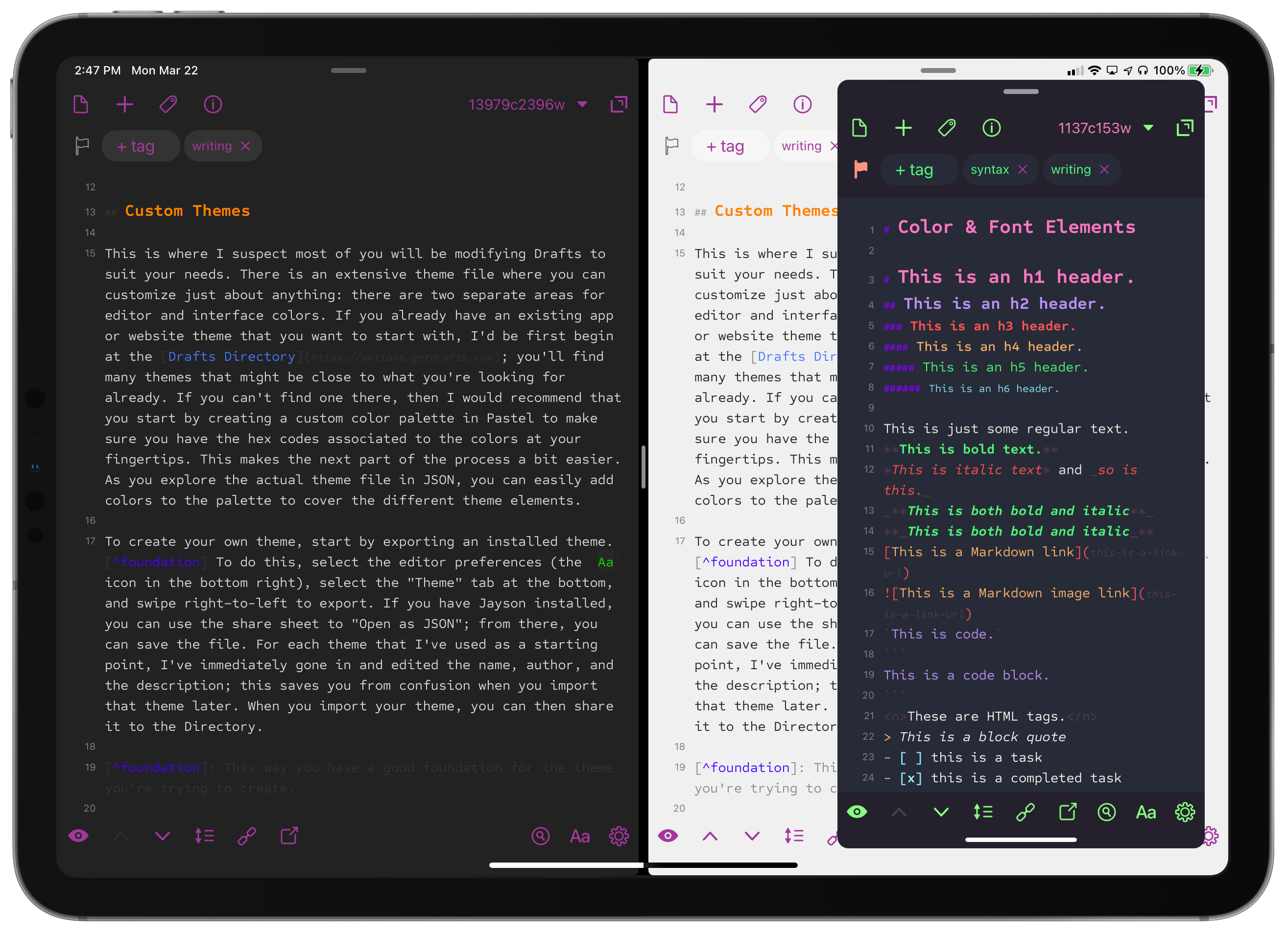
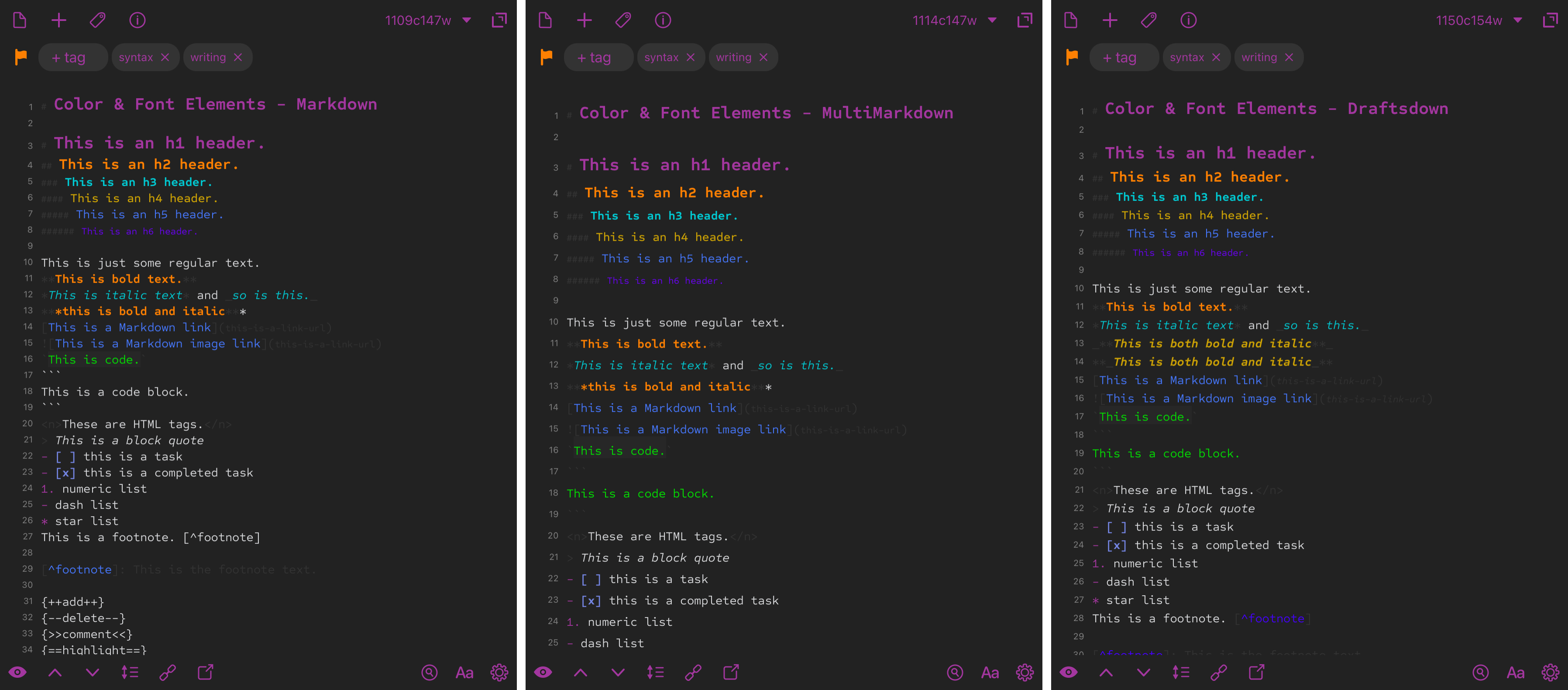
Being a novice to all of this, I started with the existing MultiMarkdown syntax which ships with Drafts. Just like the themes, I exported it to Jayson, and was able to add two new patterns to check for: **_bolditalic_** and _**bolditalic**_. With a little help from Greg Pierce, developer of Drafts at Agile Tortoise, I got the needed regular expressions to add both to my custom version. I also added the way links are displayed: I wanted to make the links almost disappear from view, especially since I operate in dark mode 99% of the time, and that the text size is smaller relative to normal text size. These combined effects make it so that I'm not really reading the URL when editing, but I can see the full URL if I want to look at it. These small changes really can make a visual difference in the editor, and this example of Draftsdown - my simple MultiMarkdown fork – shows how the subtle changes can make a big difference.[3]
Nahumck Dark theme in Markdown, MultiMarkdown, and Draftsdown syntaxes. Note the small, but meaningful differences between them.
There are a lot more examples I could cover, but I think that over time, other examples and use cases will emerge. I'm sure that the Drafts community will come up with more clever things that I will, so I would make sure to keep an eye out over there or on the Directory for new and exciting uses of custom syntaxes. There will be multiple flavors of Markdown coming from users who like a specific version that suits their needs. Differing navigation methods will be used to navigate a draft for more than just headers. I'm sure that someone out there will pioneer a new way of bullet journaling with a custom theme and syntax, which is certain to be awesome. And maybe, just maybe, Merlin Mann will finally get what he's wanted: a completely new syntax of Markdown + TaskPaper. That was too much to ask before, but now? That's entirely possible if you take the time to develop it. If only we could get folding headers…[4]
Other Improvements
Balance While Typing is another one of those usability features that I am thankful to have added to Drafts. I honestly didn't know I wanted it until the beta hit, and I don't want to go back to the way things were before. This makes typing in syntax elements for things like Markdown [links](url) and [[wiki-style]] links even easier without the need to have a custom action to do it. Simply typing as you would normally brings the first element in – a ( parenthesis, for example – and adds the coupled element ) after the cursor, essentially wrapping the text you type next to be wrapped like it should be. This works for parenthesis (), braces {}, brackets [] and quotes "". It is important to note that this is as advertised: "While Typing". This will not apply to text written already; for those you will need to use customactions for eachtype.[5] This is on by default so that most users can discover it, in case you do want to turn it off. I personally have it on, as I've found it to be more helpful than harmful in my day-to-day use.
There are several updates to the Drafts Directory. First, you'll find the addition of the aforementioned syntaxes and themes.[6] There are now also update notes for the actions if they have been updated. You'll also be able to update the actions right within Drafts; note that the update process is manual for now, and only available for items installed after the rollout of the feature. In the future, I'm excited to see the option for an automatic update for actions. And finally, action versioning, first introduced in version 22, has been extended now to action groups. This is great for those that have giant action groups of their own so that users can easily update these action groups rather than delete and reinstall them.
Extending the Modularity
This update of Drafts is going to, given some time, open up another level of Drafts development. It will further extend the modularity of the app beyond workspaces and action groups into full-fledged mini text apps to suit your needs. Want to go from writing to journaling, but have the entire app change from dark to cyan? Go for it. Want to go from journaling to task management? You can change that look too with a theme and a syntax. What about if you're a fan of another app's color scheme like Ulysses or Bear? With a little effort, you can match those apps as well. But it doesn't stop there: you can change the way the app will function for you as you apply a custom syntax. And when you combine the power of a custom syntax with a custom theme, you can create new, modular apps within Drafts.
I'm still getting up to speed with creating both custom themes and syntaxes. Admittedly, I've had a lot going on recently, and I haven't had the proper amount of time to really dive into this update as much as I'm hoping to in the future. But I can absolutely see the amazing potential that it's bringing. I'm going to spending some time over the next few months figuring how to make Drafts work even more for my use cases. Three years ago, Drafts got the update that changed it forever. And three years in, we're getting major updates to core functionality Drafts that are making me excited to keep using it.
This way you have a good foundation for the theme you're trying to create. ↩︎
I do! Kinda. Not really. It's a work in progress. ↩︎