My day-to-day life is filled with tasks. Work, home, personal — they pile up more than I would like to admit. I’ve been off and on with managing my tasks, the apps I use, and my workflow(s) of getting tasks together.
At the end of 2015, I started to change my behavior: I spent my holiday time off work researching methods, reading articles and books on Getting Things Done. I searched for things to improve workflows at work and at home, improve my task management and find a system that works, and start daily habits that increase productivity.
The Note
One of the simplest habits that I started implementing was one that I learned from Shawn Blanc’s “The Note”:
“[The] note is the single most important element of my personal productivity system. Because that note is the single most important thing I have to do today.”
I’ve been writing myself a note before bed ever since I read those words. Now, I don’t write this out by hand like Shawn suggests, as I’ve been increasingly moving towards getting rid of much of the paper we have in the house. I also don’t write the single biggest task for the day. But the concept of The Note is simple: get it out of your head and into a format you can read the next day, so it’s not keeping you up. It frees you from the stress of trying to remember that small thing — or set of small things — you needed to get done. And although I shouldn’t, I usually am on the phone before I go to bed.
Before I go to bed, I start my Note. My Note starts where all my notes do: Drafts. I follow the format of Task | Notes when typing in my thoughts: this allows me to identify the task, and if I think of anything I want to elaborate on, I can add it after the | delimiter. I also include any meetings I might have the next day (from memory) for which I want to be really sharp and attentive. And then… I sleep.
That’s it. Pretty simple, right? Something so easy helps me get it out of my brain and into action. This daily habit has boosted my productivity level in a big way.
Previously, I posted about two things that help me: Building Projects in 2Do and Using Action Sets in Drafts. In these two posts, I outlined some workflow methods of getting information from one place to another, and setting up action sets to reduce the visual clutter. But how do I personally use them? The Note is a perfect example.
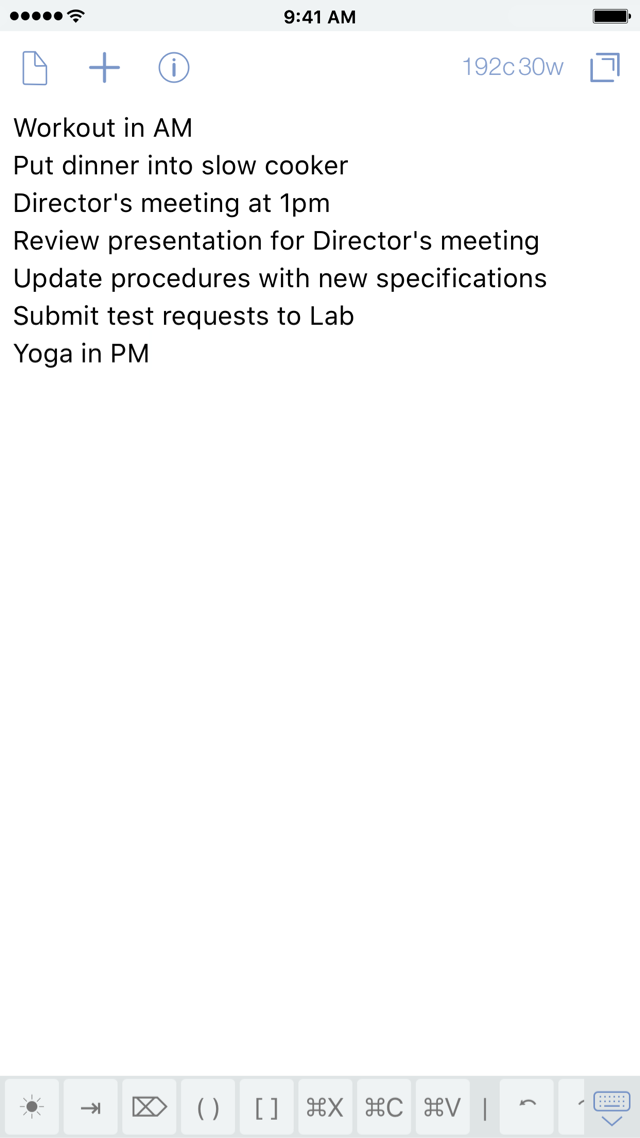
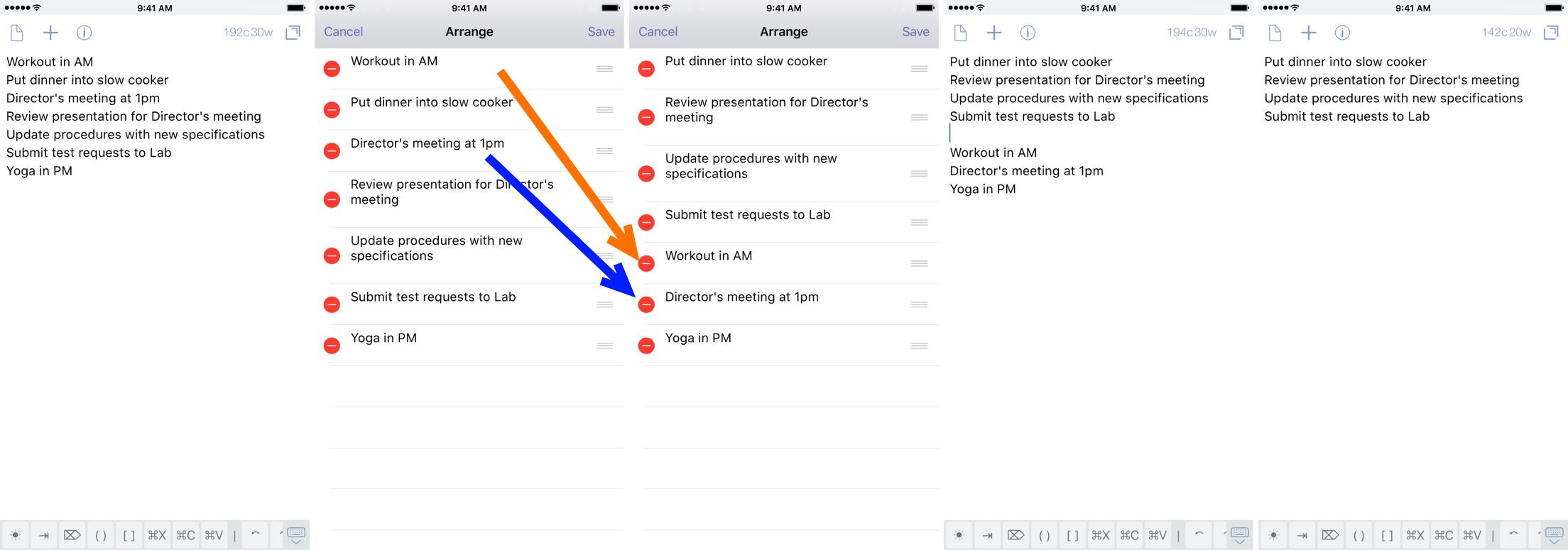
In the morning, I will review my calendar for the day, as well as my Note from the night before. I’ll sift through the lines I have written, deleting any of the items that don’t need to be moved over to 2Do. Then, I look at my remaining tasks to determine how I will enter them into my Task Management System (TMS). Because I do this daily, I have automated these things on iOS; Projects, Tasks, and Checklists all have their own methods for me as workflows.
Below are some of the actions that I use in getting my Note into 2Do, using Drafts and Workflow.
Actions
Tasks & ProjectsDrafts → Workflow → 2Do)
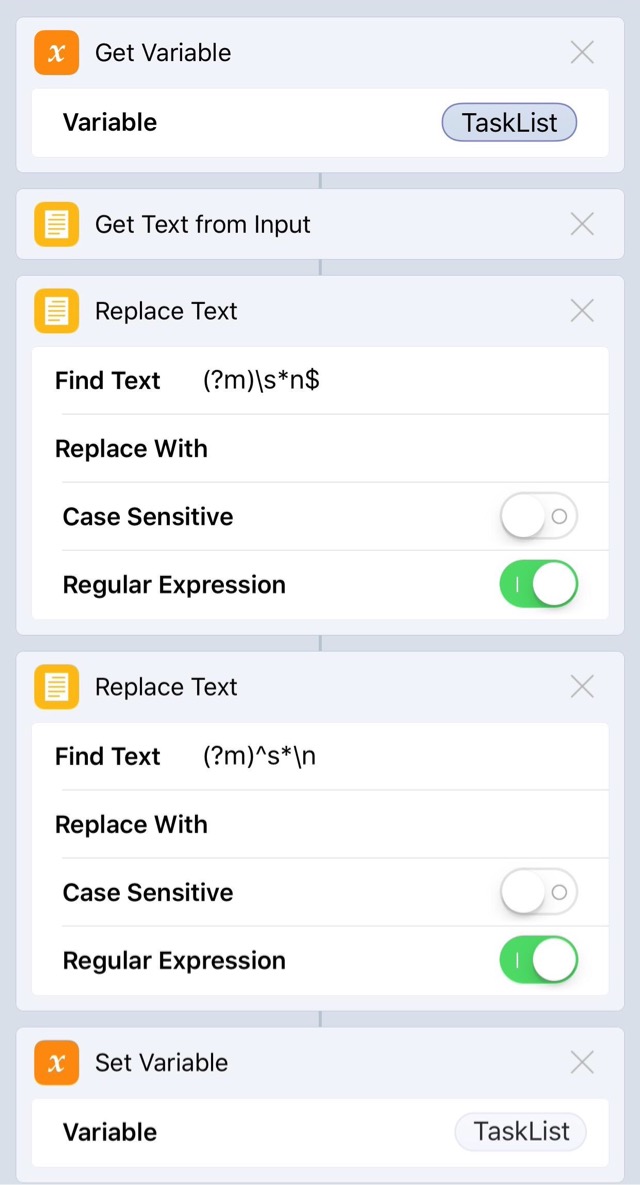
I use two similar workflows to create tasks and projects in 2Do, passing text through workflow. The text passed into a variable that can be used to split the lines into tasks, and each line can be separated by the | delimiter.
Projects is similar, but has a unique method for saving the project, then the subsequent lines as tasks. Using Workflow allows the use of 2-variable storage when passing to 2Do , made possible by Extensions in iOS: text from the first line can first be copied in the system clipboard, which gets saved as a variable in Workflow; the rest of the text can be passed via extensibility into a variable for processing.
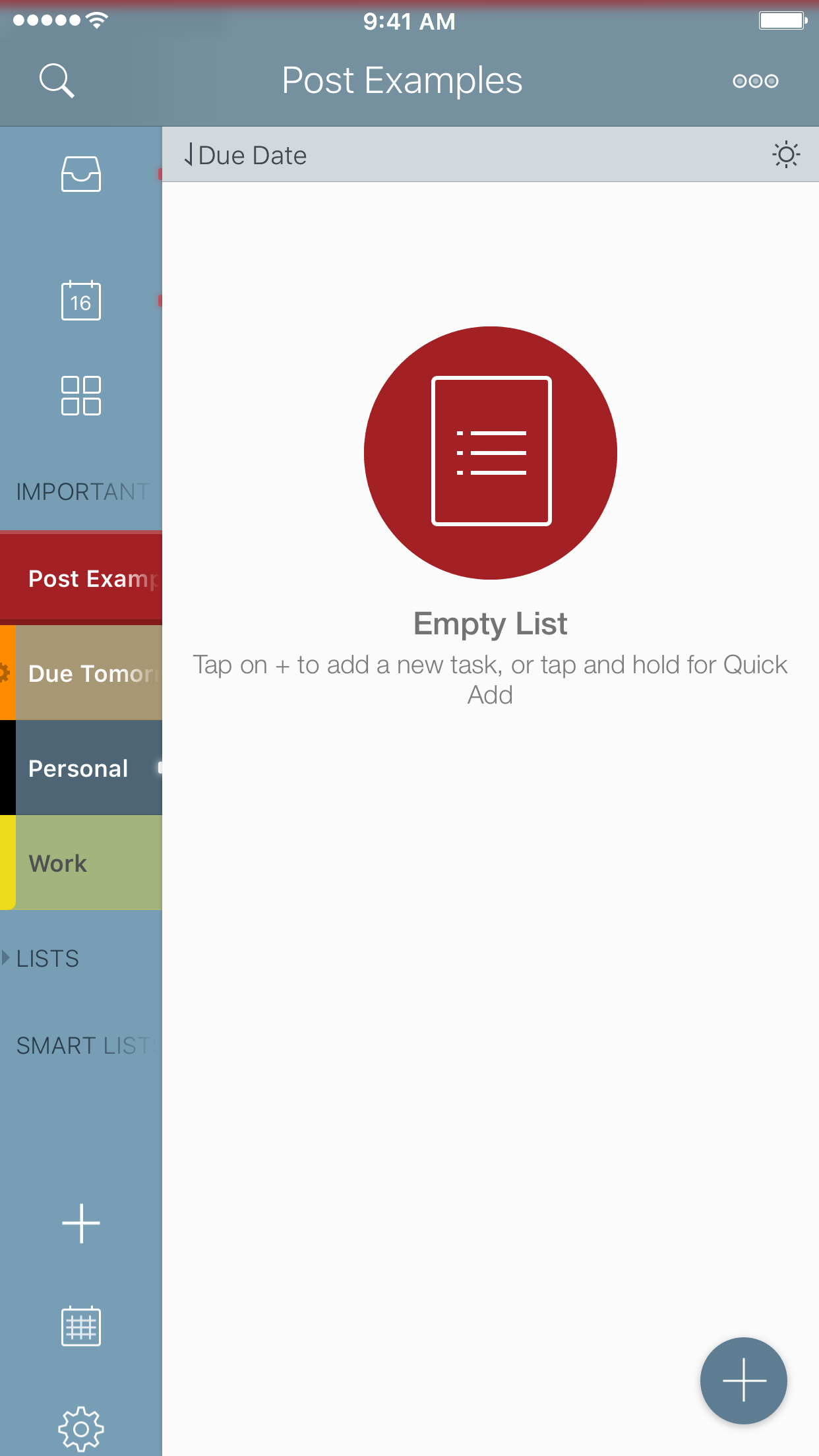
Unless you change the specified list, the two actions will place the items in the default list. I use the GTD Inbox, so that it is the default list, and I can triage and move tasks as needed. As I said in my previous article on the subject of Projects, you will need to manually move the Tasks created by this action into the Project. This is something that I hope is updated for the next release.
I have also added a few small improvements to the workflows:
I added a small script to remove white space lines in the main portion of the task list (The first line cannot be blank).
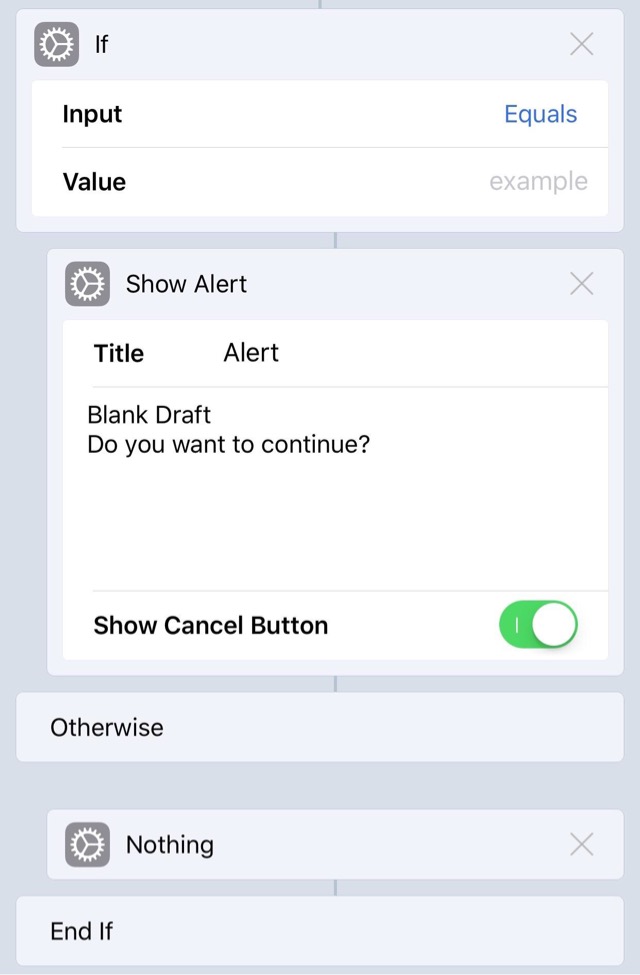
I also added a check at the beginning of the action for a blank Draft: there were a number of times while writing the article that I would accidentally trigger the action, and it would create a “New Task” in 2Do. This notifies you that the draft is blank, and gives you an option to cancel the action before anything is passed to 2Do.
If you have previously downloaded these actions, I recommend deleting the old actions and downloading them from this article so that you have the latest copy.
Email Checklist
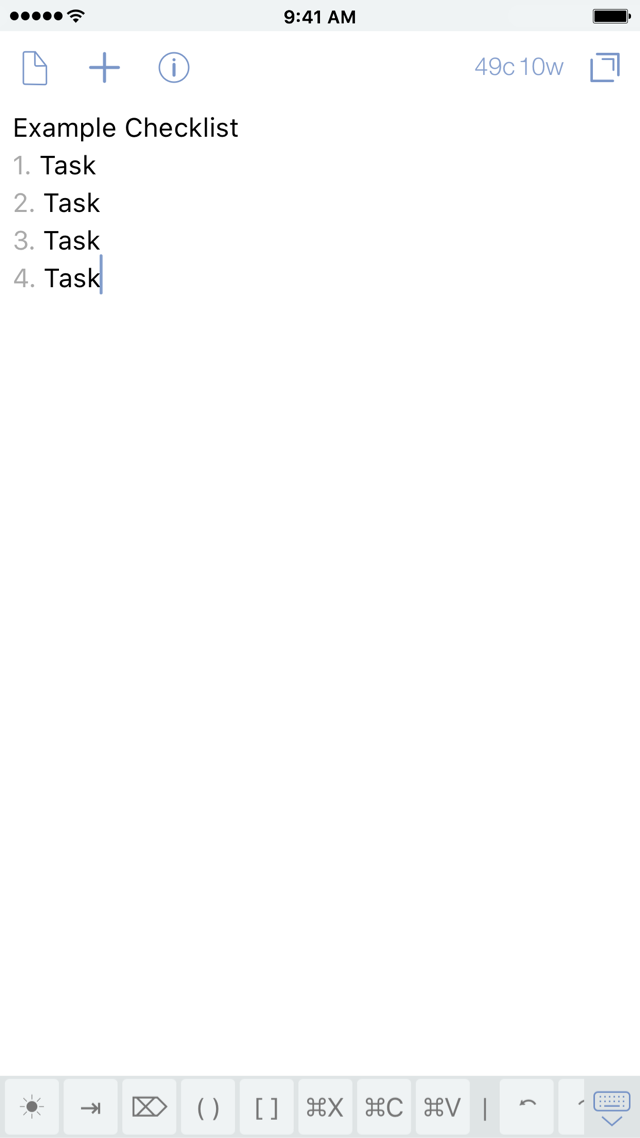
Checklists are very similar to Projects, but with one key distinction: tasks within a Project can have their own due/start dates, whereas tasks within Checklists cannot. For the Email 2Do Checklist action to work, you need to have the items below the first line in a numbered list in order to capture the tasks within the checklist, so be mindful of that when formatting your note.[1] Also, using Email 2Do requires the use of the GTD Inbox for capturing incoming email; I suggest you read the support article on 2Do’s website for full setup details of the feature.
The advantages here are that you don’t have to leave Drafts to send the information to 2Do, and this automatically moves the tasks within a Checklist. I would really like to see Email 2Do get updated to allow for the creation of Projects in the same manner.
Other Actions Available
I have some other actions that I still have in my Drafts Action List, but I do not use.
If you have the GTD Inbox enabled in 2Do but do not have the Workflow for iOS, this action is a good option. It takes a single task and places it in the Inbox. But now that I have the Tasks workflow that can handle one or more tasks, I don’t need this option.
Now that I can use Siri to email my Task Assistant and send an individual task to myself with the Email 2Do feature, I don’t use Reminders integration to sync anymore with 2Do.[2] But for those who do use Reminders integration, this action is great for getting a list of tasks over. This also allows for the | delimiter, which in my experience, did not work all the time.
Drafts Action Set
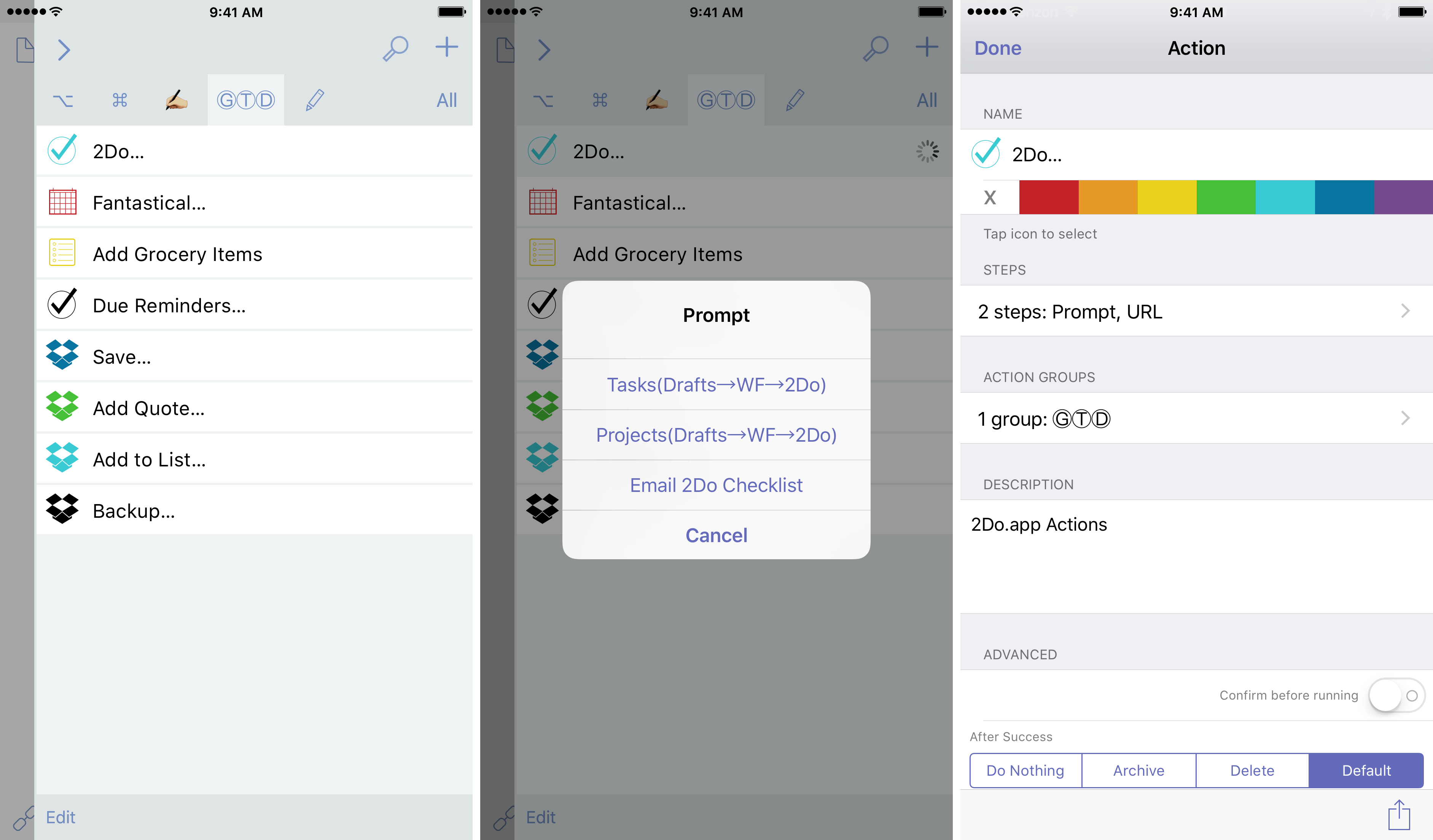
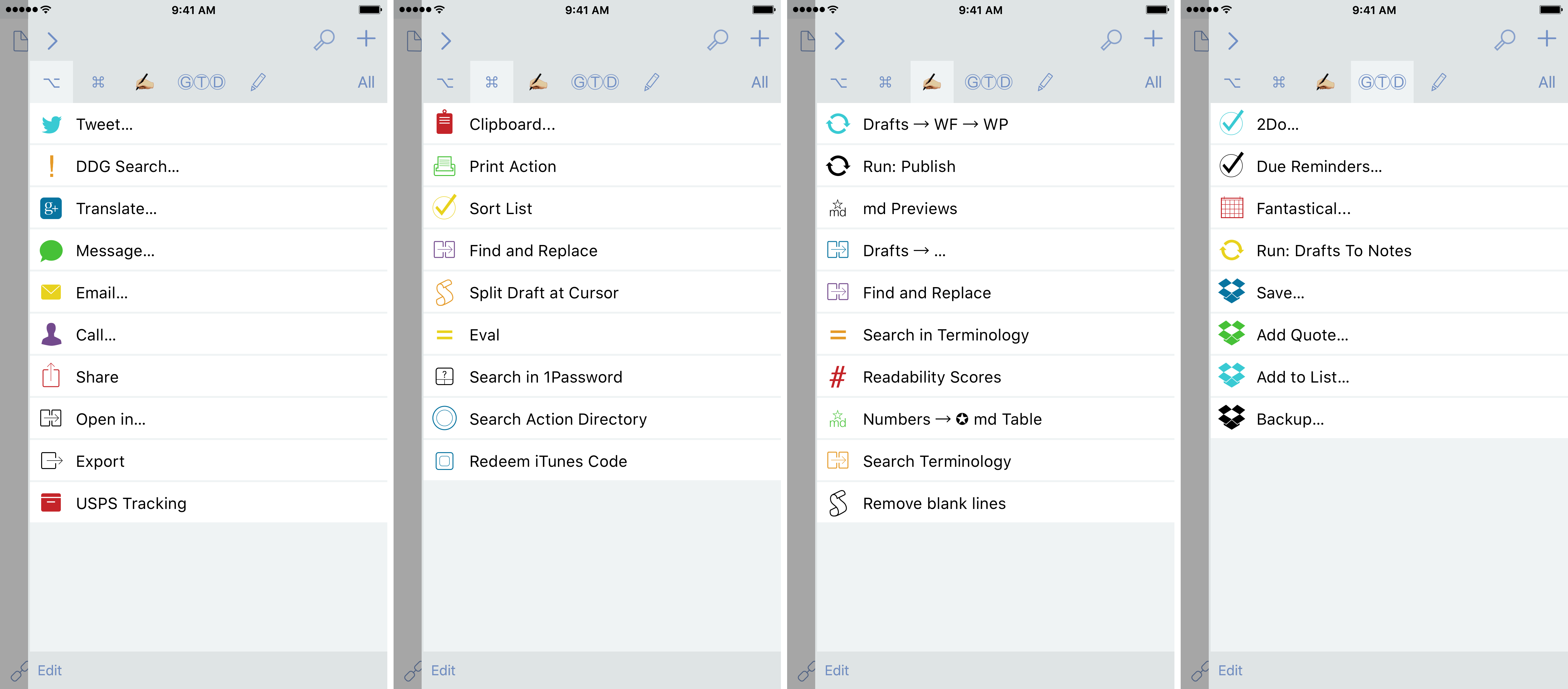
Now that I have all of these actions in Drafts, I created the 2Do… Action Set to contain them all. Now, I have one place to look when I want to send my items to 2Do from Drafts; it doesn’t matter if I’m passing the Note directly to 2Do or if it is going through another app. This streamlines the mental friction for me.
I’ve improved my routine by following the habitual writing of The Note every day. By utilizing my powerhouse trio of apps to automate my tasks, I can make the Note work for me as another tool in my productivity toolbox .
Be sure to change the email in the Drafts Action. ↩︎
I use Dropbox, which gives you full control over the feature set. ↩︎
Drafts has long been in my dock. It is the essential start for almost all of my text: messages, emails, Tweets, notes, post ideas, etc. all start there, and go some where else thanks to the power behind the app’s simplistic interface.
The other day, Gabe over at Macdrifter wrote a great post, Getting Drafts Right for 2016, in which he reviews his setup for the app; I highly suggest you read this post because it gives some very helpful tips when getting started with Drafts (that I won’t be covering here).
Now that I’ve been using the app for a while, I have a few tricks of my own. One of the items listed in Gabe’s post is about not letting your actions pile up.
“Part of the problem I created for myself was an overwhelming number of conduits. My solution was to cut way back to only the actions I use regularly or that do things that the iOS 9 share sheet doesn’t do.”
I must admit, I had that problem for a while too. And while I haven’t gone the same route to reduce the number of actions, I have found something that worked for me — using a method to shrink the Action Lists, while still having a large number of actions available.
Action Sets
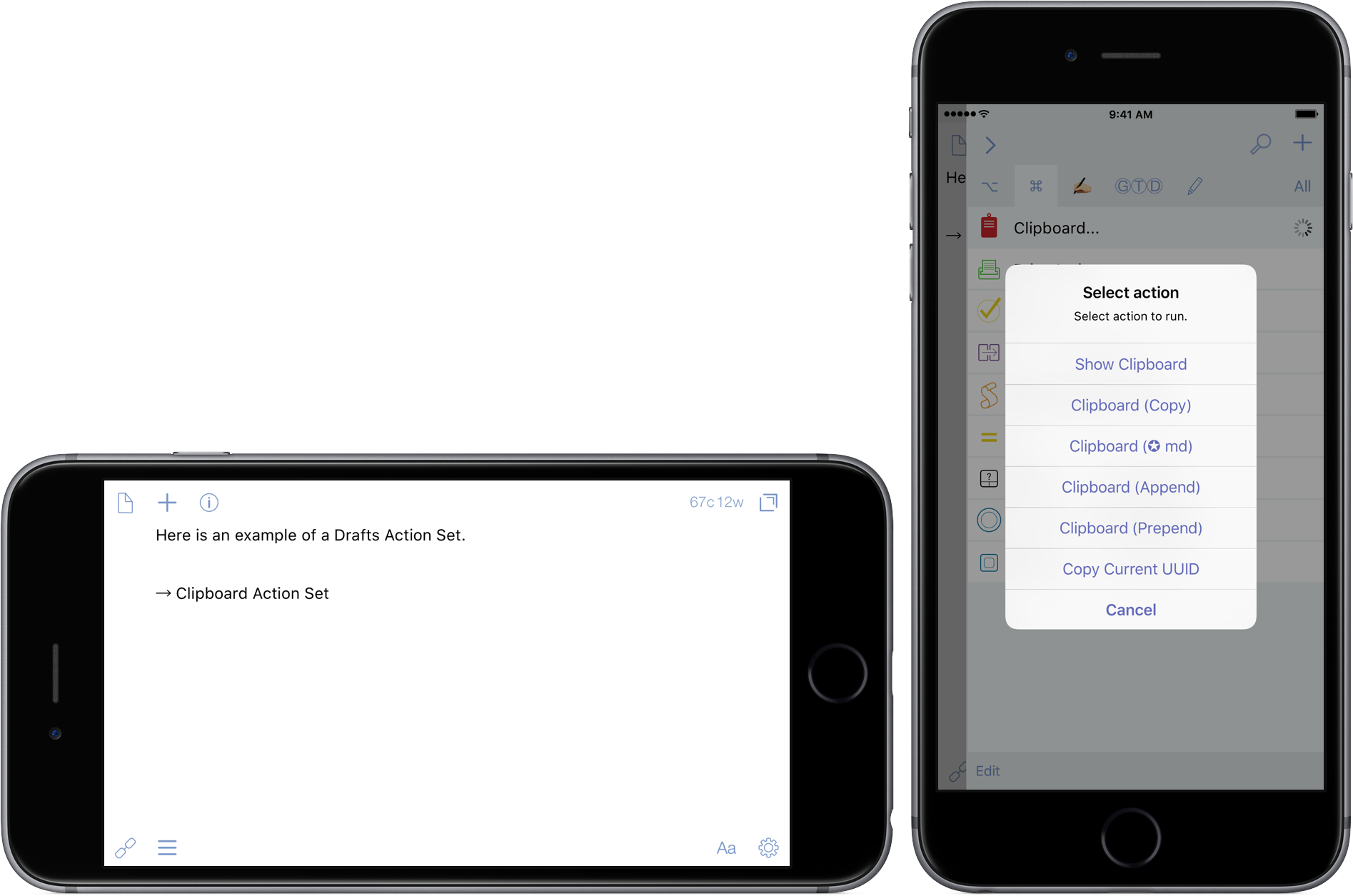
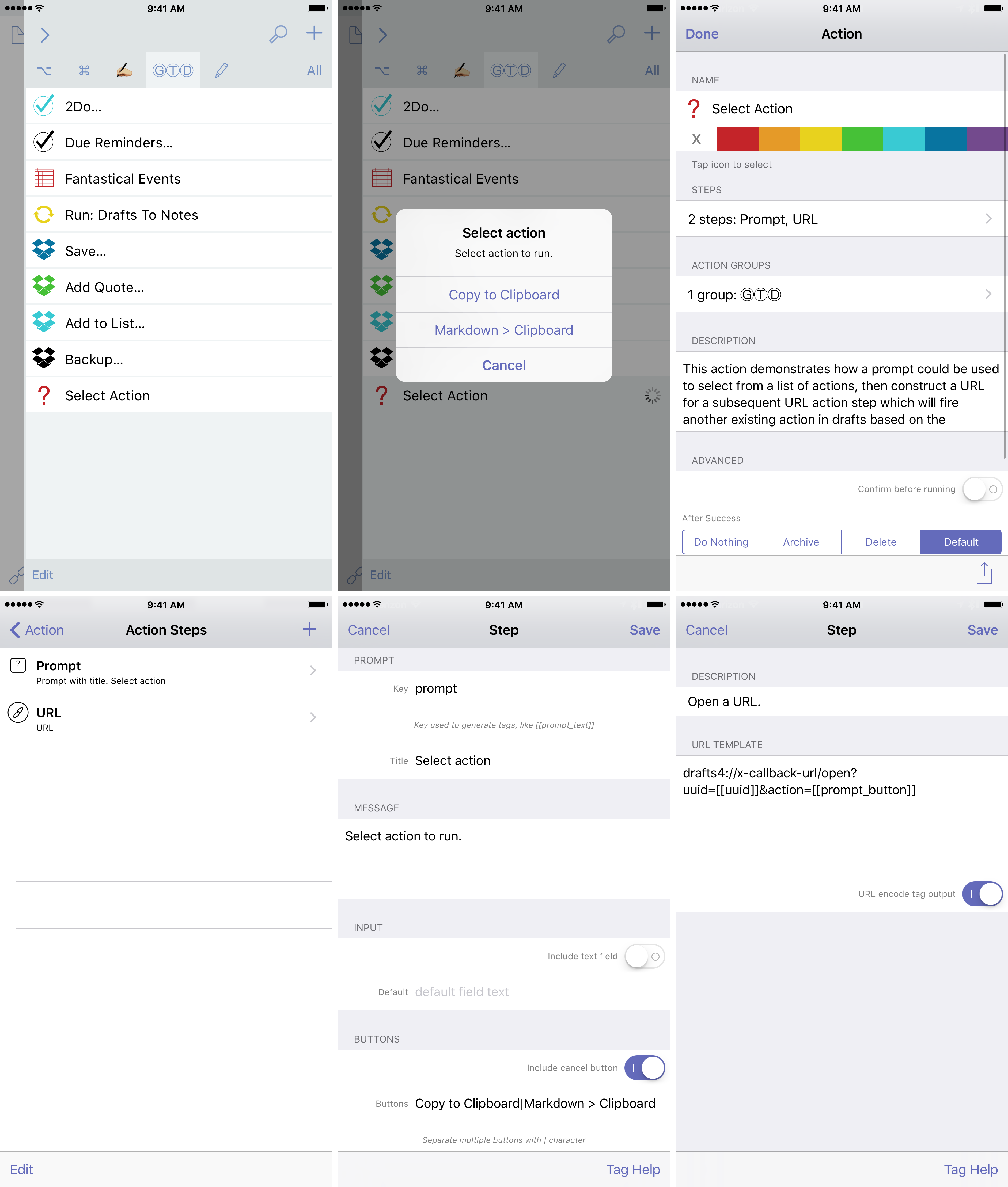
Enter Action Sets.[1] I define an action set as a single Drafts action that presents a menu of actions to choose from, then runs that selected action with your current Draft.
The developer, AgileTortoise, originally posted an action called “Select Action” where he demonstrates the concept with 2 built-in actions how this can be used. It is a simple 2-step action:
Prompt:
The spot where you list the actions you want to be grouped into a set.
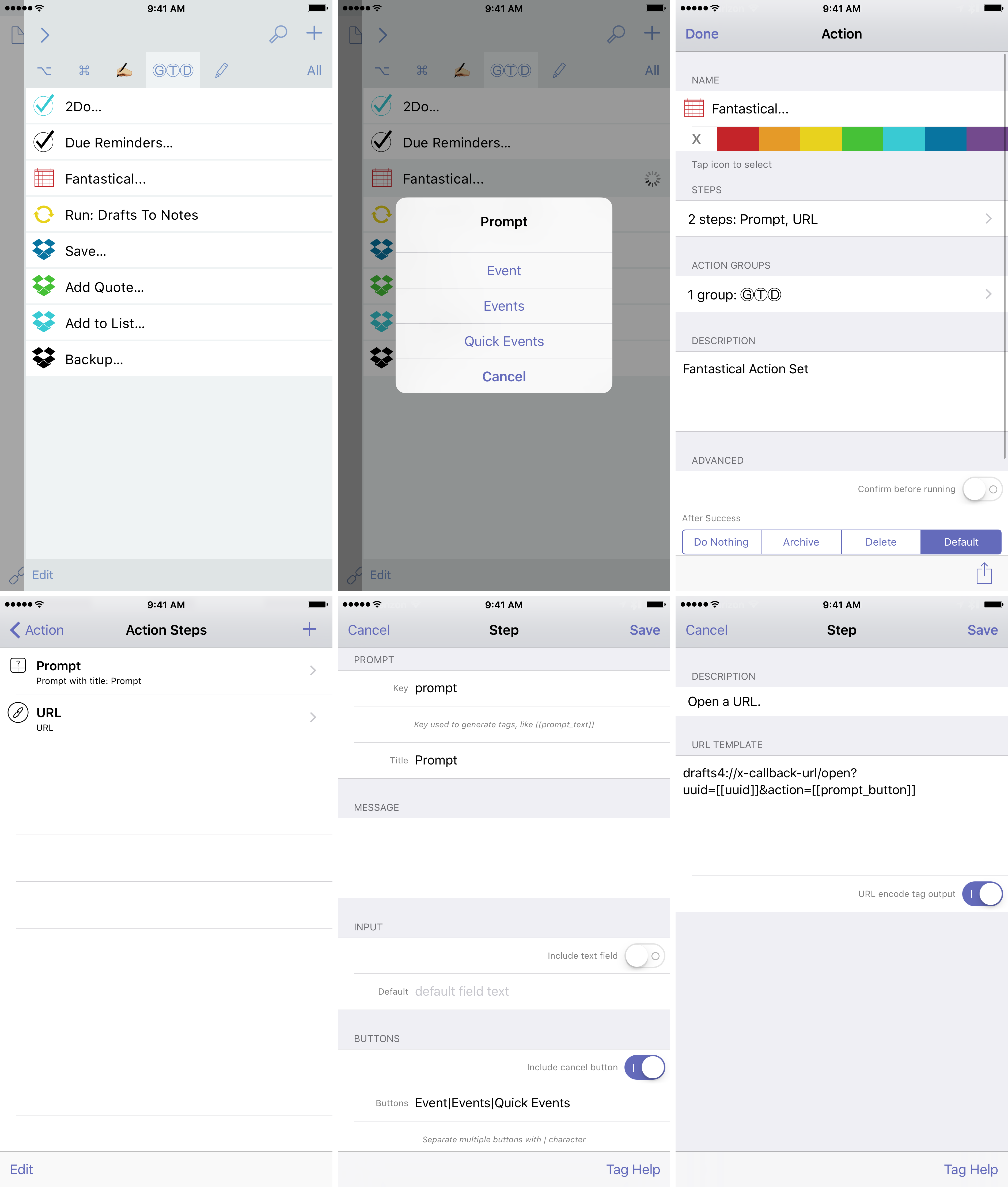
At the time, I didn’t think much of it. But when I started realizing the power this had to clear up my action lists, I immediately started grouping my actions together in this way. The first time this started was with Fantastical. I had 6 actions that I used with the app:[2]
Event and Reminder are single items, and require the user to hit “Add” in the top right. Events and Reminders also require the user input, but the actions call each line of the Draft instead of a single line. Quick Events and Quick Reminders do not require user intervention, and call each line until there are none left; this is especially handy for when you need to input many dates, such as importing your company holiday schedule. These are all great actions, but it took up 6 lines of my Drafts space.
I made one Action Set called “Fantastical…”. One line, but with 6 different inputs. Later, I modified it to only have the 3 events-based actions, because I do not use Reminders integration now for 2Do, my task management app of choice.
Action Set Keys
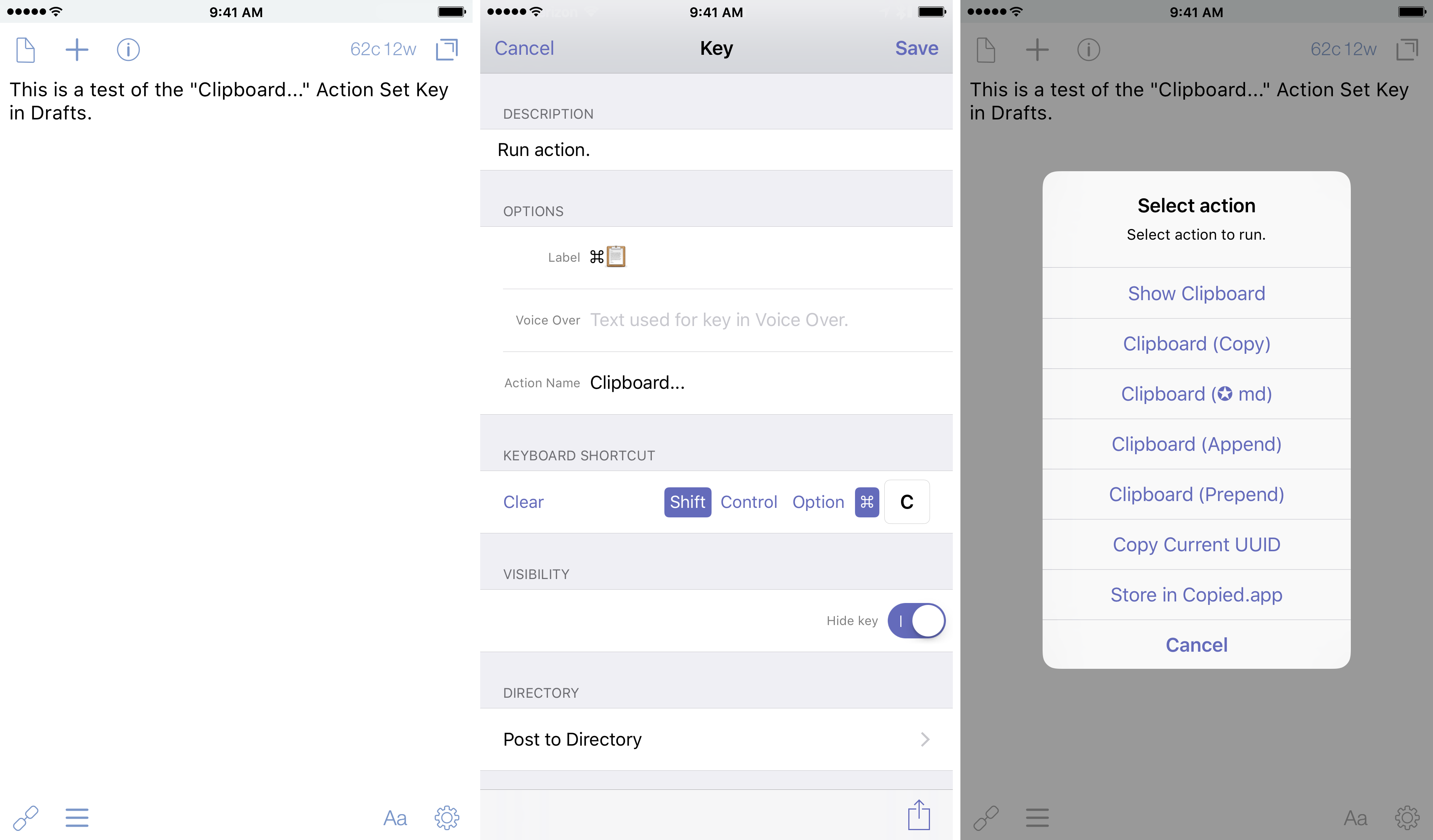
When you have finally created the Action Sets you want, and if you run them frequently, consider making an Action Keys for your Enhanced Keyboard row. If you assign an Action Set to a Key, you will be able to bring up the Action Set menu quickly for manipulation.
This is especially powerful for users that have an external keyboard that they use with their iOS device. I’ve been using one for a while, and I don’t think I could ever go back. For example, I use ⌘+shift+C for my “Clipboard” Action Set, which gives me a number of actions to use and manipulate text with the system clipboard. This gives me more power than the traditional ⌘+C for copy. They key is hidden from the Enhanced Keyboard, which de-clutters the row.
I currently have 4 Action Lists in my current Drafts setup. I don’t have Action Keys set for most of them yet, but I’m working towards having them for all of my most-used Actions and Action Sets.
If you need another reason to set up Action Lists & Sets: look at this picture for the individual actions I have in Drafts in one long list. (Warning: it’s a long list.) It’s a lot to scroll through, and I much prefer the lists I have set up.
The application of the Action Set is just one more example of how the most simple looking text editors available is really one of the most powerful automation apps on iOS.
Drafts 4 is a universal app and is currently 50% off in the App Store for $4.99.
Earlier this year I experimented with several task management systems (TMS) for iOS to help me get better organized for both home and work. After a lot of trial and deliberation, I finally found a home in 2Do. Now that I am deeply rooted in my app of choice, I wanted to start getting smarter about getting things done for work. There are projects, both large and small, that I have to manage:
And while each of these types have varying levels of importance and complexity, how I input them can be the same by using some powerhouse apps on iOS. Let me show you how I integrate Drafts, Workflow, and 2Do to help me input these projects with ease.
Typically, at the start of the program, I will make a specific list for it. For this example, I’ve created a list called “Post Examples” in 2Do.
With the list set up, now I can start placing items into the list as normal. But say I’m in a meeting. I need to have something that can take my meeting minutes, and create actions inside of the list and/or a project. For that, I turn to the power of Drafts & Workflow.
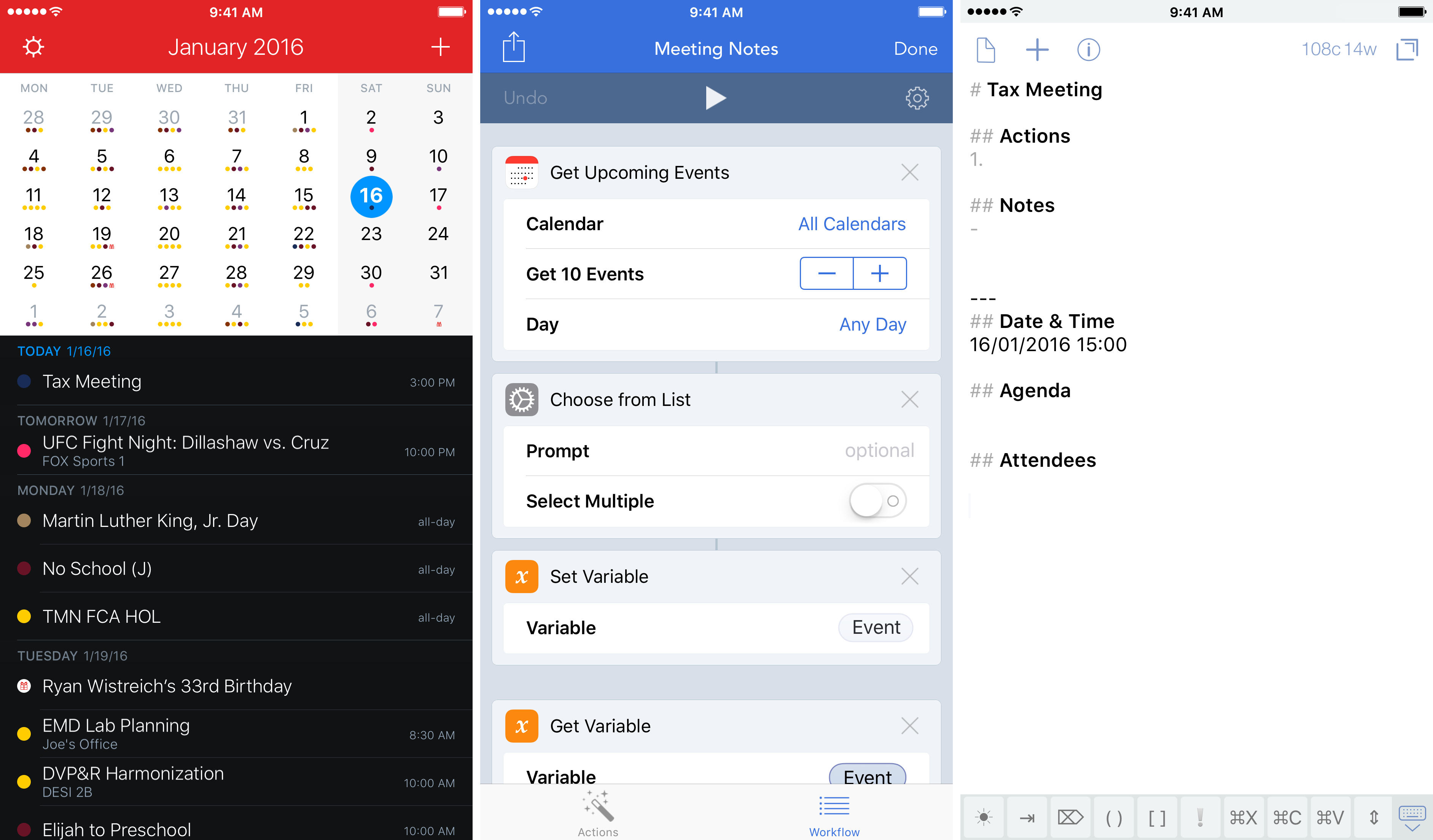
For most meetings, I’ll start off by creating a new Draft using the help of a meeting notes workflow. This workflow allows me to select the current meeting, and automatically set up a Draft with a number of parameters.
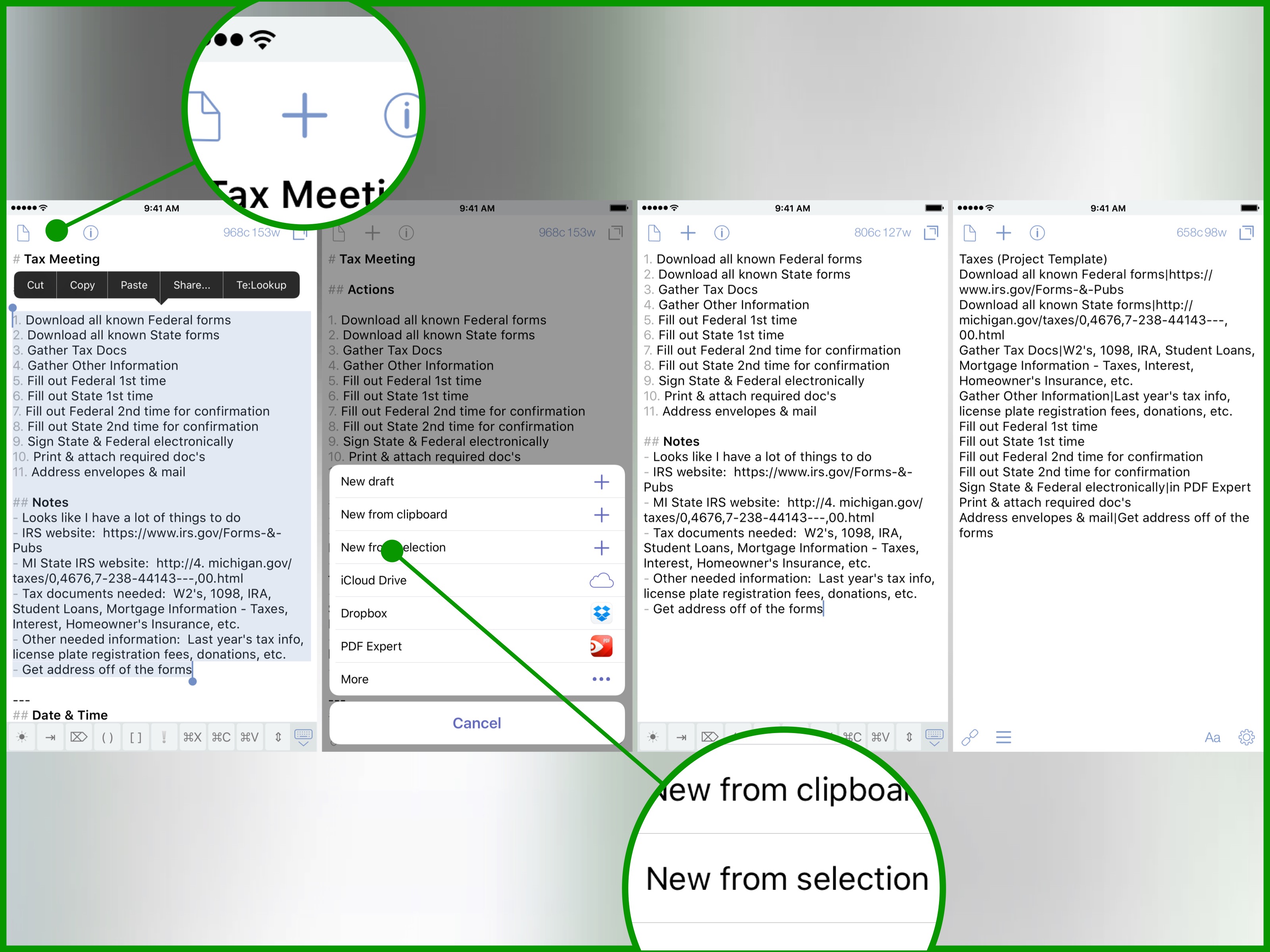
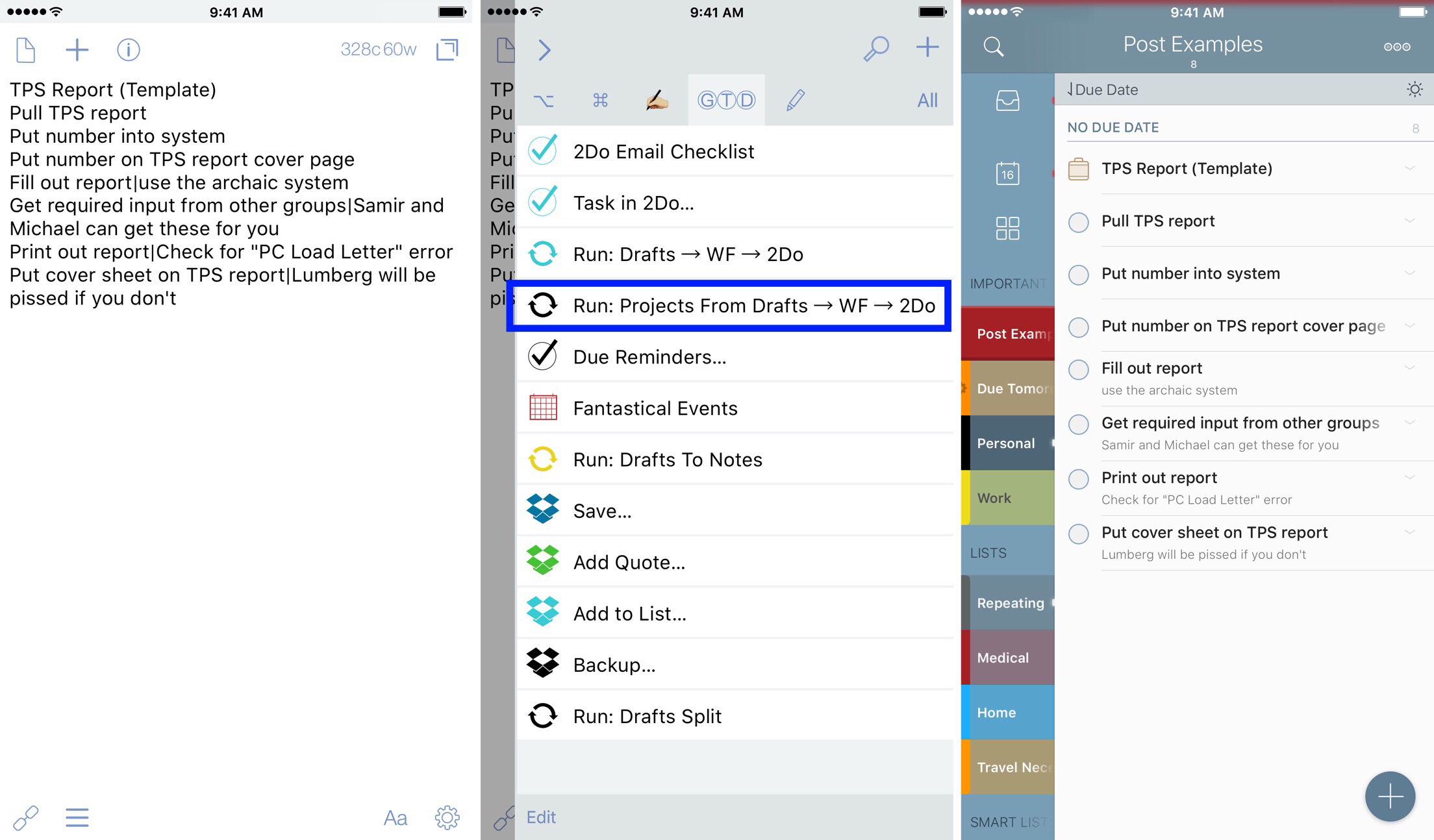
After I have input the action items, I can select them and create a new Draft based on the selection by tapping the “+” in the upper left. Once these action items are in a new Draft, I can manipulate the text and format it into Task|Notes, using the | for a notes delimiter if I need to expand my thoughts on a given task.[2]
As you can see from this [obviously fake] meeting, I have a lot of actions given to me from this one meeting; if I had a single action to move into a task, I would use one of a number of ways to move it to as specific list or the Inbox within 2Do. But because all of the actions help complete this task, I want to set this up as a project; moving each of them individually would be a pain using the share sheet. I don’t use Reminders integration for 2Do, so I cannot use a Drafts action to move them over to a list via Reminders.
But I can easily solve this with automation using Drafts & and Workflow. First I set up this action in Workflow to take the first line from the clipboard, separate the Project Name and Project Notes at the | delimiter, and save that as the Project. Then, it takes every line after that, separates the Task Name and Notes at the | delimiter, and saves it as a Task in 2Do.
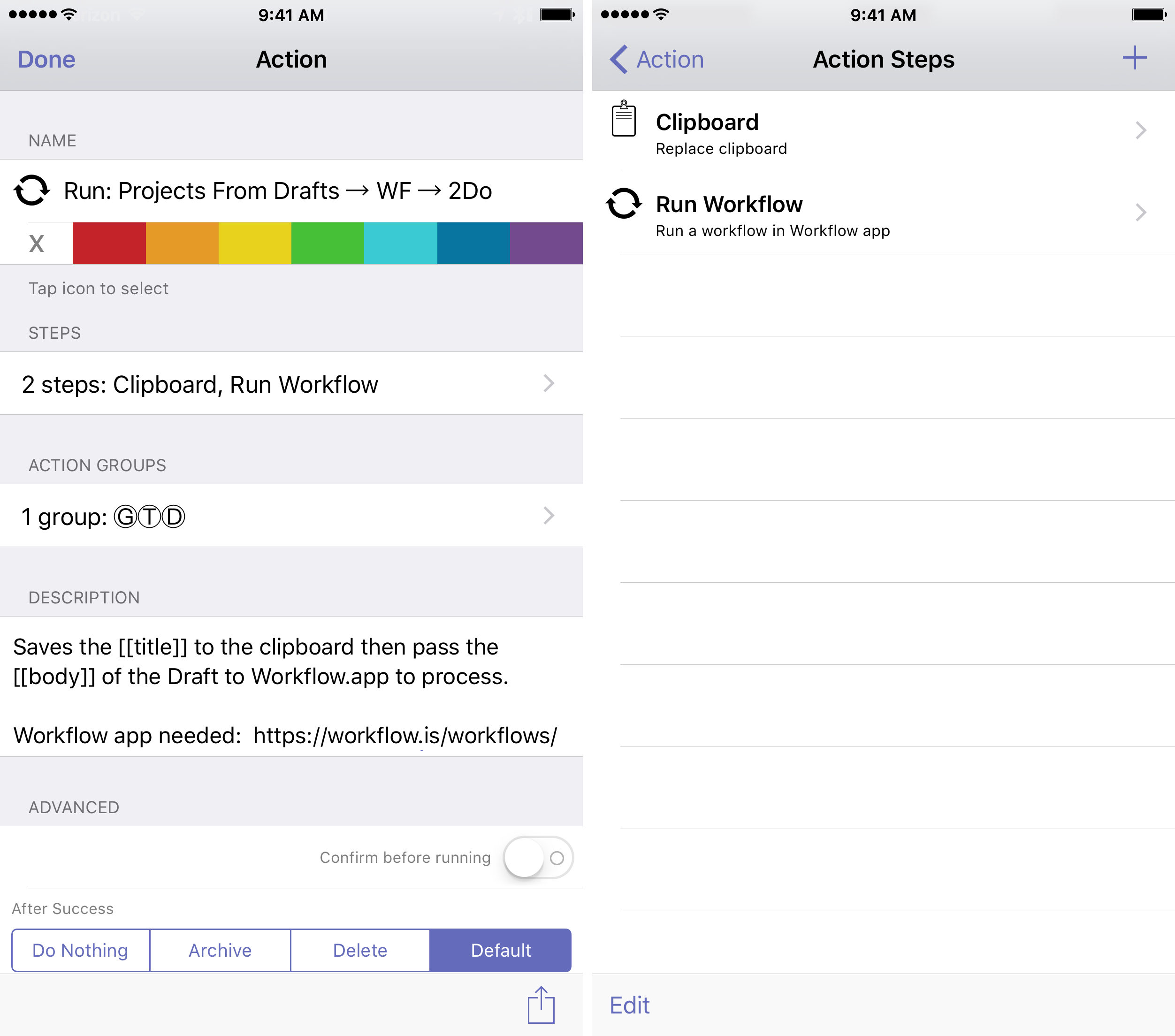
Next, you need to download this action for Drafts. This copies the first line ([[title]]) to the system clipboard then passes the remaining list ([[body]]) to Workflow as text.
At first, I ran into a scenario where the Task Name would be repeated as Notes if there were no notes on the line. I did end up fixing it by placing an if statement that checks if Notes equals the Task Name. Now if there are no notes, the tasks are entered with an intentionally blank note, which 2Do ignores.
There are a lot of things you can use like Start/Due dates, Priority, Tags, etc. when you run the workflow. While this doesn’t suit my needs for what I’m looking for, it can be changed for your needs as you see fit.
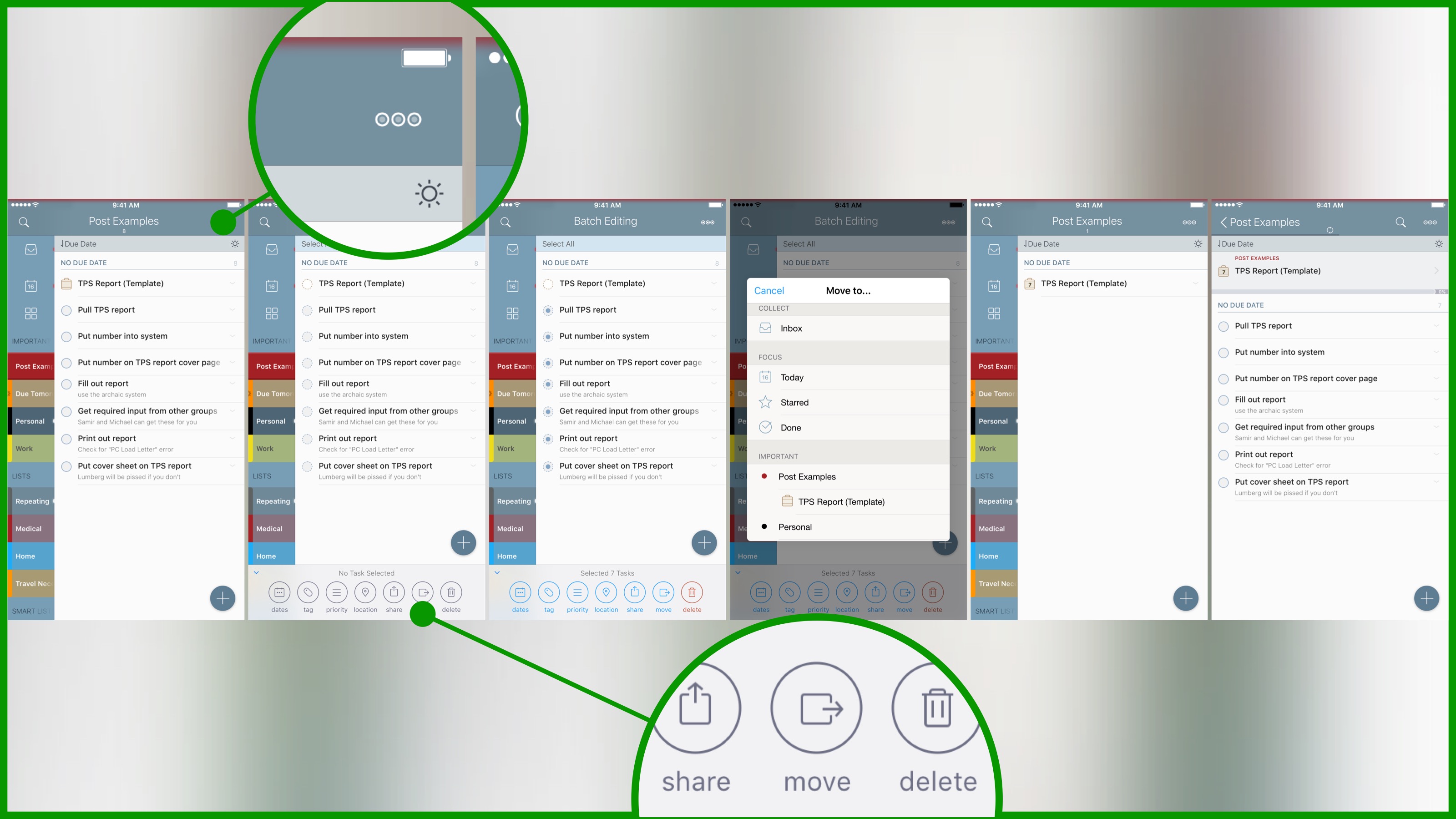
Now that the project and all of the tasks have been entered into the specified list, we can go into 2Do and use the Batch Edit function that makes it so powerful. Simply activate Batch Edit in the upper right, select the tasks you want to move, and then move them inside the project.
The batch editing feature of 2Do is top notch; it was one of the biggest items that pushed me towards 2Do over other TMS apps. It makes moving the tasks into a project or checklist very easy. But one improvement that I would like to see is the ability to move the tasks into the project using Workflow. There is some documentation on the 2Do website, but it is not clear on how to implement it and I have not found a way to use it. I have asked the developer of 2Do and Workflow to take a look at how to integrate this easier.
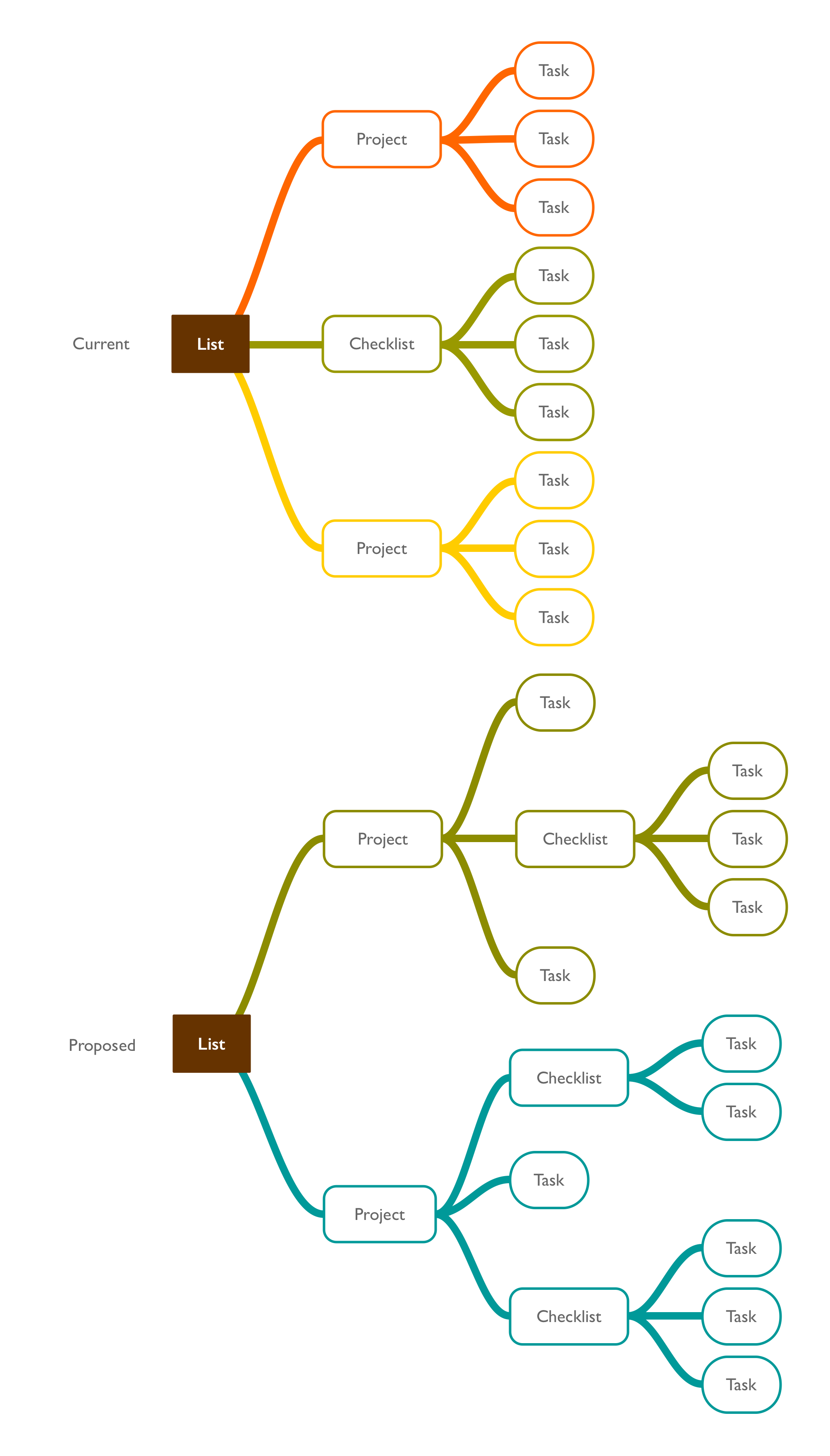
Another thing that I would like to see from 2Do here: the ability to have checklists inside of projects. (I used MindNode to show this visually.) Below, you can see the current state of how Lists, Projects, Checklists, and Tasks exist in the app. But I would really like it to become more nested, as shown below.
For big projects, having checklists nested inside of a specific task would be a welcome addion to the already powerful task manager.
As part of my job, there are times that reports have very similar tasks associated with each, but may have a different project title. This workflow can help by keeping the Draft available for future use using the workflow, or by creating a project template in a specified list.
Another clever way to use lists would be to store specific project templates into a separate list (called Templates, perhaps), then select the project template and copy it to a new list. Currently, if you do this at the project/checklist level, it will only copy the project; I would love to see this behavior change to copy all of the subtasks within the project. If that was available, all I would need to do is simply save a copy, then edit the title and assign a date, and I have everything I need to ensure that I’m getting that small, repeating project/checklist done. By creating these templates, so much time can be saved for the future.
These workflows have allowed me to take notes from a meeting and turn them into actionable items that I can use to get things done at work. They have allowed me to create numerous project templates for future use. From the large project to the simple checklist for the day, I can manage everything I need by using these actions.
Note: I’ve updated the actions and placed them all into one post. You can find that here
A while ago, we got a Bluetooth keyboard for one of our tablets. It was a slim keyboard, not full-sized, and didn’t fit my fingers well. I never tried it, casting it aside as unusable because of how tight the keys were.
Then, the day after Christmas, I tried it again while using my iPhone 6s Plus. It quite literally changed the way I use my device; it opened new possibilities for what I can and will do. That said, I still couldn’t use it because of the keyboard layout. I searched for alternatives, and landed on the Logitech Bluetooth Multi-Device Keyboard.
The keyboard is a full-sized keyboard, with additional keys for navigation. It also gives you the option to pair it with 3 devices. I like everything about the keyboard with 3 exceptions:
It doesn’t fold up. I also had looked at the Microsoft Universal Mobile Keyboard and thought that it would be nice. I did end up buying a 13" laptop sleeve, which gives me the option to carry a stylus pen, a laser pointer, and a note pad with me to meetings at work and makes the folding aspect of the design moot for me; surprisingly, the sleeve makes a huge difference for me in that I have everything I need with me when I’m on the go.
The batteries are 2 AAA batteries, not a built in rechargeable battery. I will have to see how battery life plays into things, and I’m not sure if this is really a negative thing; if I run out of power somewhere, I can always find a place to sell batteries, and won’t always be able to plug it into a wall.
There are no keyboard keys to adjust the screen brightness. I would love to see this functionality be added in some way. It’s not a deal-breaker, but it would be a nice feature. Other keyboards made by Logitech do allow for a change in brightness, but they are 2x the price of this one; however, many competitive keyboards have this functionality.
This is a real thumb-saver for me; prior to this, I have typed out everything written on my site with my thumbs, only from my iPhone. Now, I can use the device in a much different manner than before. Writing this way becomes much easier for me. I’ve found more ways to be productive using keyboard shortcuts (looking at you, Drafts) and tackled large 2Do lists because it is far easier for me to enter information.
Jaybird X2 Sport Bluetooth Headphones
I picked up the Jaybird X2 Sport Wireless Bluetooth Headphones in the middle of October. I didn’t write about them then, but when I was at home on vacation at the end of the year they really were a wonderful piece of kit.
I listen to a lot of podcasts, and now that I don’t have to be tethered to my phone via a cable, it has been great to roam around. I have been able to leave my phone in the center of my house and travel virtually anywhere inside and still connect.[1]
The earbuds come with 3 sizes of tips in 2 styles (memory foam and silicone), as well as 3 sizes of fins for a custom fit to your ear. It took a little while to figure out which ones worked the best, but once I figured it out, they have been very comfortable to wear all day. I used to own the Bose in-ear buds, and they are just as comfortable to wear. I also went and purchased a variety pack of memory foam earbuds at Jaybird’s website; the comfort ear tips have been great for normal use. I also have enjoyed the isolation tips, which block out everything.
Only negative is battery life, but with buds this small, I can understand. I can get anywhere from 8–10 hours of listening time, depending on the day; not sure I have any room to complain here, but if I could go 12–14 hours that would suit my needs much more on longer work days.
If you’ve been on the fence about Bluetooth earbuds, these are definitely worth picking up. Amazon usually has sales on them, discounted to around $150 or so. They are more expensive than some, but I have yet to find a major issue with them.
As we are getting close to closing out the year, I wanted to share what albums I’ve loved from 2015. I was surprised to see a lot of music make it to me for the first time this year; some old, some new, some forgotten — it’s been very refreshing.
I selected these albums based on their original release within 2015, and I didn’t want to pick any re-released, remastered, or “best-of” albums. I’m also not picking anything that is new-to-me this year, but more on that later.
Top 5 Albums of 2015
Picking a set of 5, let alone ranking them, was a tough task for me. I initially had a list of 20, and paired it down from there; I was also not going to rank them, but during the course of listening and writing, it became clear that I had some favorites and a clear favorite.
1. Steve Wilson - Hand. Cannot. Erase.
Steven Wilson has had a prolific career as a solo artist,composer, engineer and producer; he is the most well know for being the frontman for Porcupine Tree.[1] In so many ways, the artistry that he creates in his music defines the progressive genre that I love today. He can do so many things from the creation to the production; he owns the whole stack and is involved at every level, which shows through in his success.
As is a progressive music tradition, this is a concept album; one unique element is that it is told from a female perspective features several wonderful artists on the album, including Ninet Tayeb adding the female voice and the great Marco Minnemann on drums. The music itself has everything from jazz to light, airy music, from heavy rock riffs to pop rock hooks, odd time signatures, classic instruments, synthesizers — it really covers so much ground.
I have been so impressed with this solo album, which is a tremendous addition to his already amazing body of work. My only problem is that I found it late in the year, and it hasn’t been played enough in my ears.
This is without doubt my hands-down favorite album of the year.
The power trio that is Muse gets back to their rock roots with Drones. This continues their concept album tradition of the last few releases.[2] But unlike their last two albums, this album hits harder and has resonated with me much more.
I think one of the most relatable aspects of this for me is wrestling the feeling of being a human drone. Working a nine-to-five can make you feel that way, and it’s important to break free. Every time I hear this album, it reminds me to keep doing things to not fall into that mode.
Of all the Muse albums, this is my favorite — it’s phenomenal album from top to bottom.
I never knew God Is an Astronaut existed before I heard them as the weather segment on the Welcome to Night Vale podcast.[3] They have been around for years, and they are known for their instrumental progressive sound.
This album has gotten me through many days at work going through large Excel documents and standards. It’s a great album to use for the backing track of your day.
I’m not sure that I’ve ever disliked a single thing that Maynard James Keenan has ever done.[4] About the only thing I could complain about MJK is that there isn’t a new Tool album yet, but hopefully that will be soon.
This album showcases the multi-faceted band and continues to push their sound, which sounds like it came directly out of the Grand Canyon itself - vast, mysterious, jagged, and magnificent. The whole band sounds settled, driven, and confident. The harmonies from MJK and Corina Round are powerful and amazing, while simultaneously haunting and melancholy. Their voices aren’t just lyrics, but emotion that plays like another layered instrument.
I got hooked on this album from the release of the first single, Leave A Trace. The emotionally complex lyrics fit well with the band’s post-EDM, multi-layered sound. The pulse of the music ranges from elation to chill to quiet reflection.
Lauren’s vocals sound confident and resilient, unwavering in the confrontation of her own emotions. It’s almost as if she uses the music to bounce through her thoughts and come out better on the other side. The band’s vocals and driving beats propel this album to be what I think is their best to date.
In December, I was very happy to see that my cousin, Goldroom made a remix of Leave A Trace. If you like the original, I highly suggest you give this remix a listen as well.
Looking back at this past year in music, I have had a wide range of things that I have enjoyed. My musical tastes have changed over the years; but another huge part of it has been Apple Music. The service is it allowed me to add a bunch of new albums to try and expand my musical knowledge (even from years prior to this one).
I’ve learned more about some amazing artists, and have been able to get their music with ease. I’ve been able to get more back-catalogs of some of the artists I’ve known for years. I’ve tried new, popular music artists on the top charts like The Weeknd and Elle King; and I’ve listened to Hall of Fame legends like Miles Davis and The Beach Boys.
Apple Music has several features that are really great; one wonderful feature I particularly like allows users to create their own shared playlists. Creating them is very easy, and if you enjoy sharing music you like with others, it is a simple way to do so. I have included playlists that have the albums listed above:
When I first started writing this, I thought it would be good to share my favorite albums from this year. What I didn’t realize is that Apple Music had a profound impact on me this year, especially the last quarter of it. It has opened my ears to new types of music I would have previously shied away from. If I want to listen to something, I can; but I don’t have to keep it or regret my purchase.
Personally, this year has been a great year of music for me. I cannot wait to see what music, old or new, captures me in 2016.
Did I miss some of your favorites? Feel free to let me know yours on Twitter or via email.
Can we please get a new album soon? It’s only been 6 years…article") ↩︎

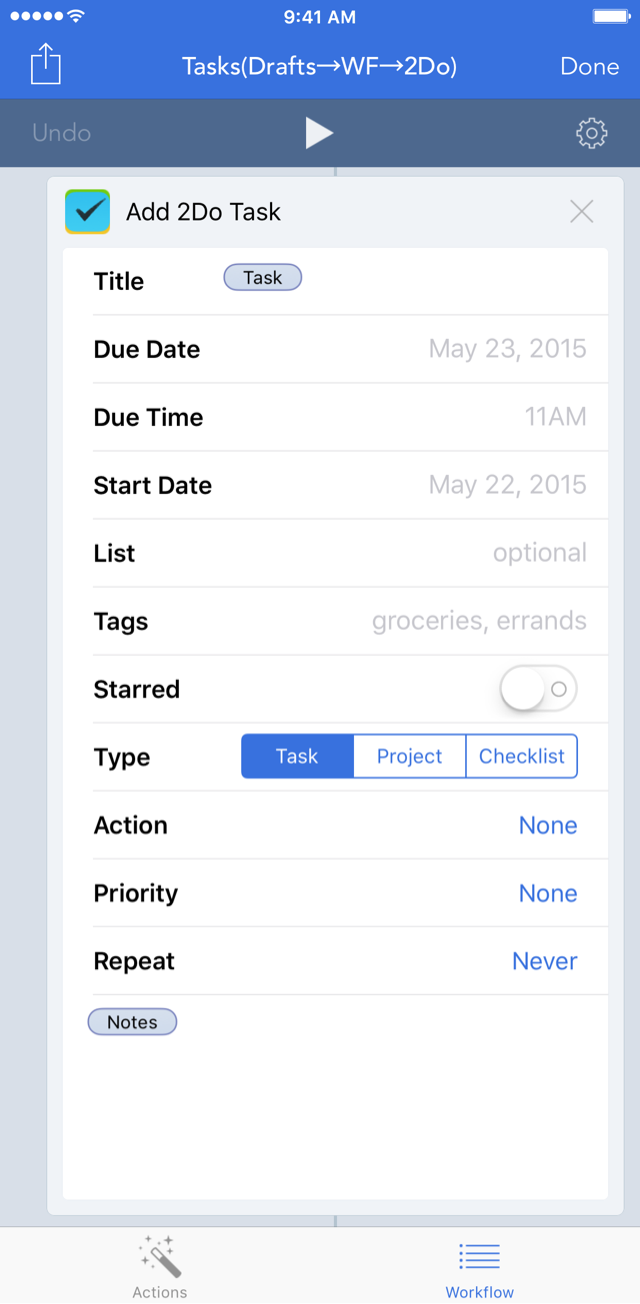 You can see the full workflow image here.
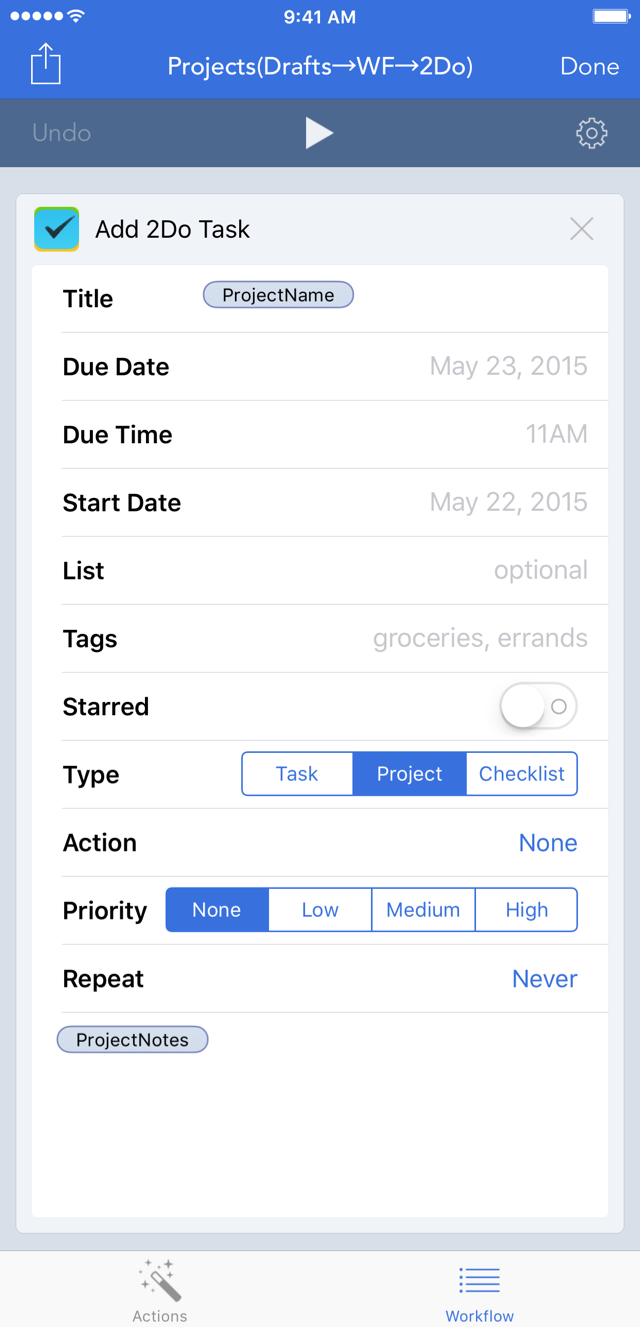 You can see the full workflow image here.