Seth Clifford posted a fantastic article titled “The Similarity of Differences” on his website the other day about how Apple and Google are approaching similar solutions to the complex problem of virtual assistants. He wrote:
It’s a very interesting and important time in personal technology. Data moves through our lives like air. We want to protect it (some of us, anyway), but we want the value that sharing it can provide us. We want the future we were promised in our childhoods, but the changes we find occurring around us can be discomforting. This kind of change is everywhere, and it continues to move like perpetual motion, unstoppable. It’s beautiful and frightening. But it is inevitable.
I couldn’t agree with him more. This change is coming whether we want it or not. Watching Star Trek: The Next Generation when I was a kid, I was fascinated with how the computer would pick up a command, even if Scotty’s accent was thick and it’s hard to understand.[^1] I wanted that in my life then, and it’s taken years to get there. And we’re really at the start of where this is headed.
Having alternative methods of approach is a good thing, and is the way humans (and groups of humans) approach problem solving: you may have a solution in mind, while others might approach the problem in a completely different manner. You may use an app like Drafts 4, while others use Workflow or Pythonista to get the same thing done, and vice versa. The specific difficulty with machine learning is that people are complex, and can have entirely different ways of thinking.
I’m not looking at who’s going to win or lose this perceived battle: I think there’s going to be multiple ways of solving multiple problems, and the users will just have to find what’s right for them, just like we do with iPhone vs Android. No matter what, with respect to these new devices and AI-like interfaces: it’s a great time to be alive.[^2]
Here’s a few things that are piquing my interests this week:
Associate
Associate is a new app from Squibner, makers of Blink. Like Blink, this is an app for individuals who use affiliate/associate links on their websites. But instead of using iTunes, Associate is an app for those that use the Amazon Affiliate Link Program.
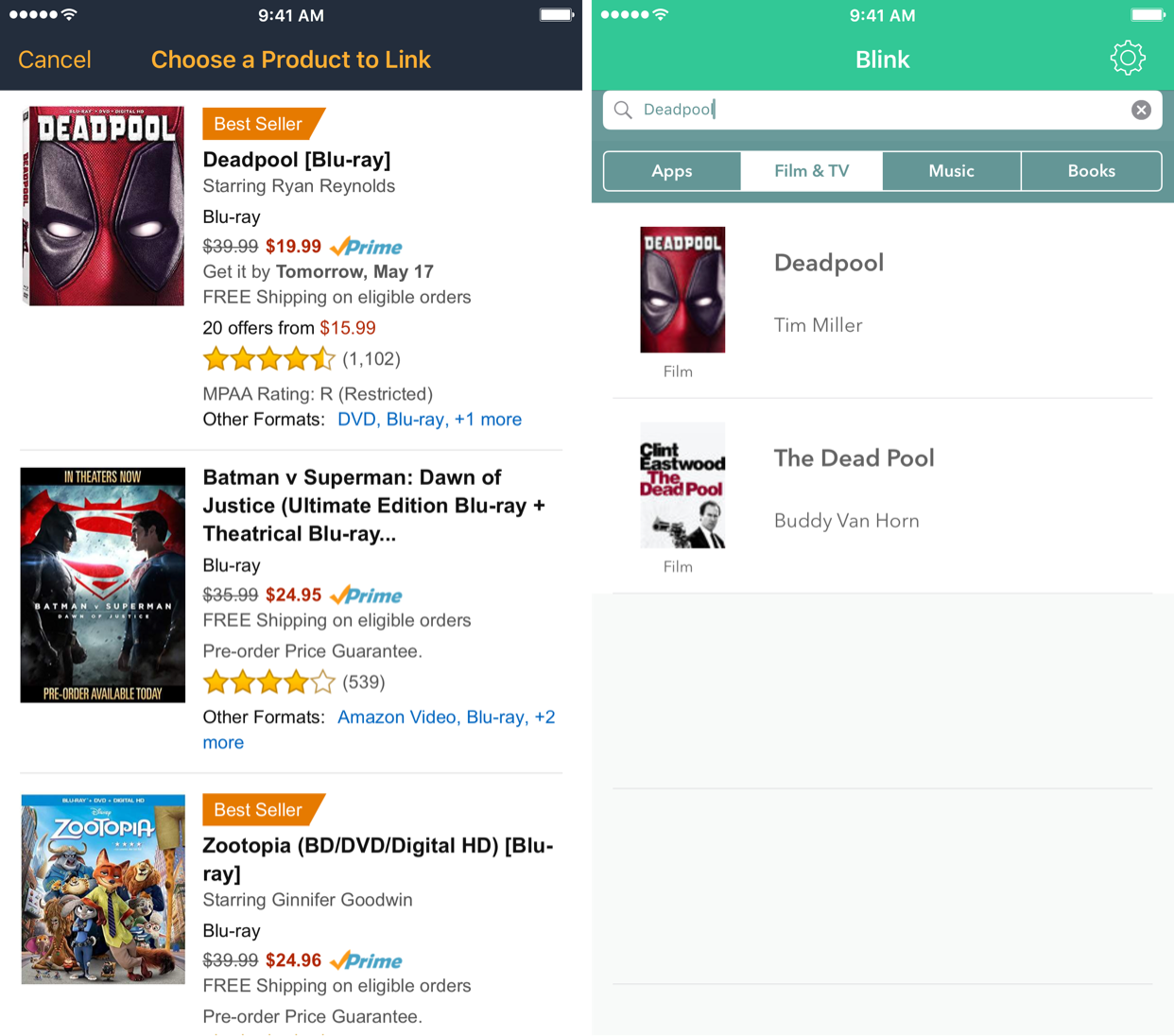
Associate vs Blink Search
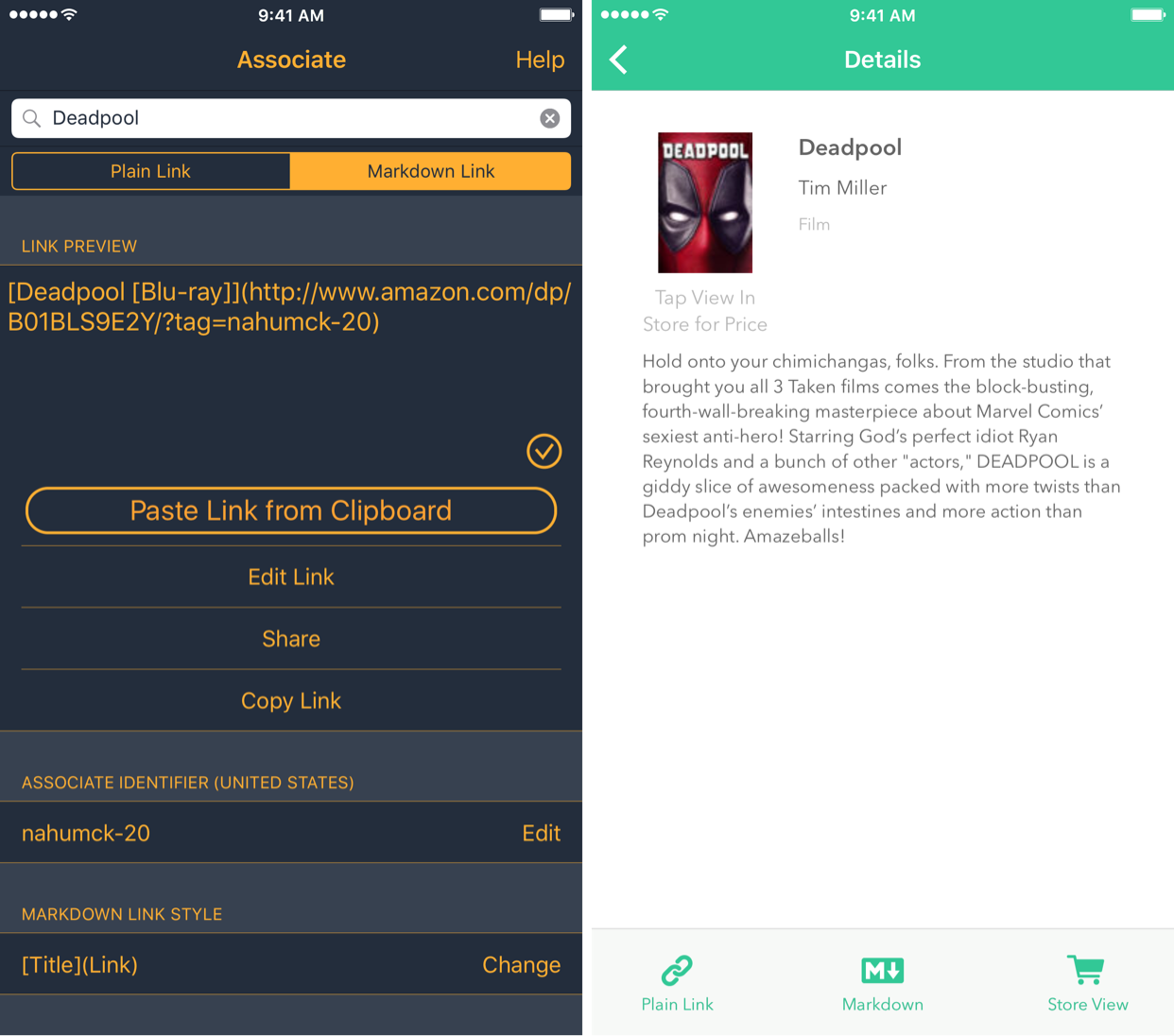
Much like it's iTunes counterpart, you simply search for an item within Amazon that you want to share, and you can generate and/or share the link right from the app. Associate doesn't have everything from Blink yet (like a URL scheme), but this is a solid 1.0 release.1 I would really love to see the same preview layout that Blink has for the detail view, so that I can visually see what I'm linking to; the current way makes it so that I can't tell by just the link. With time, there will be improvement, and I'm really looking forward to the updates in the future.
Associate vs Blink Detail
Associate and Blink are the best way to get your affiliate links, period. If you link to anything iTunes or Amazon, these will pay for themselves over time. I cannot recommend them highly enough.
Update: Associate by itself is $5, but for those that are new or already purchased Blink, there is a bundle deal that ends up making it $8, or $3 if you already own Blink. Both apps together for $8 is a no-brainer for those that use these affiliate programs.
Anker Ergonomic Mouse
I sit at a computer every day of the week, except for maybe the weekends. Using a mouse on a daily basis has some issues over time, and when I found myself in need of a mouse last week, I wanted to get something ergonomic to prevent any RSI from happening.
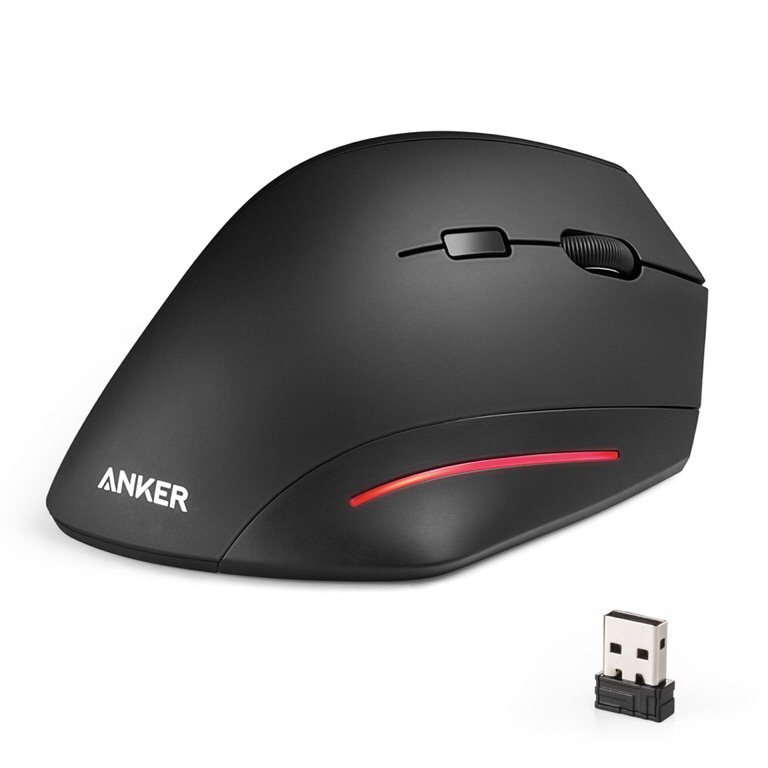
Anker Ergonomic Wireless 2.4GHz USB Mouse
After some searching on Amazon, I found the Anker Ergonomic USB Mouse. The mouse has a nice soft-touch feel, and is really comfortable in the hand. The "vertical" setup makes it so your forearm isn't turning, and keeps your arm & hand in line. It doesn't have as many buttons as some other mice out there, but with what I use it for at work, having the regular right/left buttons, a scroll wheel, and two side buttons for forward/back for navigation are perfect.
One setting in particular that I like is the sensitivity button that allows you to control the speed of the mouse movement on the fly. When I'm working in a CAD model, it's nice to slow down the movement when I need to zoom in on a feature.
It only took me about a day of use to get really comfortable with it. I've had zero issues with it, and I'm really happy to have found it.
Apple Leather Case
I've always used a case on my iPhone.2 I've tried some cheap TPU cases, some Speck cases, and even Lifeproof cases — but I've never really found them to be a good fit.
When I got my iPhone 6s Plus, I opted for a silicone case in charcoal gray. But with time, there were a lot of wear marks that made it visually unappealing. So I returned the case and got the Apple Leather Case instead (also available for the iPhone 6s).
The leather case is slippery at first, but now that it has had time to wear in, it's perfect for what I need. It is showing signs of wear, but unlike the silicone case, this case is looking better with age. The Genius at the Apple Store had a saddle brown one that looked awesome due to the wear marks he had. I'm starting to see similar results in mine, and I love it.
I've asked the developer, and the URL scheme will be coming in an update. ↩
Except when my last iPhone 5c case broke, and I ran that device naked until my upgrade. To date it is the best feeling phone in the hand ever. ↩
Journaling has been something that has been difficult for me to get into. I’m still not great at it. I often forget to do it, and then when I remember, it’s cumbersome to make it happen. I’ve never kept a physical journal for any length of time, mainly because I’m not sure what I’m supposed to journal.
There are a lot of apps out there for journaling, but I’ve only tried Day One and Momento. A lot of people love those apps, and they get the job done. But for me, they never really captured my interest to write, defeating the purpose of a journal.
I think that the problem with using these apps is that it’s yet another source of mental overhead for me. Sure, I could use Day One. It looks sharp, and satisfies the singular need. But that doesn’t feel good to me. I like rolling my own solution.[^1] I don’t have to figure out how to save things in a special way or how to back up to my own solution so that I don’t lose the data.
This friction, albeit not horrible, really didn’t sit well with me for whatever reason. If I’m going to do more journaling, I needed a better solution that works for me. I need to use something that allows me to write the way I like to write. I need something I can make my own. And it just so happens, I use it daily.
Setup
First, the solution has a few parts. You need Drafts, Workflow, and Dropbox for storage.[^2] There are multiple actions & keys that I use, along with an Action Set. You can find all of them below.
I understand that using two apps plus a storage service to replace one, single-focused app may seem like nonsense or something that is more clumsy. But I am constantly using all of the apps for this solution; they’re in most (if not all) of my daily workflows. Also, I trust Dropbox with my data, and I’ve never had a single problem with it; sync doesn’t break, there’s no down time, and everything is well integrated across iOS and most apps.[3] So in reality, I’d really be adding a fourth app in my life if I want to use a dedicated journaling solution. As of late, I’ve been pulling back on the apps that I rely on.
The beauty of this is that I don’t have to rely on another 3rd party sync service to keep my data. There have been too many times where an app or service changes their policy, changes their business model, or does something else that limits the way something works. I have yet to see Dropbox do something that I dislike. Drafts & Workflow are in active development. For the foreseeable future, I don’t have to worry about an integration going away.
This feels like a service that is my own, and I don’t have to fret about negative changes that break my habit. And should a new text editor get released or a current one go away, at least the pieces of the workflow stay there, even if it is not as well integrated as it is now. I can change, I can adapt, I can flow with whatever comes next.
Start Writing
Getting started is the hardest part. Using 2Do, I set up a reminder to help me remember to journal.[4] I set this for the morning based on the recommendation from my sage-like friend Seth, so that it was in my head first thing, and I would be cognizant of using it during the day. I open up Drafts, and add the time using a key in the extended row, and I’m ready to write.[5]
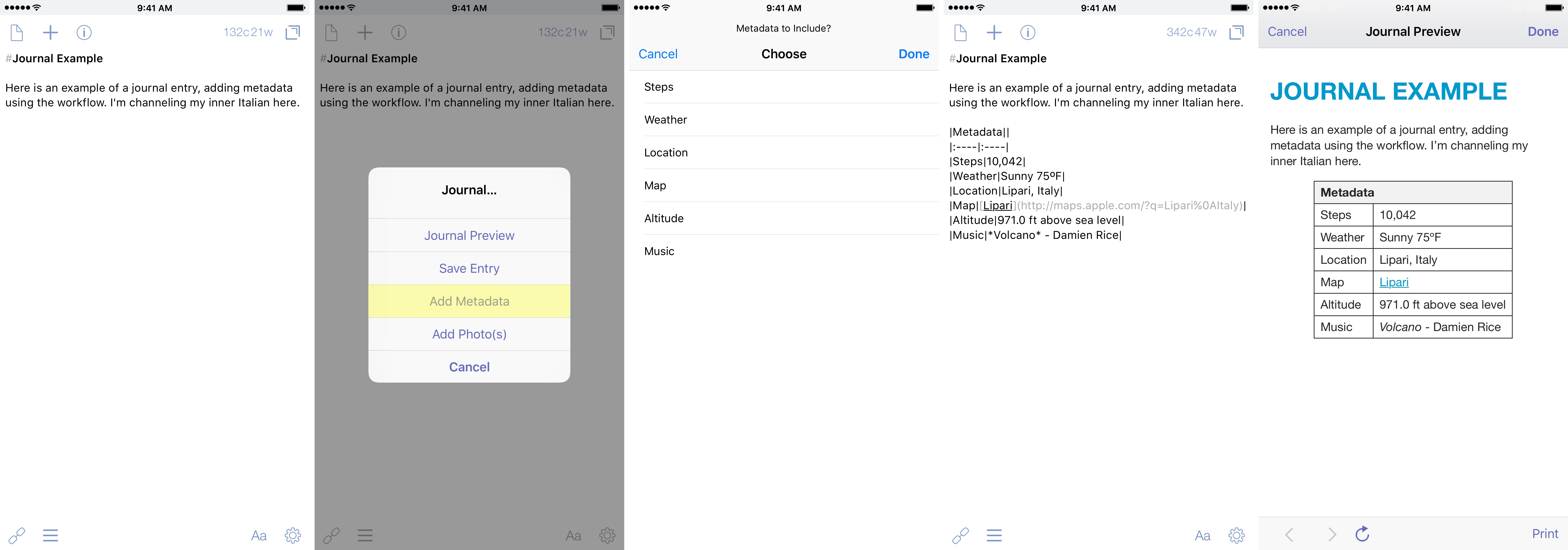
Add Metadata
One of the many things that is nice with journaling apps is the ability to add different metadata to each entry. If you keep things like a workout or sleep journal, this can be helpful in checking progress. Lately, I’ve been paying attention to my step count to see how well I sleep; so far, if I have a high step count, I have deeper sleep. Imagine that — if I move more, I sleep better.
Remembering a time, place, what the weather was like, what you were doing can all be key memory triggers that will help put you back in the moment when you reflect on it. So, how can I add this to my entry? Other apps have that integrated. Well, it took some time, and I had some help, but I finally made it work.
For me, I wanted to have the following:
Steps
Weather Conditions & Temperature
Location
Map
Altitude
Currently Playing Music
All of them are optional to include. Simply tap on the ones you want, and the workflow does the rest. Music, location, maps, and altitude are all able to be done within Workflow using your phone’s built-in GPS. Getting the step data uses either your iPhone, Apple Watch, or a Fitbit (more on that below). And weather required special integration, as you’ll find out.
Weather Conditions & Temperature
The one part of the workflow that I needed to get help on was the weather information. Thanks to the help of Workflow guru himself, Stephen Millard, I was pointed to a workflow that called the Forecast.io API. This method requires that you get an API Key, which you can get for free on the developer page of Forecast.io; your first 1,000 API calls per day are free, which would likely be impossible for you if this is for journaling. This is the same service that powers the great weather app Dark Sky.
This returns the data I need, and from there I take out the specific variables I want. This doesn’t require that I leave Workflow, making it seamless. There are multiple other variables that you can get information for if you look at the documentation, but I only included the current conditions and the temperature.
Steps
The step action is defaulted for iPhone. If you have an Apple Watch, select that by pressing on iPhone and switch it.[6]
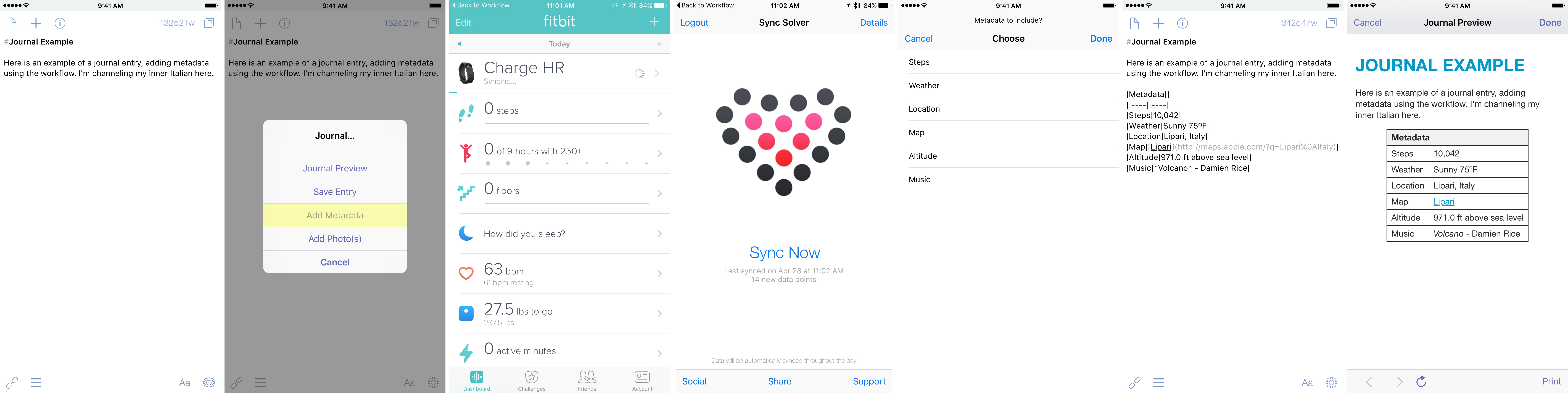
For Fitbit users: this isn’t as easy as if you have an Apple Watch. There are more steps involved, and you’ll need to buy Sync Solver to make the steps work. But it does work. Sync Solver is an app that syncs with the Fitbit Dashboard, then pulls that data into the health app. I don’t have a watch, but I made a different workflow that first pulls up the Fitbit app, then pulls up Sync Solver, then you can return to the app to finish the rest.[7] You may enable permissions for Workflow to open Fitbit and Sync Solver before working properly, so don’t be surprised if it doesn’t work the first time.
Add Photos
I’m sure you’re thinking “But wait — Drafts doesn’t support photos.” And you would be right. Sorta. While Drafts doesn’t support inline photos per se, it does support Markdown-formatted image links.
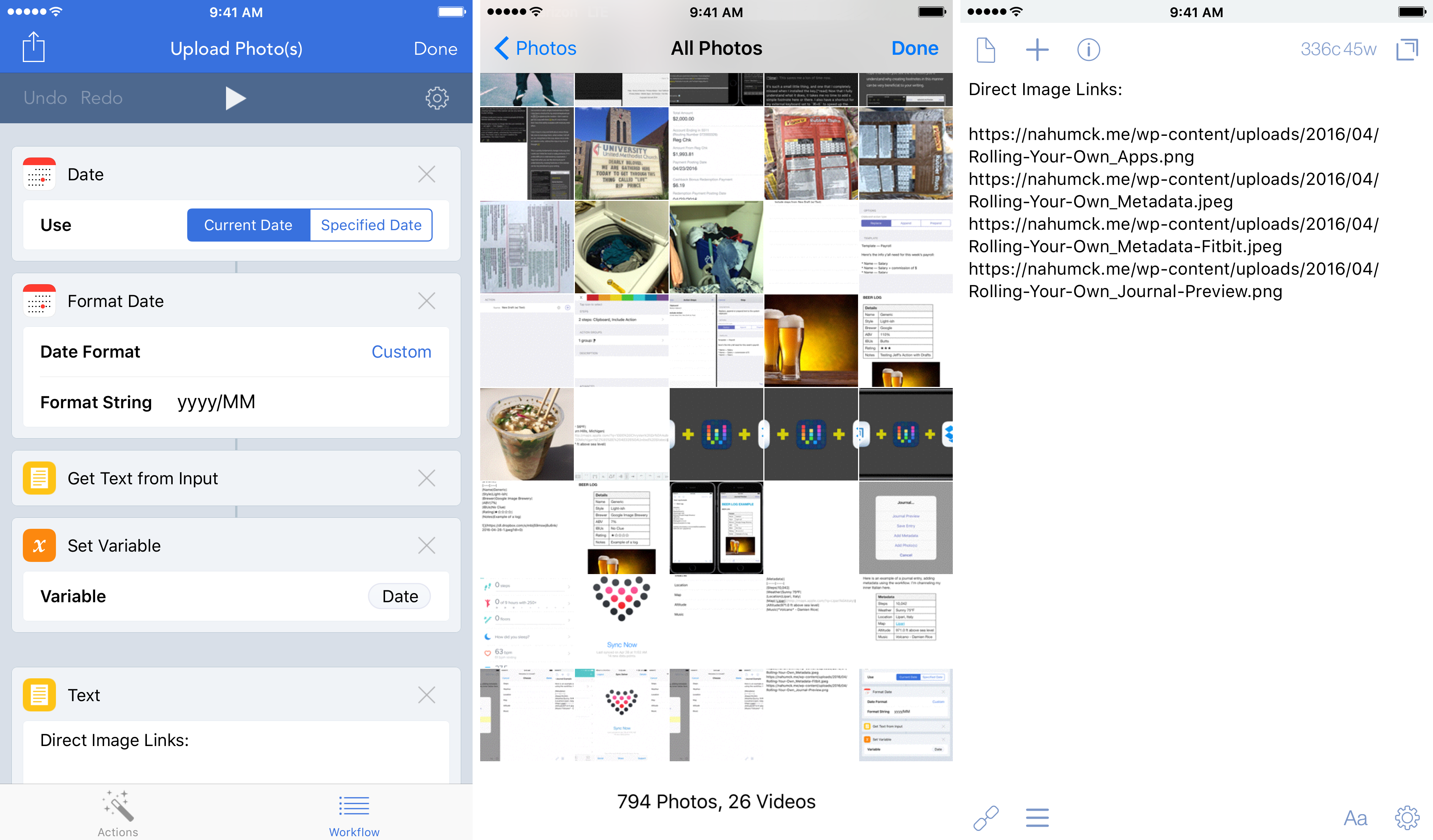
I was given a workflow that used Workflow.app to copy the Markdown link to a selected photo onto the clipboard. I took that, modified it, and came up with a workflow to select one or more photos right from Drafts, save the photos, and return all of the image links in a new draft. This is especially handy when you want to add all of the photos to a single entry at once. There have been a few times where I wanted to remember a meal, and I’ve attached several photos of the meal using this action.
Journal Preview
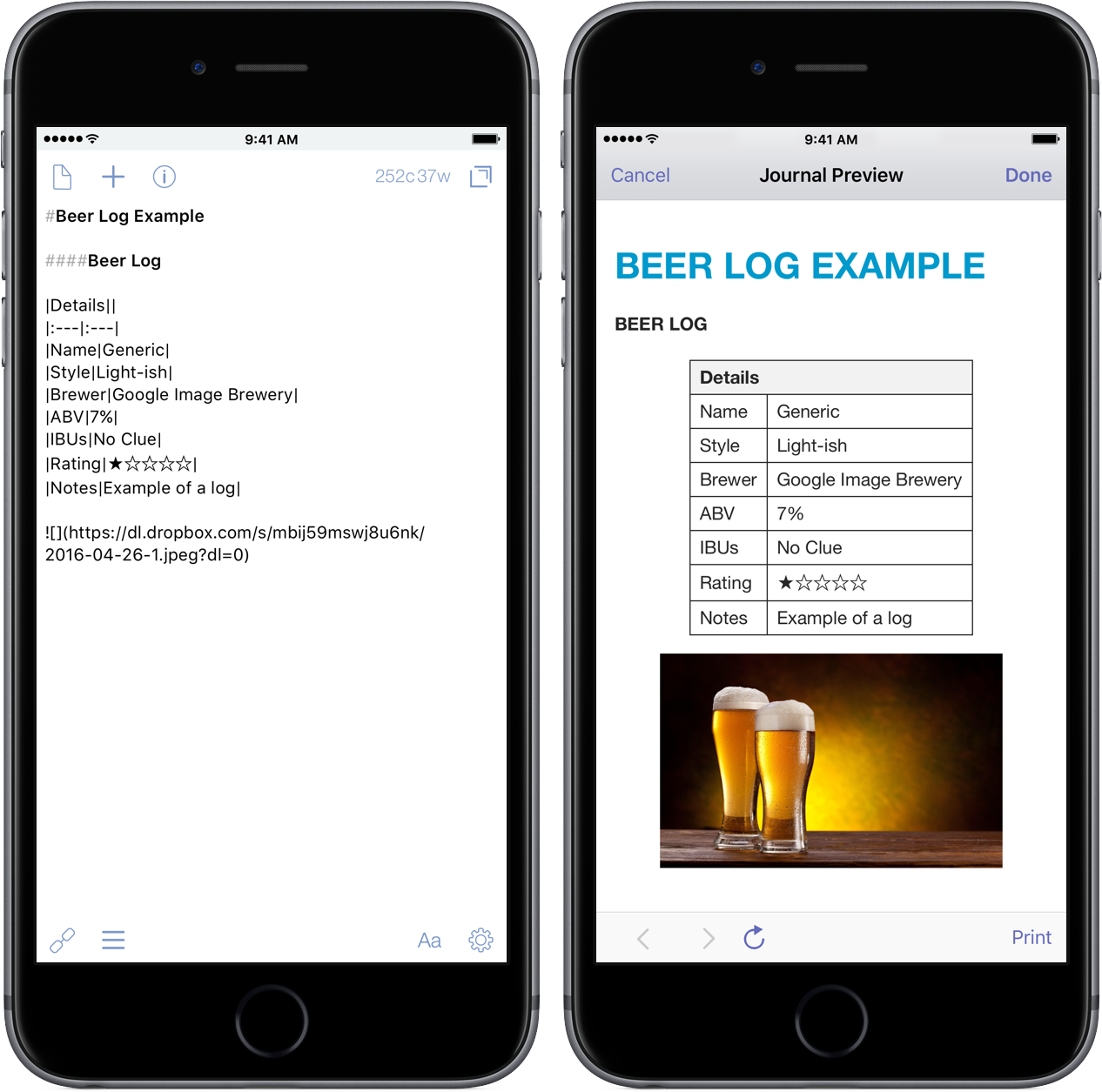
I wanted to be able to view the journal posts like you would in some of the other apps. I created a custom Drafts HTML preview for this so that I can make sure that my image is correct and that things are formatted the way I want them to be before I save off my entry.
Saving
This is a simple thing. I have a folder in Dropbox called “Journal”, and an action that saves the journal entry into that folder; it uses the current day’s date as the file name. Recently, I added a prompt step so that if I forget to save the journal entry, the prompt will appear (with the current date displayed), and I can change it to a different date if needed.
I only have one journal for now. But what if I want to make another? I could easily add another action to save it in a new location within Dropbox. I could also use the Journal folder and have sub-folders to have one for personal or work or coffee or beer. There’s no limit to how many you could set up.[8]
Reviewing
I don’t typically go back and pine through my journal, relishing in the past. But, should I ever need to do this, I have the option of viewing it in Dropbox or importing the file back into Drafts for view.
There are also a bunch of text editors that, when paired with Dropbox, will allow you to review them. Most of the editors like Editorial, 1Writer, and Byword will render them pretty nicely.[9]
Journaling
What should I write about? Who knows. But I can write about whatever I want. I suppose that’s the beauty of this. And with the mental overhead greatly reduced for me by rolling my own solution, I can just write what I want to write.
I’ve been writing a lot more. My journaling is becoming more regular, and I’m starting to understand what I should be doing with it. It’s a fantastic tool to help me get through life’s ups and downs, to mark occasions that are important in my family’s life, and helps me focus my thoughts.
What might start as a simple note could turn into a journal entry. What becomes a journal entry could turn into a blog post. The fantastic part here is that no matter what I’m writing, I’m starting in the same place every time. It’s the spot where I’m the most at home.
because I have issues and like making things difficult for myself until I figure it out and then try to forget how much trouble I went through. ↩
Full Box integration is currently not yet supported by Workflow. If/when that becomes available, it is likely that you can modify the actions & workflows here to use Box instead. ↩
A lot of Drafts users really want to have Dropbox integration. Maybe this will come in a future update. ↩
This is a huge step for me. I will easily forget this if I’m not reminded to do it. Use the todo / reminders app that you like most to accomplish this. ↩
There are several keys that can do time. Pick the format you’d like or make own to suit your needs. ↩
This may be defaulted to Watch automatically. I don’t have an Apple Watch myself, but I’ve been told that it might change upon installing the workflow. ↩
This makes me want to get a watch just to simplify this. ↩
I wanted to share with you a quick tip on footnotes. I love using them in my posts, mainly because it’s how I talk.[^1] I’ve implemented the use of Bigfoot.js footnotes in my site, and I’ve been happy about it ever since.
Recently, I asked about how I can renumber footnotes in my writing when I use Drafts as my text editor. I had been using a footnote key that Greg Pierce created. On the surface, it seemed to be a simple key: it inserted a numbered footnote, and would give me the next number if I inserted another. And then I would have to re-order my footnotes & numbers before posting. And for someone that uses a lot of footnotes,[^2] it’s a giant pain in the ass.
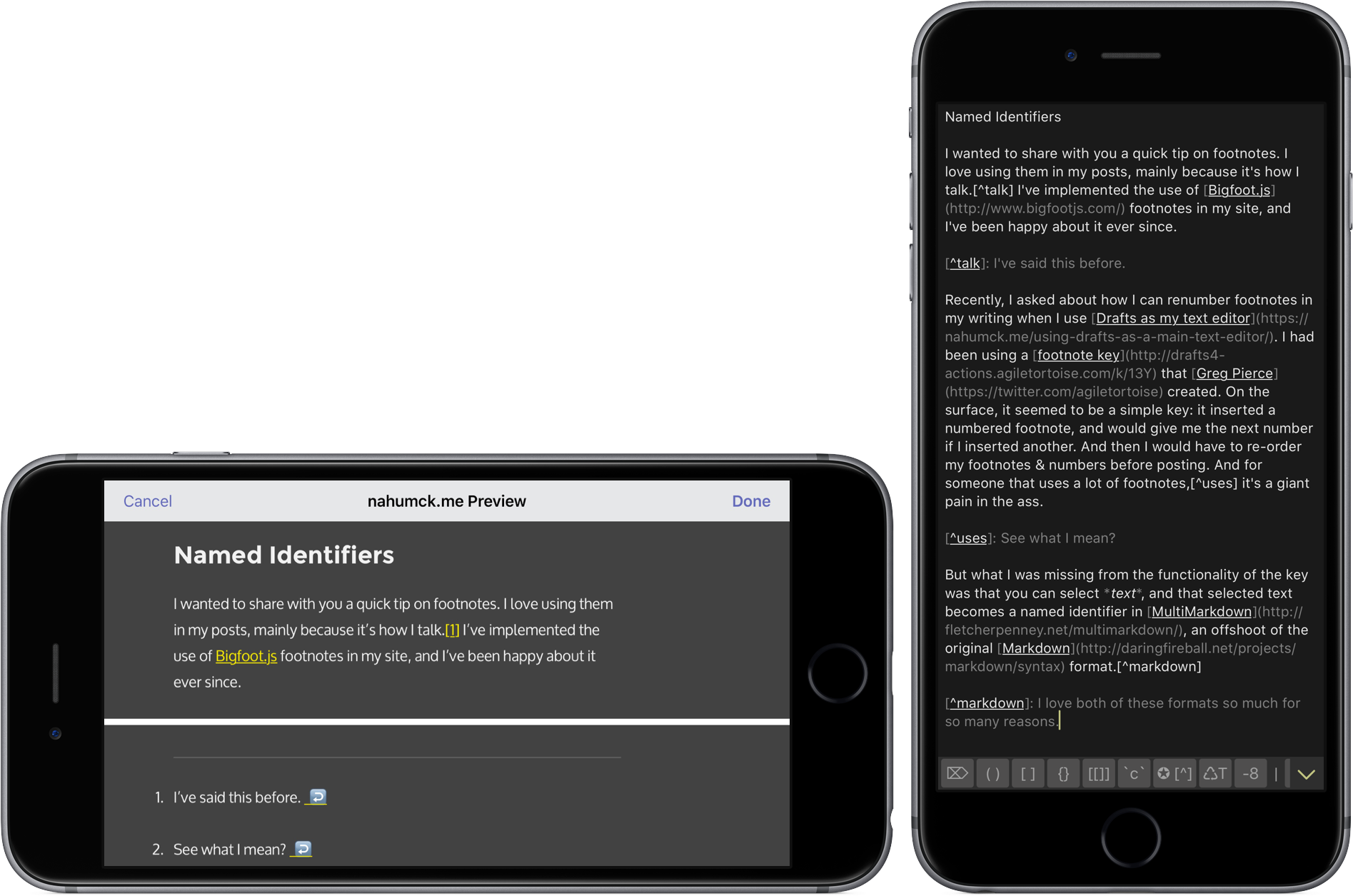
But what I was missing from the functionality of the key was that you can select text, and that selected text becomes a named identifier in MultiMarkdown, an offshoot of the original Markdown format.[3]
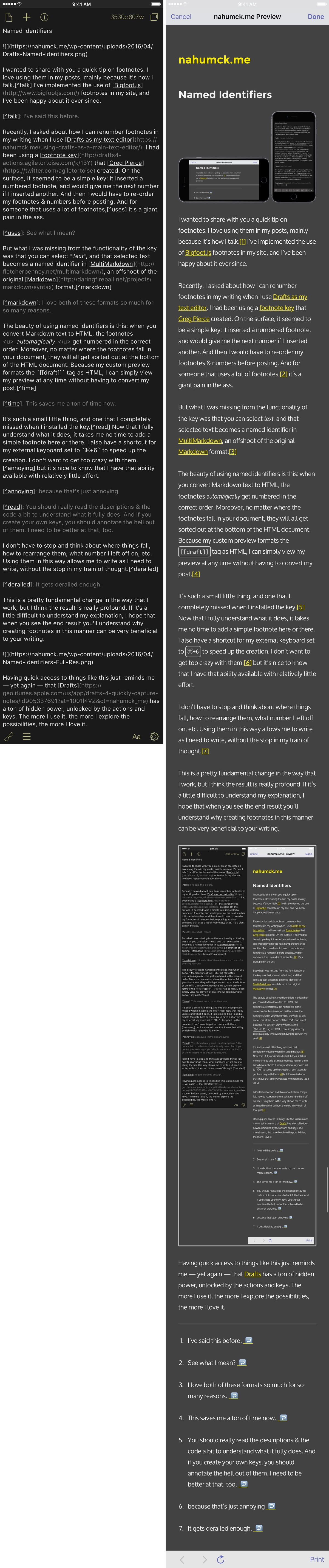
The beauty of using named identifiers is this: when you convert Markdown text to HTML, the footnotes automagically get numbered in the correct order. Moreover, no matter where the footnotes fall in your document, they will all get sorted out at the bottom of the HTML document. Because my custom preview formats the [[draft]] tag as HTML, I can simply view my preview at any time without having to convert my post.[4]
It’s such a small little thing, and one that I completely missed when I installed the key.[5] Now that I fully understand what it does, it takes me no time to add a simple footnote here or there. I also have a shortcut for my external keyboard set to ⌘+6 to speed up the creation. I don’t want to get too crazy with them,[6] but it’s nice to know that I have that ability available with relatively little effort.
I don’t have to stop and think about where things fall, how to rearrange them, what number I left off on, etc. Using them in this way allows me to write as I need to write, without the stop in my train of thought.[7]
This is a pretty fundamental change in the way that I work, but I think the result is really profound. If it’s a little difficult to understand my explanation, I hope that when you see the end result you’ll understand why creating footnotes in this manner can be very beneficial to your writing.
Having quick access to things like this just reminds me — yet again — that Drafts has a ton of hidden power, unlocked by the actions and keys. The more I use it, the more I explore the possibilities, the more I love it.
You should really read the descriptions & the code a bit to understand what it fully does. And if you create your own keys, you should annotate the hell out of them. I need to be better at that, too. ↩
This past weekend was a typical weekend by any measure. The weather was hovering around 70º as a high, with lows in the 40s. Barely a cloud in the sky. Just an absolutely perfect weekend. What a perfect time to get things done.
Friday evening, I opened up 2Do to look at what I needed to get done over the weekend. I checked some things off, I added new tasks. It was shaping up to be a normal weekend.
When Saturday morning hit, my youngest son, 3 1/2, got up when the sun, and he didn’t want to waste any time. We ate breakfast, I had my coffee, and we were ready for the day. My oldest son also got up and seemed surprisingly awake for a Saturday.[^1] And just as I was about to look at my phone and take a look again at the list, I noticed a few other things I wanted to do.
This is where I deviated from my normal routine. Instead of pulling out my phone, adding the items to the list, and then planning out my day based on a focused list, I just kept my phone in my pocket, got us ready, and we went outside.[^2]
I didn’t focus on my tasks; I just saw things and did them. I cleaned out the front flower bed, which had a ton of leaves in it left over from the fall. My oldest mowed the grass to pick up all the leaves, with the help of my youngest using his trusty bubble mower. We washed both of the cars, and the youngest got completely soaked. They boys played with each other. We were having fun.
We worked. We played. We enjoyed the present. I didn’t focus on getting things done. I spent a lot of time not Getting Things Done, but rather just did things as I wanted to do them. I didn’t need my task list at that moment to help me. And where I’m sure I could have done a lot with my time had I followed the list, not following it was freeing and empowering.
I can often struggle with putting everything into my task manager, losing sight of just doing something and moving forward. Other times, I’m diligent and can manage tasks like it’s nobody’s business. I enjoy playing with task management systems in general[3], but I forget too often to just let go and be present in the moment, and do whatever comes naturally.
Using something to help you constantly can end up being a detriment; you can lose sight of the task(s) at hand, focusing on the creation of work and not the completion of it. Using your system consistently can yield great results and increase your productivity, but it’s good to take a break once and a while to find fulfillment in other ways.
Did I screw up my Sunday because it was filled with all of the things I had put off the day before causing a lot of stress and frustration? Yup. Did I use my weekend to its fullest productive potential? Hell no. But did I ever have fun and feel accomplished with my kids. I wouldn’t trade that for anything.
Teenagers can sleep for seemingly forever if they want to ↩
Outside is that scary place where the big ball of fire in the sky lurks to kill us all… ↩