As of late, I’ve been feeling overwhelmed with work, house, and home life; and this feeling has a negative impact to my productivity.[^1] But, has it really? I feel like I’m not getting things done, but what’s the reality?
The reality is that I am not Getting Things Done, but what I’m doing is getting things accomplished. I might not always track what I am doing, but I’m getting a lot done. Work has been extremely busy as of late, and my day is often filled with fire-drill tasks that I barely have time to even write down.[^2]
Those that know me know how much I love being productive, all my workflow tips, and how I love my task management system of choice. But I’d be remiss if I didn’t tell you that at times, it seems like more work for me to track everything and that often has more negative effects on me than it should. My task management system falls apart because I’m not stopping to enter things with start times, due dates, tags, etc. While it’s nice to have a lot of that information, sometimes I just simply need to have a task that says:
Task - Due Today
I don’t have to know where it fits or when it’s due: I need to get it done.
Whilst focusing on productivity is a very positive and beneficial thing, over-planning, over-thinking and over-complicating your productivity can be just as detrimental. If it comes down to making a list and checking off the boxes or paying attention to my sons, the choice should be very clear in the latter. But I have, for far too long, made different choices which I’m not proud of.
As an example — do I really need to track the meals I make in a task management app? Typically on Sunday, I made 2 dinners at the same time for the week. This little productivity hack will save me hours later. I don’t enter this in 2Do, but rather I just get it done. It’s part of the habit I’ve set for myself, all without entering it anywhere.
One use of the Inbox feature of 2Do (or even OmniFocus) that I’ve had is for my immediate tasks. It works well, because the Inbox is where everything goes when I’m moving tasks around in iOS. Whether I’m sending an email to 2Do via Airmail or using Drafts (with Workflow integrations) or just using the 3D Touch gesture on the icon, it all goes to the same place. I can capture things fairly quickly.
But lately, I’ve been putting simple weekend lists in Drafts because it’s easier for me;[3] it also helps keep the clutter down in my task manager. A lot of people use the taskpaper format and find it very useful. I’ve been making checklists in Drafts using a key that can both create a check box and complete it. It’s been very handy for packing lists, small grocery lists, or weekend lists. This has been working very well for me while I’ve been feeling overwhelmed, and it’s helped me to get back on track in a lot of ways.
I think where the mental anguish first starts for me is that I don’t often see the accomplishments I make because I’m not tracking them. I don’t make lists of the things that I’ve already done, only to go back and check them off right away. But not having the feeling or visualization of accomplishment makes me feel bad for not doing “enough”. And if I’m not doing enough, I get the overwhelming feeling that I’ve missed something, and I often put aside other things that are more important just to feel like I’m doing something. I start to feel awful about myself, and that’s not healthy.
So here’s what I really need to do: step back, relax, and realize all that I’ve accomplished. I may not be able to pull up my phone and look at what I’ve done, but I should be able to look around me and see all that I’ve accomplished. I don’t need to feel bad about any of it. At the end of the day, the worst critic I have of my system is me.
Thankfully, a recent vacation and Twitter hiatus have fixed some of that for me. ↩
For some of it, I’ve resorted to sticky notes or small pads of scrap paper to jot things down on. And yes, I know I could get Field Notes and a nice pen for that. Back off, hipsters. ↩
Here's a couple of things that are piquing my interests this week:
Pixelmator for iOS
Pixelmator is a powerful image editor on iOS and Mac. I can’t remember when I picked up, but for a while I did not use it. It wasn’t until earlier this year when Gabe Weatherhead of Macdrifter had a fantastic use for it: annotating screenshots.
This opened my eyes to the app in a new way, and I’ve been using it ever since. Recently, there have been a few thing things that have bugged me when it comes to using my iPhone as my computer, and rather than bugging the developers incessantly for a change, I used Pixelmator to create mockups of how I want things to look and shared them.[^1]
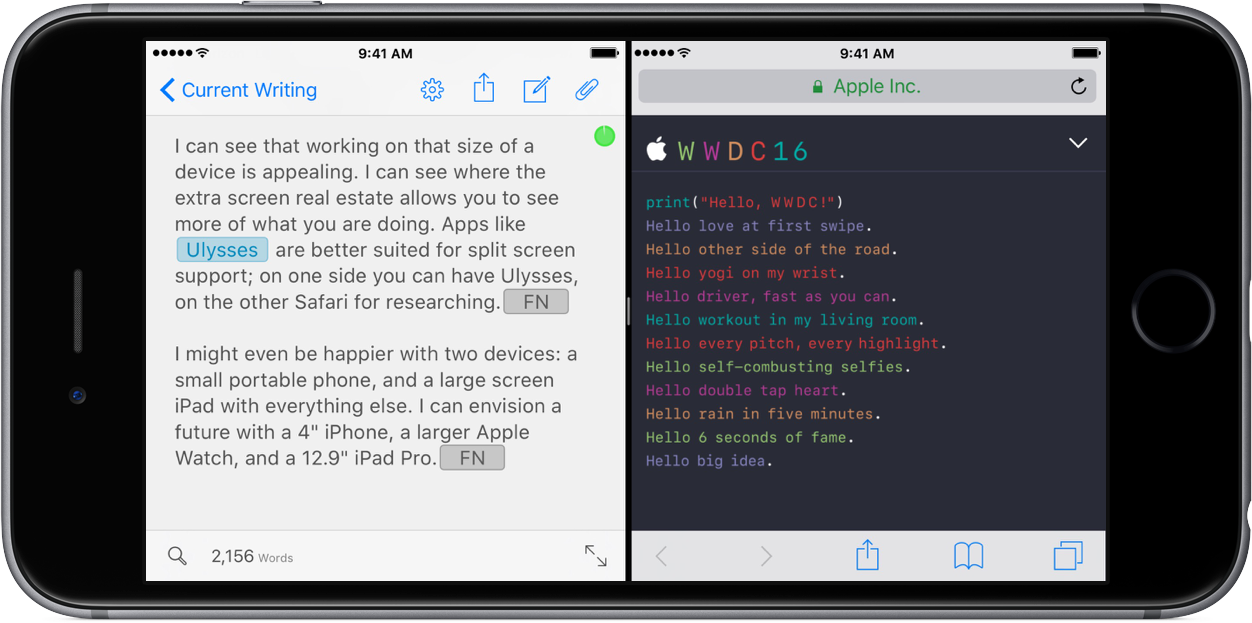
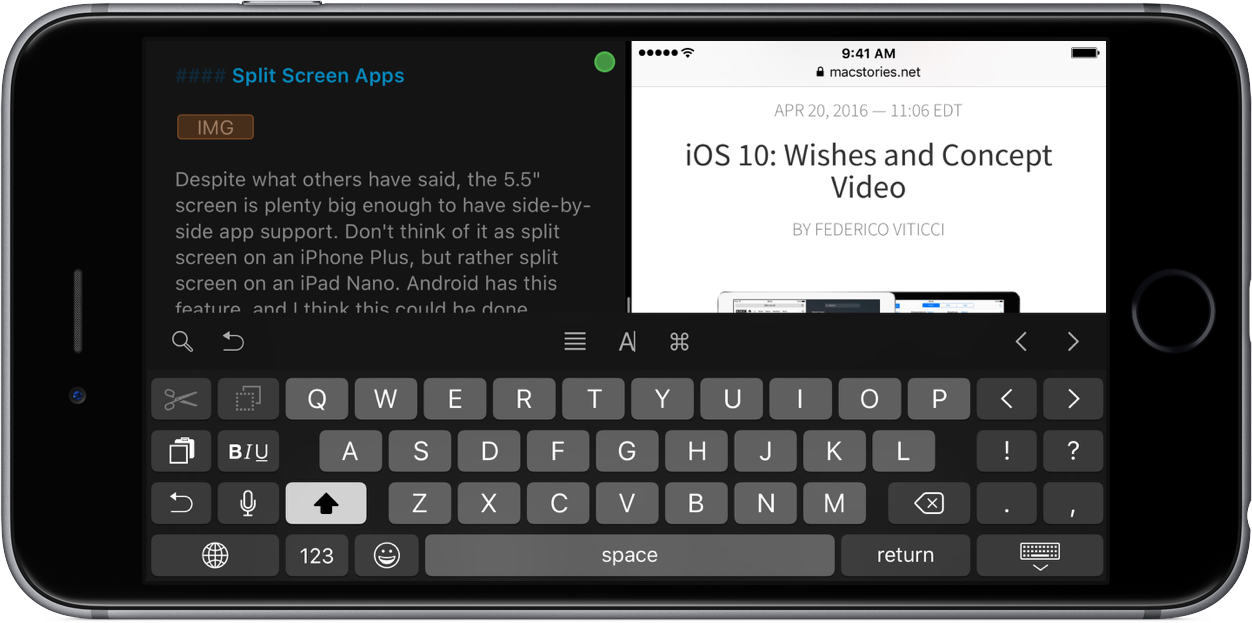
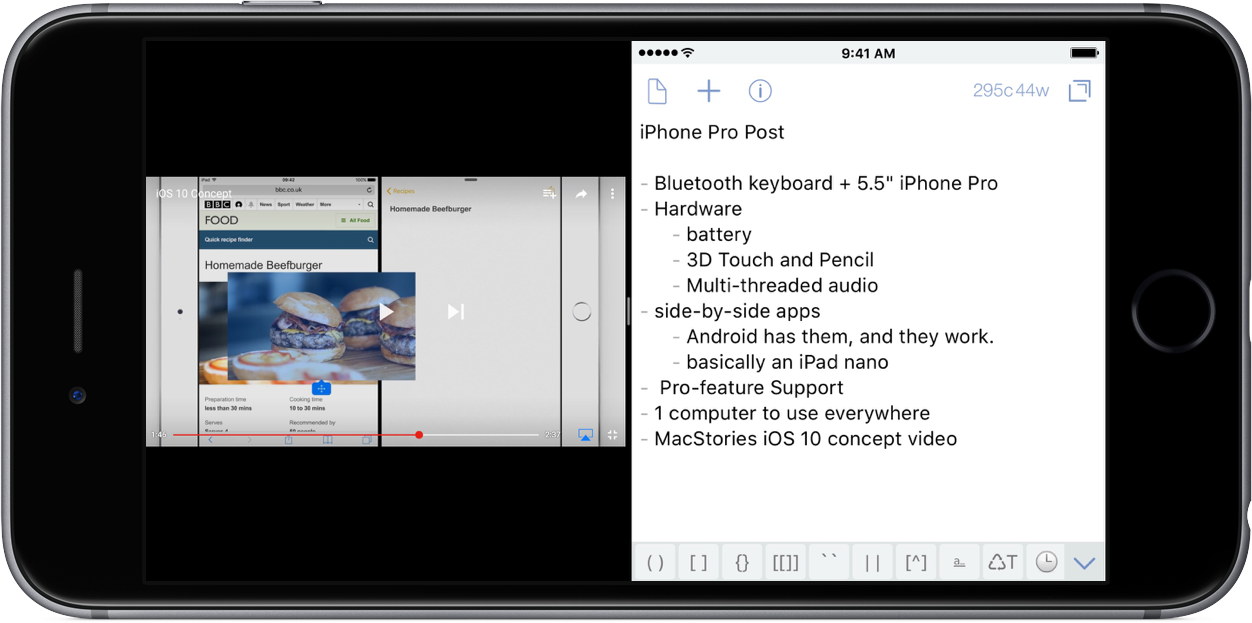
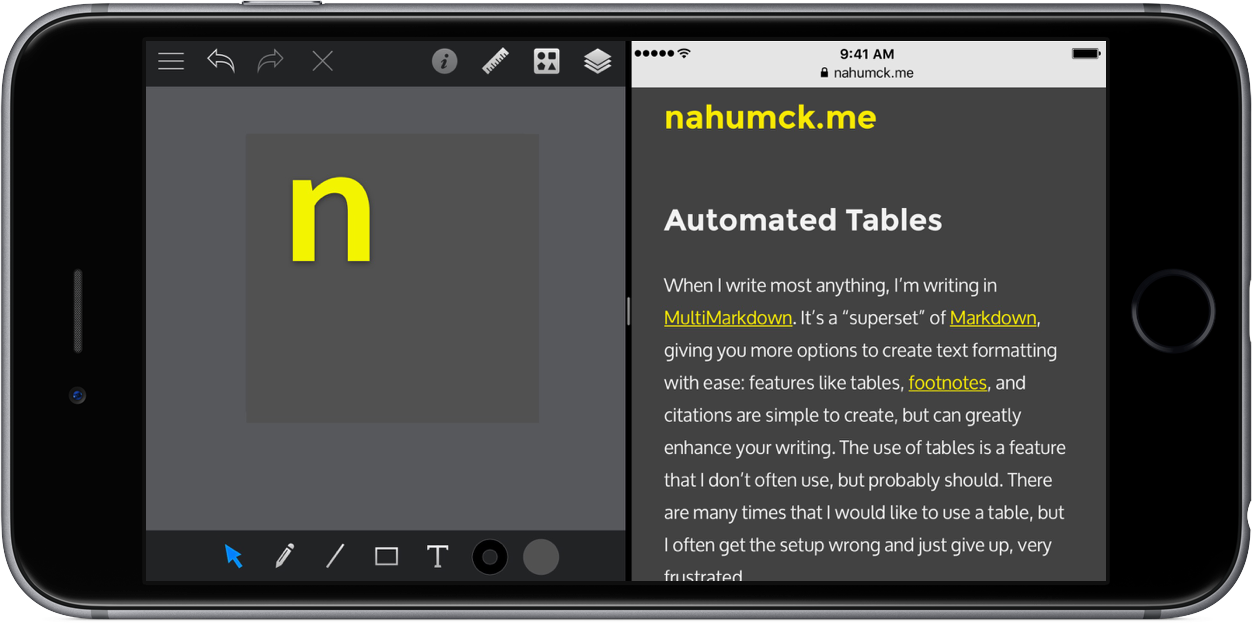
Each one of the mockups is about 5–10 separate screenshots. I’m able to splice them together, create different elements, and size things the way I think they should be. I was able to show how split screen apps might work on the 5.5" iPhone with ease.
There are a few key things about the app that I really like over many of the other editors I’ve tried. First is the cropping tool. This is far superior to the native iOS editing tools, and seems to handle small images well; this has been helpful for changing some text or an icon in some of the mockups.
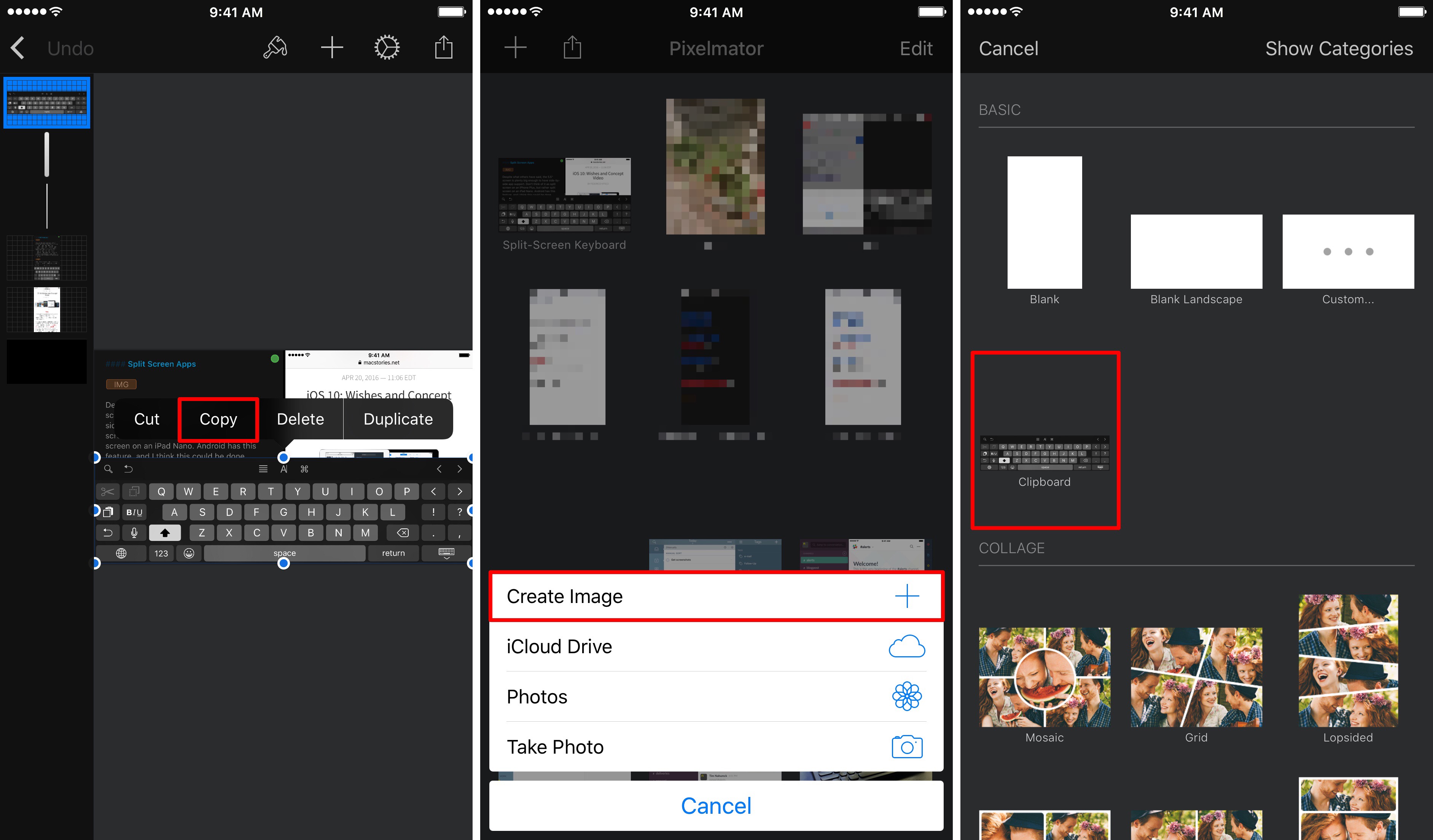
The second function, and my personal favorite, is the option for copy/paste. If you want to modify something with your current image, you simply tap the share button in the upper right of the screen and select “copy image”. Then, navigate out to your images, and press the “ ” icon; select create image, and there will be an option to use the clipboard.
This has been immensely handy when creating the mock-ups. I can simply copy the image that I’m currently working on, paste it as a picture, and modify it in a manner in which I need. I can even use Longscreen to take the mockup screenshot and put it on an iPhone.
Pixelmator has been moved from my second-screen photo folder and moved to my homescreen; it has been the main image editor that I use for a while now. You can find Pixelmator for iOS on the App Store as a universal app for $5 — I highly recommend that you do.
Slack
I haven’t really been using Slack for very long. I’ve joined a few groups, and even created my own personal Slack. And like many other things, I’m a little late to this party.
First off, I love some of the circles I’ve gotten into and use with Slack. Over the past couple of years, I’ve really made some amazing friends that I wished I lived closer to.[^2] We often use links in those chats which generate the rich previews we like to see, with Apple now incorporating into iOS 10; the reactions and custom emoji I have been wonderful when responding, allowing us to convey feelings or intents more than just words. Customizing Slackbot with witty responses to key phrases has made the chats more fun. It’s been one of my favorite messaging clients that I’ve ever used, but it’s capable of so much more.
Last year, I read about using Slack as a personal information center to aggregate information into one focused place. And at the time, I didn’t get it. But now that I have been using it more and diving in to all that it can do, I’m finding all the little uses I didn’t even know I wanted.
I’ve been using it for several different things, either as integrations or through IFTTT:
With all the integrations possible, it’s really something that you can make your own, and personalize things just right. I’m open to more suggestions about ways to use it, which you can feel free to tell me about.
It will be interesting to see how much Slack progresses going forward.[4] It’s amazing that one app, along with some key integrations, can replace several other apps. I think Slack is a fantastic solution to a lot of things, and I feel like I’m just getting started with it.
No, this isn’t a new fork of Markdown. This is just a better way of doing things.
Jeff Mueller recently came up with a clever way to use Workflow to help pull in links after writing a post in Drafts. It’s seriously a fantastic idea that I wish I had thought of before.
After he sent it to me to check out, I thought of another use of Markdown links that I use: Blink affiliate links. After some quick changes to Jeff’s original workflow, I came up with a new one that allows you to select where the link is coming from: you can choose Search, Blink, or manual entry of the URL (note that this requires Workflow 1.5.1 to work).[^1]
This is extremely helpful for writing. As Jeff said:
“I love these workflows because they let me focus on writing. The research can come later.”
And he’s 100% right. Little hooks like this allow me to focus on writing, rather than doing all of the little things. It’s the reason why Drafts is my main text editor, and I keep finding more and more reasons to keep using it.
I am hopeful that the same functionality will come with a future update of Associate and that Workflow will implement this quickly so I can incorporate Amazon links too. ↩
With the two major events coming up, WWDC and the inevitable September event for the next iPhone(s), there are a lot of articles about the future of different devices, changes in the software coming with iOS 10, and how you can do real work on them.
This got me thinking about my own setup, and the things that I’d like for the future. My current setup is extremely simple, and some might even find it downright crazy. But it’s the best setup for a computer that I’ve ever used.
My Setup
My setup consists of two things, and these two things only:
That’s it. I don’t use the MacBook Air that we own. I don’t use a PC except for work. I don’t use the iPad Mini we have either. This is my only device, and I’ve accomplished quite a bit with it.
Before you toss this idea aside, realize what I’ve done on my computer phone:
Started my website, including the domain names and hosting
Made two different themes for my site, while learning to code in HTML
Read more books in the past year than the prior three years
Connected with friends and made some fantastic new friends
And I could list a ton of other things. All of this is made possible by the portability of the device and apps I’ve chosen to use, and I can’t imagine working any other way. Apps like Workflow and Drafts have become so powerful that it’s easier for me to do my work on my phone, rather than a PC. And because the Mac feels like a better version of the PC, it is off-putting for me to use.
iPads Pro
I know what you’re probably thinking: just get an iPad Pro with a Smart Keyboard.
There are two iPads with the Pro moniker available, which essentially are just two different screen sizes; I think I would get the 12.9" screen size if I had to choose, as that felt the most comfortable when I was recently in the Apple Store. At this point, it is essentially a portable laptop, and can do many of the functions thrown at it. It even has an advantage if you get the LTE version, because you can connect anywhere you get service and don’t have to worry about finding a place with wifi.
I can see that working on that size of a device is appealing. I can see where the extra screen real estate allows you to see more of what you are doing. Apps like Ulysses are better suited for split screen support; on one side you can have Ulysses, on the other Safari for researching.[^2]
I might even be happier with two devices: a small portable phone, and a large screen iPad with everything else. I can envision a future with a 4“ iPhone, a larger Apple Watch, and a 12.9” iPad Pro.[3]
This really has me thinking of what I want versus what I need for the future of my devices. Sure, having multiple devices is great; but I think that for me the only benefit would be the larger screen size, and it is really hard for me to justify spending that much money when it’s not needed.
iPhone Pro
What I really want to see from Apple is an “iPhone Pro”. No more numbers. This would help differentiate the product line, and simplify the name. It is done today with the Mac line, and I see no reason to make the iPhone any different, other than people’s own vanity about owning the latest-and-greatest device as a status symbol.
This needs to be a powerful device and be given some of the Pro-level features given to the iPads of the same designation. Essentially, I want this to be an iPad Pro nano.
The new hardware, together with software features from iOS 10 — and even some available from iOS 9 on iPads today — would give me the Pro-level features in an always-with-me device.
Hardware
The iPhone Pro should get the same processor given to the iPads, but certainly would be a clocked-down version. It doesn’t need to be as quite powerful because of the screen real estate being much smaller; but what this would do is give the iPhone Pro the proper processing power to push auxiliary things, like a USB microphone for podcasting when multi-threaded audio is inevitably introduced. How great would it be to hear an episode of Canvas that was fully recorded through an iPhone?
Another thing I would like to see is a thicker phone: not by much, but enough to put a larger battery inside. It could even get thicker by the camera bump to make it a flush back again. I’m a pro user, and I do a lot with my device. On the days where I do a lot of writing, I usually have to charge my 6s Plus because of the Bluetooth keyboard usage. More battery can only help me, and I’m positive I would get used to the weight. I came to the Plus-sized phone from a 5c, and it was comfortable in about a day.
Many iPhone SE users say that they don’t miss 3D Touch, but I use it daily: I use it to launch apps, preview links, and I use the 3D Touch trackpad gestures for navigating around anything with a text field. It has become second nature to me, and now the it’s muscle memory, I don’t want to see that go away.
These are relatively small improvements to make, but making them would yield a better class device, and enable the software improvements that would make this Pro phone great.
Software - iOS 10
I can confidently say that I want everything that was in the MacStories iOS 10 Wishes post. And I want to have all of the iPad features come to the iPhone Pro. If you haven’t seen the video from that post, here it is:
One of the biggest overall sweeping software changes I would like to see is landscape layout for all apps. There are many apps that support this, but not yet all; Music.app would greatly benefit on iOS from a landscape option. Another of my favorite apps, Slack, does not yet support landscape mode on the iPhone: having to constantly rotate the device when the technical support (via auto layout) is available is maddening.
Split Screen Apps
Despite what others have said, the 5.5" screen is plenty big enough to have side-by-side app support. Don’t think of it as split screen on an iPhone Plus, but rather split screen on an iPad Nano. Android has this feature, and I think this could be done eloquently. I do understand that a small screen would not be ideal when using the software keyboard in split screen, but using an external keyboard allows the full screen to be utilized.
There are so many times that I want to have two things side-by-side just to review them. If I’m reading a book, which I do almost exclusively on my iPhone, if I ever want to take notes on a book, I have to either use the 3D Touch gesture to switch apps, or double press the home button to go back. With the drag-n-drop copy/paste concept shown in the MacStories concept, this would be an awesome productivity addition.
This would be even better than picture-in-picture, where I think the 5.5" screen is too small. I know that YouTube has their own way of doing it in portrait mode on iOS, but to really see a video, I believe it would be better in split screen mode.
Improved Bluetooth Keyboard Support
I would really love to see the iPhone Pro get the same support for Bluetooth keyboards as the entire iPad line. Currently, I can’t hold down the ⌘ key and get a menu of available keyboard shortcuts. An iPhone Pro would need to be a first-class citizen from a software perspective. Apps like Drafts get this right for the iPhone, but I want to see it happen across Apple’s own apps and be made available to all apps where it makes sense.
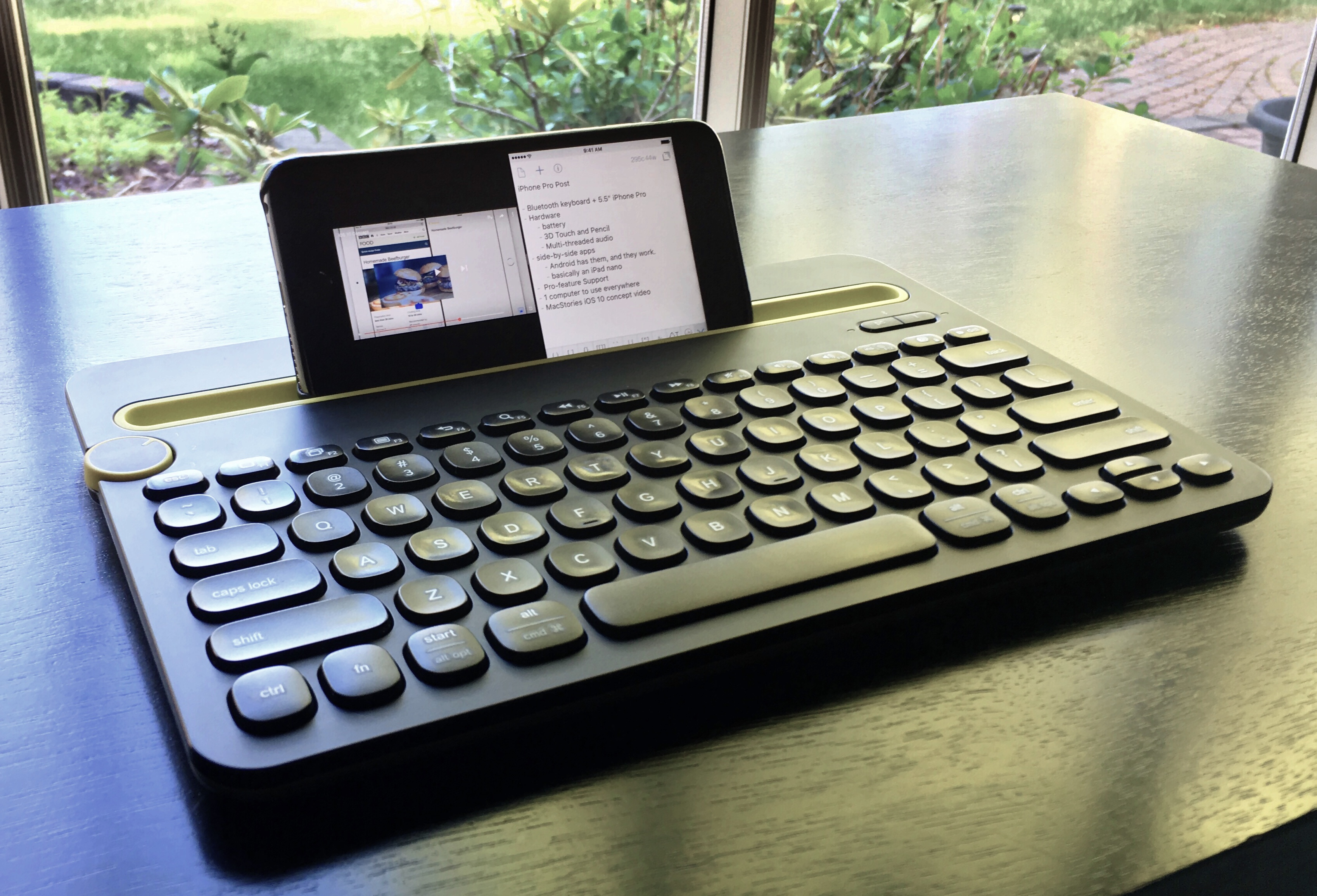
Having the Bluetooth keyboard is great. I don’t always need to use it when I’m out and an idea quickly hits me. But when I want to get serious about my writing, I can use it with my phone and just start typing. It effectively makes this device a small iPad.
Apple Pencil Support
Apple Pencil Support. I’m not sure how much I would use this, but I think this would be a welcome addition to a lot of people. I can think of document signing, quick sketches in an app like Paper by FiftyThree, image editing in Pixelmator, or even adult coloring apps like Pigment all while on the go. I can even envision a line of iPhone Pro cases that would fit an Apple Pencil in them for easy carrying.[4]
Ok, after writing all of the possibilities of what Apple Pencil support could bring, I want it now…
iPhone Only
Am I crazy to want this? Probably. But I run my site with it. I can take it anywhere. I can type a lot with the keyboard, but I can also just use voice dictation, the software keyboard, or even something like Gboard. Am I limiting my multitasking ability due to a smaller screen than an iPad? Yes, but in my experience, it hasn’t been an issue. Does it look dumb? Yes. I’ve used my current setup at work, and had more than a few strange looks sent my way. But I’ve also shown people what is possible today, and they are amazed.
So why run iPhone only? Well, frankly, I’ve been doing just that for well over a year; I’ve increased my productivity by simply adding the external keyboard. The only time I touch a computer is when my cousin drops a new mix that isn’t available on Apple Music or Spotify, or if my wife has a problem that she’s encountered and can’t fix. But those instances are far and few between.[5]
Additionally, my wife and I have made a conscious decision to be better about how/when we spend our money over the past few years. We have often put off purchases to make sure our future is ok. We’ve had surprises in the past, and they have caused strain that we as a family don’t want to have to worry about again.
Being conscious of these things means not getting shiny new toys every year or every few years. But with the advent of the iPhone Upgrade Program, this means I can get the latest-and-greatest iPhone every year if I choose. Being iPhone-only I’m only locked in to one device, not trying to manage two, and save myself hundreds or thousands of dollars in the process.
I’m a mechanical engineer in my day job, and I don’t run a business as part of my writing, so I can’t count a second device as a business expense and use it as a tax write-off. I don’t get to have some of the benefits that other writers do when it comes to multiple devices. There are limits, and I have to be an adult and live within them.
And here’s the other part of it: I get as much or more done all on my phone than most people do on multiple devices.[6] It still surprises me the things I am capable of doing - I can and do get real work done on my iPhone. It is my only personal computer, ultra-portable, and incredibly powerful.
To date, the iPhone 6s Plus has been the best computer I’ve ever owned. It travels with me everywhere and allows me to be incredibly productive with everything in my life. Enhancing that experience, adding improvements to the usability of the software, and adding some Pro-level features would make the best computer even better.
When it comes to cameras, they say that the best one is the one you have with you; I think that the same can be said of my computer.
_
This post was 100% made on iPhone using the following apps:
Not an exaggeration. Ulysses is an incredible app. It took time to format it to Markdown XL. The ePub creation took seconds. ↩
I would love to see the team at Ulysses add a Safari View Controller in their side bar. This would allow it to be out of view, but when you need to do research, you wouldn’t need to leave the app. Having a search field that kicks it off would be perfect. ↩
Now if someone just wants to pass me that spare $2,000, please… ↩
I would really welcome a change in Apple Music to allow for an upload of music and match it, much like you can on the desktop, even if that requires that you pay for iTunes Match for the year. ↩
When I write most anything, I’m writing in MultiMarkdown. It’s a “superset” of Markdown, giving you more options to create text formatting with ease: features like tables, footnotes, and citations are simple to create, but can greatly enhance your writing. The use of tables is a feature that I don’t often use, but probably should. There are many times that I would like to use a table, but I often get the setup wrong and just give up, very frustrated.
(╯°□°)╯︵ ┻━┻
The other day, there was a question posed in the Drafts channel in the AgileTortoise Slack group:[^1]
I’d like to make an action to create a Markdown table that asks how many columns you want and then asks what to call each column (based one the number of columns you requested). Is this possible?
I thought about this for a little bit, and figured out that while Drafts would be capable of this with JavaScript (in a way), I could easily solve this with Workflow.
Table Format in MultiMarkdown
If you aren’t familiar with creating tables in MultiMarkdown, I highly recommend that you review the Syntax Cheat Sheet. There are some helpful format tips for tables and more, which I will let you figure out on your own.[^2]
Example Table
First Header
Second Header
Third Header
Content
Long Cell
Content
Cell
Cell
New section
More
Data
The table consists of three areas: the header, separator line, and rows. While the number of columns and rows are user determined, the number of separators must match the number of columns.
One thing that I did learn when coming up with the workflow was how to use the syntax to align the text of the column. By using a colon, you can choose right, left, or center; if you don’t use them, then it chooses default based on your language (e.g. English is a left default). Here is a helpful table that covers how to align the text using the heading separator line:[3]
Position
Syntax
Default
`
Left
`
Center
`
Right
`
With this formatting in mind, I can create the workflow.
Workflow + Drafts Action
I started off by writing a draft with the logical steps I would need to make:
Get the UUID of the current draft
Ask for the number of columns
Ask for the name for each heading
Set the separator line
Ask for the number of blank rows
Export the table to the current draft
Originally, I had a much more complex workflow with less flexibility. But after a bit of time thinking about it, I had a bit of a breakthrough, and cut the steps down by a third. By iterating both the heading and separators in the repeat step, I don’t need to have a special block that creates the separators and merges them together. I also can set the text alignment of each column as I iterate in the repeat step, which I couldn’t do before. Here is the workflow:
The Drafts action is pretty easy to create. First, I added an action step to copy the UUID of the draft to the clipboard using the [[uuid]] tag. The next step, I use a Run Workflow action step using the name of the workflow “Markdown Table” as the input. Here is the action for the above workflow:
What if you don’t use Drafts?[4] I’ve also made a Markdown Table workflow that does not use Drafts as the output, but rather just uses the Share Sheet to send it to the app of choice.
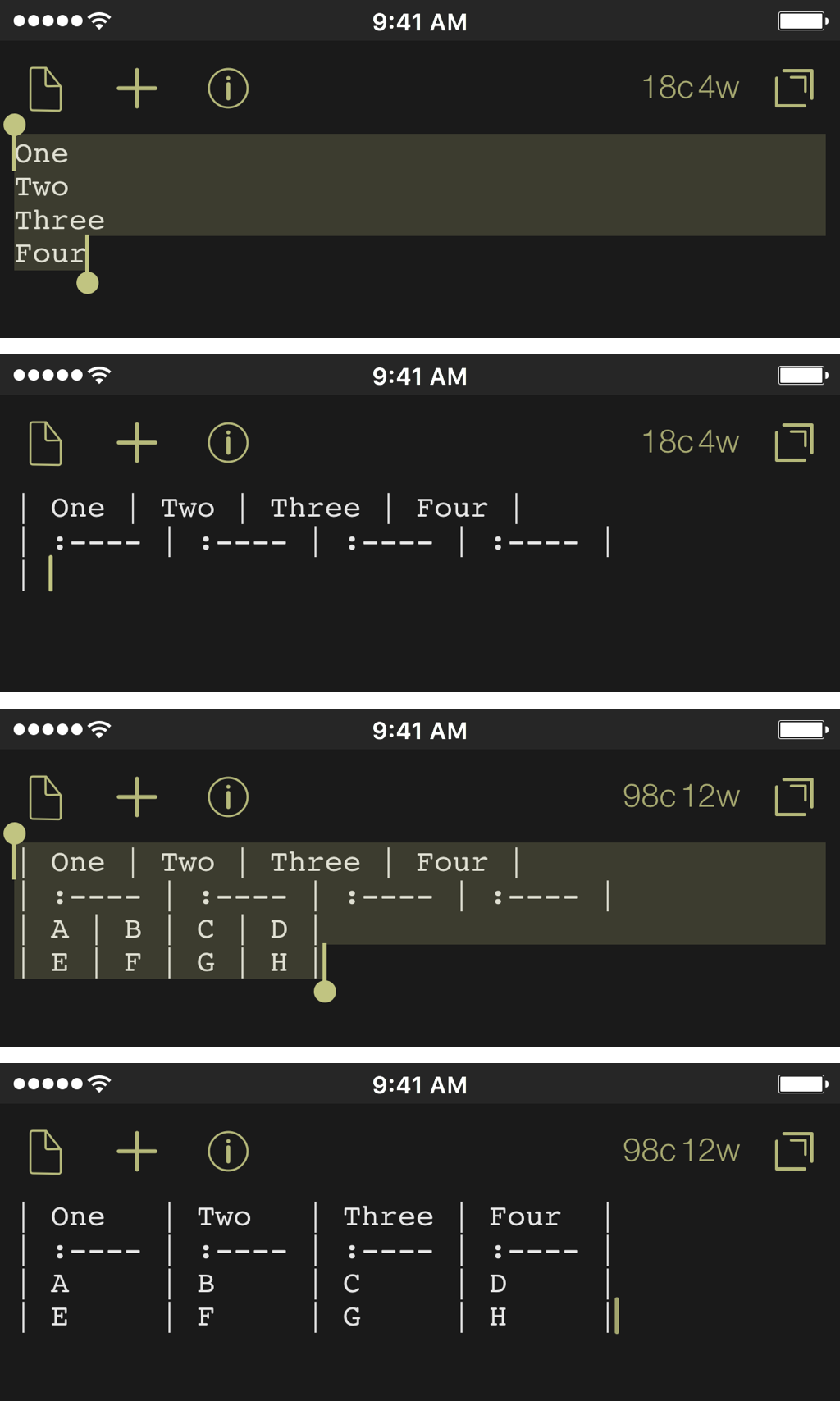
If you don’t have Workflow or don’t want to mess with it, there is another way. Ciaran Connelly made an action key to take a list and convert it into a markdown table. This takes a list in separate lines and creates the table based on the selection, then leaves you with a starting pipe to fill in the rows.
One clever addition is the inclusion of allowing for the text position by using a text shortcut at the end of the line to position the text. Adding a column to the position table from before, this is what the key will search for on each line:
Shortcut
Position
Syntax
,l
Left
:----
,c
Center
:----:
,r
Right
----:
If there isn’t anything at the end of the line, then it defaults to the left alignment. This works phenomenally well, and is a really well done key. He’s also made a table cleanup key; this works only for people that use a fixed-width font like Courier so that the table looks good in plain text too.
Cheers to Ciaran for creating these and showing his JavaScript magic.
Using Tables
Now that the ability to create tables is made easier, what should use use tables for in your life?
One of the things that I have recently created is my “Recurring Charges.md” file. This is where I keep track of all the little subscription payments that we have as a family. This isn’t a list of bills (though I should probably create that in a table as well): this list is keeping track of my online subscriptions so that I can see what things cost me per month or per year, and avoid subscription exhaustion.
Name of Charge
$ / Mo
$ / Yr
Dropbox
-
$99
DreamHost
$8
$96
SSL Cert
-
$15
Netflix
$12
$144
Hulu
$8
$96
Amazon Prime
-
$99
Apple Music
$15
$180
iTunes Match
-
$25
iCloud Storage
$1
$12
Club MacStories
-
$50
Totals
$68
$816
Thankfully, I haven’t gone too crazy with my subscriptions and I have room available for things that make sense to me. But it really helps me to visually see where the money is going.
My hesitation with using tables in my journals, posts, or other writing was because of the way the formatting would work; and after researching this, I realize it was my fault for not looking into the syntax enough. Now that I have multiple ways of creating these tables in markdown, I think I’ll use them more often.
┬─┬ ︵ ノ( °‿°ノ)
This group is for use by the users of the betas released by AgileTortoise. ↩