I often can get stuck in my ways. I might find something I really like, and use it until it breaks. And then I'll go get the same thing to replace it. The exception is apps: I like trying things, even if I only end up back where I began. And when I find a great app, it usually makes me want to use it often.
For a long time now, I've used Drafts for all of my writing. I absolutely love Drafts: I've written about my love for it and the amazing things it can do multiple times over. I write and process posts through Drafts, using a combination of keys, actions, and Workflow to get them published. If my dreams come true for the next big version of Drafts, it will further cement it as the single app on iOS that I can't live without.
There are three main ways that I use Drafts on a regular basis (for writing):
short snippets of text that I need to transform into something else in another app
The first two are made easier with Drafts, due to the custom workflows I have set up to make them happen. But having a dedicated app to concentrate on my website, where I don't get distracted — by notes, calendar entries and tasks that reside in Drafts before they are sent elsewhere — is extremely appealing to allow me to write in a more focused manner.
So in the year of great writing apps, and my own interests with trials and experiments, I began feeling like maybe I should sit down and really give some dedicated apps a shot. Am I using the right tool for the job? Are there things that I'm missing or could improve upon by not trying something different, something new?
Byword
I first went back to Byword to see if I could start with something simple. Byword has a great, simple interface and is a traditional Markdown editor. The direct publishing from within the app is pretty great. But for me, the experience is about the same as Drafts, and I don't want to add an app into my workflow unless it's going to make things better for me.
Editorial
I've used Editorial quite a bit in the past. It's a solid text editor that not only uses Markdown, but also TaskPaper and other formats; the editor itself is much like Byword, but with the addition of folding and arranging headers. It has a very powerful automation component, powered by Python, which can do some amazing things if you know what you're doing. It integrates well with Dropbox, which is something that I like to have so that I can keep my files all in one place.
But the development of the app has been stagnant. Pythonista is the app that makes the developer money, so justifying development time on an app that isn't going to make you money is something that few app developers will ever do, let alone with great frequency. If an app isn't moving forward and progressing, I can't stick with it and be left behind.
Scrivener
Scrivener for macOS has been around for a long time, and users of the app have wanted it to come to iOS for years. Now that it's finally available for iOS, I wanted to see what the feature set was like.
It didn't take me long to realize that while Scrivener looks to be an amazing app, it wasn't going to work for me. I am spoiled by Markdown: composing anything in a Markdown format has become second nature to me. And while I'm willing to try new things, changing from that markup style isn't one of them. That said, if you're penning a lot of books, screenplays, etc., — it looks to be a solid app for you.1
Ulysses
I had previously purchased Ulysses for iOS to do one thing: make an ePub for my post on moving over to2Do. I was astonished at how well it worked, especially when it was all from my iPhone; I created an ePub in an hour. But aside from that, I had never really spent any amount of in-depth time making it my only long-form text editor.
I'm very used to posting from Drafts via Workflow to my WordPress site. There are times that I will need to make changes to the formatting, so I had to make a workflow to send the text to Drafts.2 But I have yet to do that again in practice, thanks to how well the direct integration of publishing to WordPress has worked for me.
The customization of the editor and the export formats is where Ulysses really does shine over other apps that I've used. The clarity it allows is simply amazing, and is something that I will hold other apps to when new ones inevitably come along. You can change fonts, colors, line spacing, etc. in the editor for a fully customizable experience to make the writing environment comfortable for you. The Markdown XL color syntax elements allow you see an element of your text as a formatted or special element, but do not really take away from reading like other traditional Markdown editors can.
There are existing Ulysses themes and other preset customizations that you can choose from, but if you have the Mac version, you can create your own custom style. I spent some time with my MacBook Air Water, and after a little time and tweaking I was able to make my own custom theme based on my vision of a Drafts 5.0 color syntax.3 Additionally, I was pointed to a post which allowed me to get SF Mono as a font choice. The combination of the two has lead to the most visually stunning writing experience I've ever had, and actually makes me want to write. I really would love to see the ability to create the theme and other customization options come over to iOS, even down to my iPad nano, so that I don't have to touch the Mac at all. Hopefully The Soulmen will add this functionality as it continues to gain feature parity between macOS and iOS.
And just when I didn't think it could get better, typewriter mode showed up in the Ulysses beta. I previously had written off the idea of a typewriter mode in apps; I thought that by having a changing focal point within an app, it would make for a worse experience. But I can tell you now that I was so very, very wrong. Having this mode has been incredibly helpful, and allows me to write words more fluidly than I ever have before. I can focus on the sentence, line, or paragraph I'm trying to write, rather than being distracted by everything within the entire sheet.
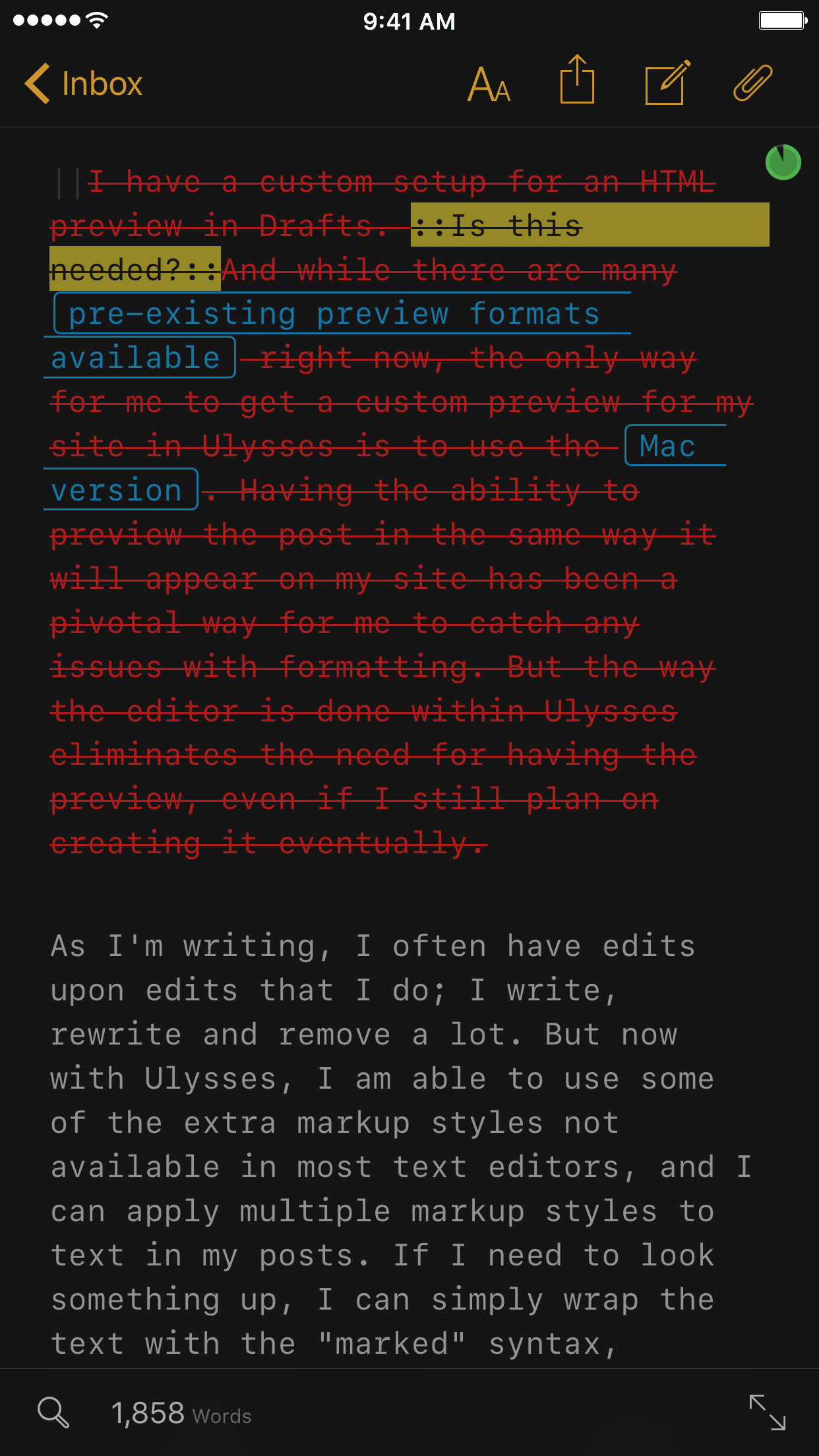
As I'm writing, I often have edits upon edits that I do; I write, rewrite and remove a lot. But now with Ulysses, I am able to use some of the extra markup styles not available in most text editors, and I can apply multiple markup styles to text in my posts. If I need to look something up, I can simply wrap the text with the "marked" syntax, denoted by :: :: . And later, if I decide that I don't want to include a section, I can use the "delete" markup || || ; this is nice because I can keep everything in the text, but it won't post that text upon export.
Another thing to love about Ulysses is the find/replace feature. It's more than just find and replace: think of it more like search and replace. The search (find) function of the app allows me to search to ensure that I'm not repeating too many instances of the same word. I have previously not had this option available to me on iOS, and I'm very grateful to have it to improve my posts going forward.4
I do miss some of the custom shortcuts and ways that I can use the Safari View Controller to search for links that I have set up in Drafts. There is a way in Ulysses to search with text by selecting a word, pressing "Define", and then pressing "Search Web" in the bottom right corner; that will kick you to Safari and you can tap on the upper left corner to return to Ulysses. This is far from elegant or easily discoverable, and I'd like to see this improved, especially for users using smaller screens.
I'm starting to train my muscle memory to work better with Ulysses. For example, I had some difficulty getting the external keyboard shortcut keys down. To help with this, I actually went and changed my Drafts keyboard shortcuts to be the same (as much as possible) as Ulysses. I'm still learning, still making mistakes, but using the same shortcuts in two places has been helping immensely.
And ultimately, it's been helping me do the one thing it was designed to help me with: write. I'm able to take my ideas and converge on what my message is going to be. I'm able to discern between what is important and what is not. I can write in sections, splitting a post (like this one) into smaller, focused chunks, and accomplish more in less time.
When I started this experiment, I only set out to try out another way, feeling like I'd end up back where I started. I thought I'd see how a dedicated app fares in my method and style of writing and determine that I was ok with what I had. But I wanted to give it a fair shot, before I completely discard it as something I don't need, free from the sway of prominent bloggers and tech influencers telling me what I should be using.
To my surprise and delight, I'm absolutely in love with Ulysses. It has transformed the way I'm approaching my writing. It's not replacing my journal or quick notes, but it is serving as the focal point for my site; I have more clarity, more enthusiasm, more determination, and I think I'm producing better results. And an app that does that is nothing short of fantastic.
I'm really excited to see what lies in store for Federico Viticci's review of iOS 10, which is going to be completely written in Scrivener. But even he has said it is not his go-to app for his normal posts. ↩
It took me a while to realize that the export was a .zip file. Slightly annoying, but not insurmountable. ↩
You can also download it here if you don't have Ulysses yet and want to make sure you can save it somewhere. ↩
In one of my drafts for this post, I had the word "writing" in it 35 times. I got it down to around 10 by using this feature. ↩
There are many times with many things where I can be afraid to try something new. Trying something not in my comfort zone can be downright frightening. Other times, I'm plagued by the friction that comes from doing the new thing. But for all of the reasons not to do it, I still want to try them: I'm curious about new things, new possibilities, and wonder if there are better tools out there for me to use. And I'm easily distracted by new, shiny things.
Recently, tried using new task management apps.[1] There have been updates to several apps, most notably Todoist and OmniFocus. I wanted to see what benefits they could offer me over my current app, 2Do. There was a huge group of people that really started loving 2Do on iOS. Many users switched over. But for many [private] reasons, there had been a slowdown in development. And I'd be lying if I said it didn't worry me a bit; after all, it's one person doing the entire app.
So in this slowdown, I wanted to experiment to see what else was out there. The first point of friction was moving select things over; most apps don't have easy ways of export/import. The second was the nomenclature: can often get lost with naming conventions until I have an equivalency to something that I know, something that is familiar. With those things out of the way, I could try doing things in a new way.
There were things about Todoist that I really liked: clean UI, collaborative tools, and the ability to enter in tasks for work via the Chrome extension. And while this felt OK and I spent a few days with it, it didn't feel right. I don't collaborate with many people on tasks, and when I do, it's usually work and I need to go see them anyway.
So I once again tried OmniFocus to see if the new changes – especially to the input method via TaskPaper format – would work for me. The taskpaper format is really interesting, when it works well; it was cumbersome to get right, however, which is probably due to my lack of knowledge of TaskPaper more than the feature itself. I also dove into the MailDrop feature, and it's fantastic: the ability to set email addresses, even as a temporary one, is great. And I definitely missed the Forecast and Review features, both of which are top notch. But one of the big things that I had difficulty with was the lack of batch editing. It made it very difficult to move a huge Inbox full of tasks to one context or another, and is something I cannot fathom as to why it's not implemented yet.[2]
So after spending some time entering in all my tasks to other apps, I was met with a notification when I got home: 2Do beta v3.8.3. Couldn't really have been timed better, huh? After a long period with no updates, I was happy to see the improvements, offer some suggestions, and talk to him about the ones to come. Most importantly, I needed to implement them into my daily workflow.
Initially, I was upset with myself for wasting time: why had I spent the effort to move things over to different systems, only to find that my current app was what I needed? I have things to do, and messing around with my task management system shouldn't be one of them. I felt like I should have said "I'm sorry", like trying to convince an ex-girlfriend to get back together after taking a break to see what else is out there.
But…
It was actually the best thing I could have done. What this has shown me is invaluable: ways to use my current system that are even better for what I need. There were positive things of these other apps that I tried, and fortunately, I can bring a few of them over using the current feature set.
A prime example was something that I completely missed when Email 2Do was first launched: if someone sends me an email to a specific email address, they can send me a task. Even better, if my wife sends me an email with the subject "Groceries" and puts a numbered list in the body of it, now I can get the shopping checklist right there in 2Do without any input from me.[3] I'm hopeful that with future updates, that there will be the ability to add more functionality to Email 2Do, so that there can be more detail added like due times, tags, locations, etc. I can see this being useful for when I get a grocery list and have to get something after I leave work.
Another thing I learned in this experiment was that I was over-tagging and over-searching. I had too many tags that I was using to identify tasks. If I have a task in the "Home" list, why do I need to tag it with "Home"? This is completely redundant. And I really only need a handful of Smart Lists, not the 10 that I previously had. I completely rebuilt my work tasks from the list I created when I moved things to Todoist and OmniFocus, and had a better understanding of what needed to be accomplished for each of my four programs. And I also am now sparingly using starred or priority tasks, reserving them for only the highest of importance. All of this has helped me clean up my task list and get more focused.
The biggest thing I've learned from this: fundamentally, at my core, I'm a broken person. I do a lot of this to myself. But I accept it’s in my nature to always wonder if the grass is greener, and spend my time playing with new things when my existing thing works perfectly well. Having gone through this, I can see where I can make changes, and build my tools in such a way to make them work better with my current thing than I did before. And even though it may take some time and effort to do these things only to find them futile, I learn a lot new methods, better ways to use my current system, and clear out the stuff that isn't really important.
Conducting a trial of apps was a great exercise, and I'm glad I did it. It was painful, but rewarding. I learned a lot, rebuilt my paradigms, and I learned how to do things better with what I have. And that's a great feeling.
"But you literally wrote a book on 2Do!" I know, I know… hear me out. ↩︎
I hope that this comes soon for iOS users. This is by far one of the biggest complaints I have heard amongst my friends who use OmniFocus. ↩︎
The hardest thing at this point would be getting her to use that, not the Reminders integration we use in AnyList; I think we'll be sticking with AnyList for that purpose for the foreseeable future... ↩︎
Slack has recently become a focal point of my daily interaction: I have many friends who use the service, most of which I’ve never met in real life. It’s been a valuable personal communication tool with them, and I’ve appreciated every second of the time with most of the groups I’ve joined.
But while Slack touts it as “Team Communication”, it also has become a great tool in becoming my personal information center. I get information from many sources through Slack. There have been several apps that I’ve just flat-out replaced by using Slack with other integrations. Things like RSS readers, daily weather alerts, and even notifications of new Drafts actions are all piped in to various channels in my personal Slack group.[^1]
My friend Seth and I were conversing about how we could use Slack more in this way. What information could we have delivered to us? What could we include that would eliminate a need for this? Productivity is always a discussion that needs to be revisited, but you need to have a discussion about why you need something, if it can be thrifted from your daily life, or if you can make it better.
Seth came up with a brilliant idea: What if we could take several things — calendar, tasks, and notes — and combine them into one note into a specific channel, and that’s the first thing we look at in the morning. This would be run before settling in for bed, so that you can capture those last minute thoughts before passing out sleeping.
And with so many things that Seth and I talk about, it sparked some thoughts of how this could happen. After a little bit of time, I had a general concept of what I call “The Daily”.
The Daily
So the concept behind this is simple: get bits of information from different sources — a note taking app, calendar(s), and our task management system(s) — and pipe them into one spot. For me, everything starts in Drafts, I use 2Do as my task management app of choice, and I wanted to send everything into a “#daily” channel in Slack.
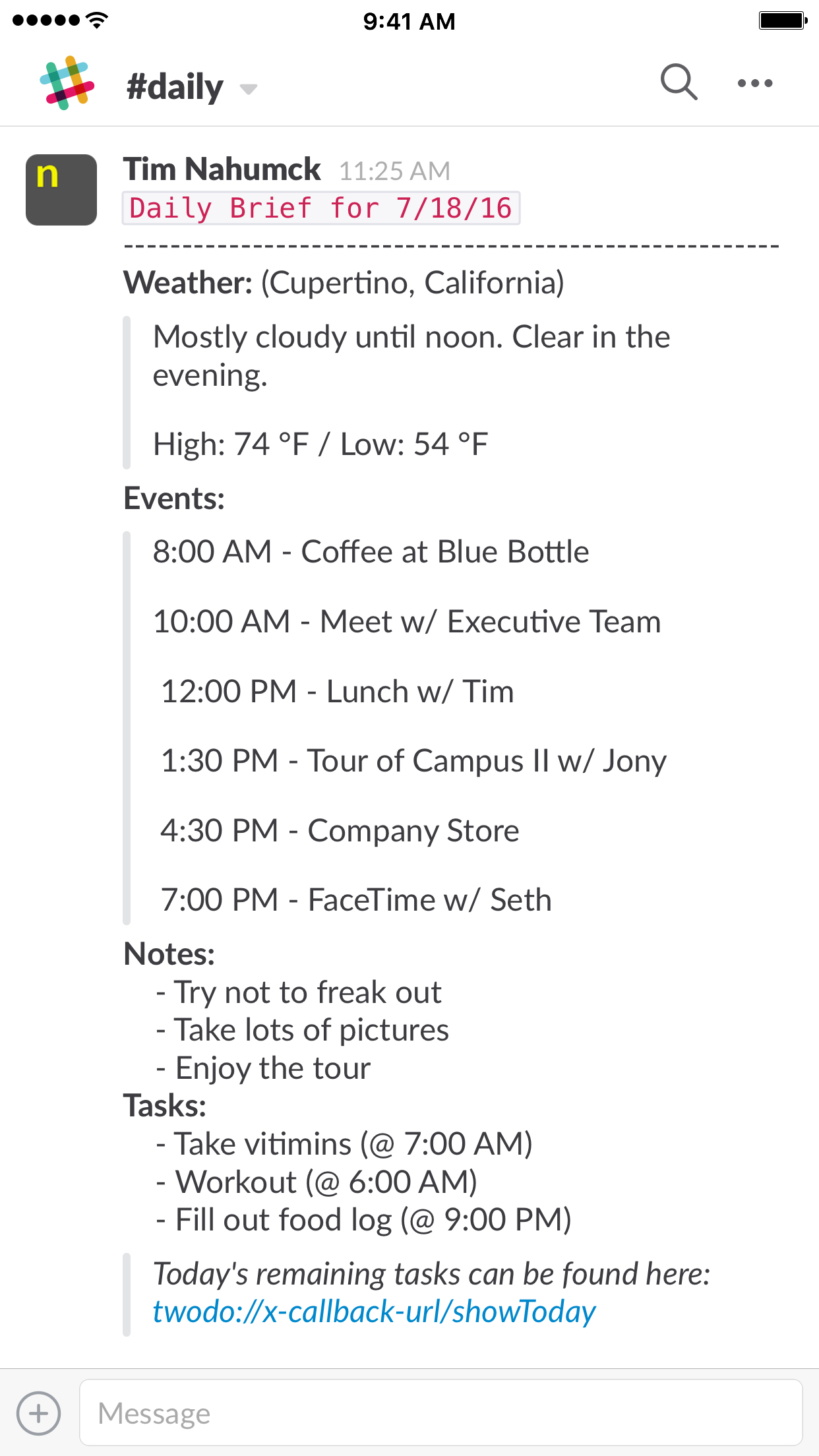
Because I start the note in Drafts, I can simply take that text and pass it to Workflow; it can grab all of the information I need from the various inputs and place it into one easy text block that I can format to my liking. One of the benefits to using Slack for this purpose is that I can use the Markdown-like format to highlight text in different ways, allowing me to view sections.
In addition to the information in The Daily, I wanted to also have the daily weather for the next day in the same channel. Using IFTTT, there is a simple recipe to pipe in a daily alert for the tomorrow’s forecast. One problem that I encountered with this, however, is when I am not at home and traveling; the recipe is for a specific place, and doesn’t update. To solve this, I took the Forecast.io API, and used that to add tomorrow’s weather forecast to my report.
I’m not going to get technical about all the specifics of “The Daily” workflow, but I’ve put comments everywhere I could think of within it to guide you.[^2] It’s very complex, and too complex to go through the “how and why” in a post; if you want to know how/why, it’s all in the workflow. I’ve also created them as separate workflows: one that contains the weather, and one that has everything else. All of these workflows can be found in the Workflow Appendix section below.[3]
But the combined workflow does a great job at aggregating all of this information in one spot so that I can see what’s ahead for my day, all in one convenient spot. And really, it’s not about the how, it’s about the why.
Having one place to go to for information is difficult in the Age of Apps. Widgets are great for glanceable information, but that’s still multiple sources for looking at things. It’s like getting a news report about your day in the morning: “Here’s what’s happening in your neck of the woods. Now here’s Tim with the weather!”
It’s been really fantastic to use this at night, and view it all in one place in the morning. I can see my day ahead without having to go multiple places. I’m not trying to clear all of the badges from my phone. I don’t have to go to multiple apps and waste time. I’m not tempted to peruse Twitter to see what I missed. I can get this information about my day, and head out to face it.
If Siri is the digital assistant for my phone, think of my personal Slack as the assistant for my portion of the internet. Like with any assistant, I need to be able to direct them to get the information I want in the manner in which I want to see it. I get notified of the information I find important, interesting, and in some cases vital to what I’m doing.
I love the direction that this is heading, and I’m finding new use cases for Slack. It is slowly but surely becoming one of the most powerful apps on my phone.
A note to non–2Do users: I have created two workflow below that does not include the steps in getting tasks from 2Do, and provides only the URL block to paste into your note for the day. From what I have read, there isn’t another app that allows for the task export in the same manner. Additionally, if you use more than one system, the step will allow you to add more than one URL to add for your daily report. ↩
I’ve recently traveled a few times for personal trips with my family. It’s been really great to get away, and I’ve appreciated the time spent not working or stressing out about my house.[^1]
I specifically made it a point for these trips to focus on the pre-travel things: packing, getting the house ready, and making sure that we left with everything and with no stress.
Normally, I would make a small list in Drafts of things I needed to pack. I might keep it in Drafts, or I would use a checklist action and workflow to move it over to my Travel list in 2Do.
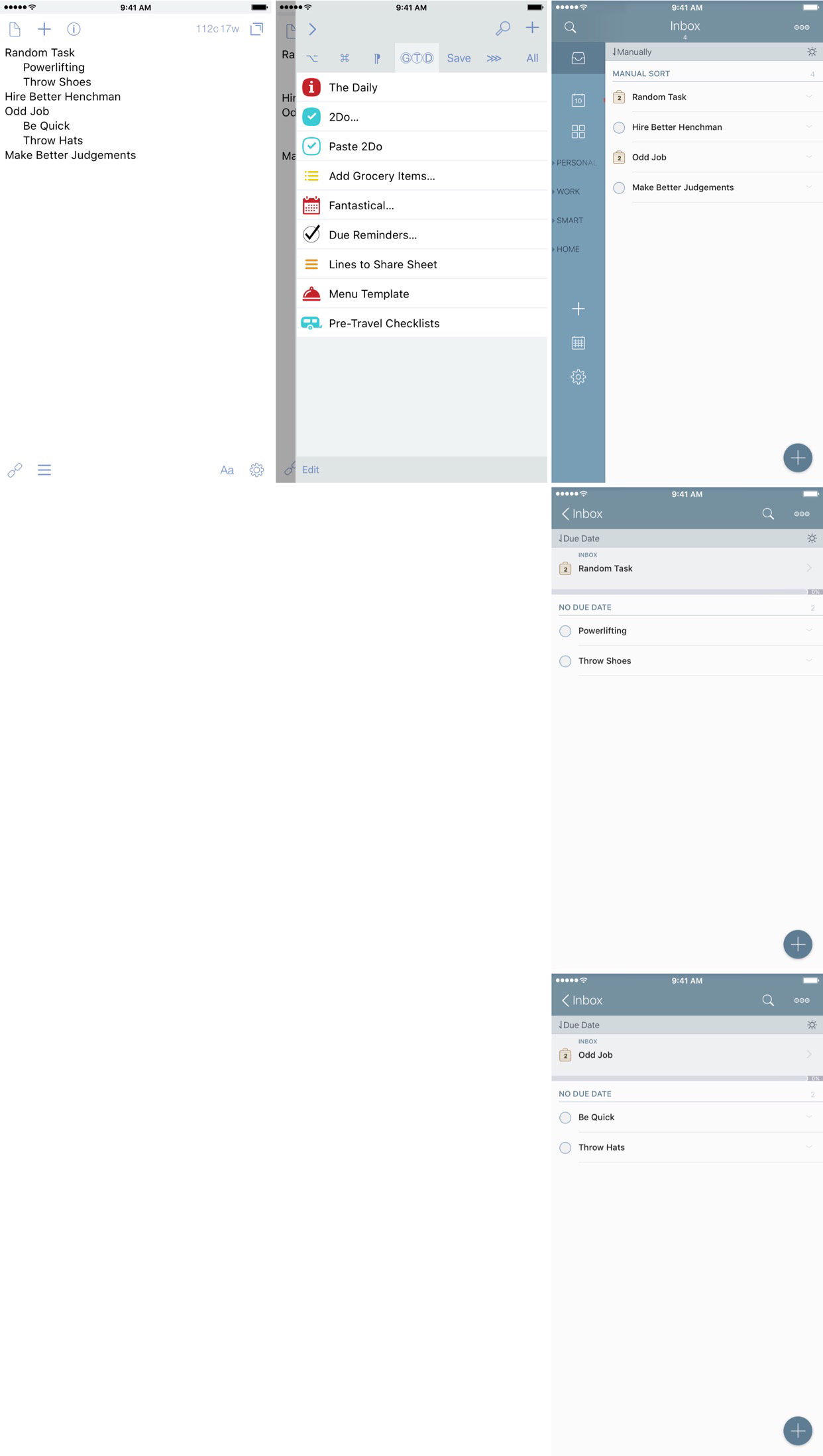
And while that worked, I really wish I had the new features that come with the release of 2Do v3.8.3. Now, I can simply copy/paste the list over into the Inbox; keyboard users will love the ⌘C and ⌘V functionality. It really makes entering lists a breeze.
When I saw this in the beta, I thought it was awesome. It’s so easy to copy and paste a list of tasks. But what about projects? Those still required some manipulation. But if you use a tab key or several spaces, you can copy and paste projects. This is where things get interesting.
The nomenclature needed is simple. If you want tasks to be a part of a project, you simply indent them under the parent project. You can also have multiple projects, or a mix of projects and tasks, like this:[^2]
Random Task
Powerlifting
Throw Shoes
Hire Better Henchman
Odd Job
Be Quick
Throw Hats
Make Better Judgements
One thing I love is automation. So, I suggested to the developer of 2Do that having an automated way of doing this via a URL scheme would be great. And a little bit later, it was in the next beta!
So now I can add projects and tasks even easier from Drafts. Using this action that utilizes this new URL scheme, I can take a task or list of tasks and easily send it to 2Do; by using the x-success parameter, I can even come right back to Drafts in less than a second.
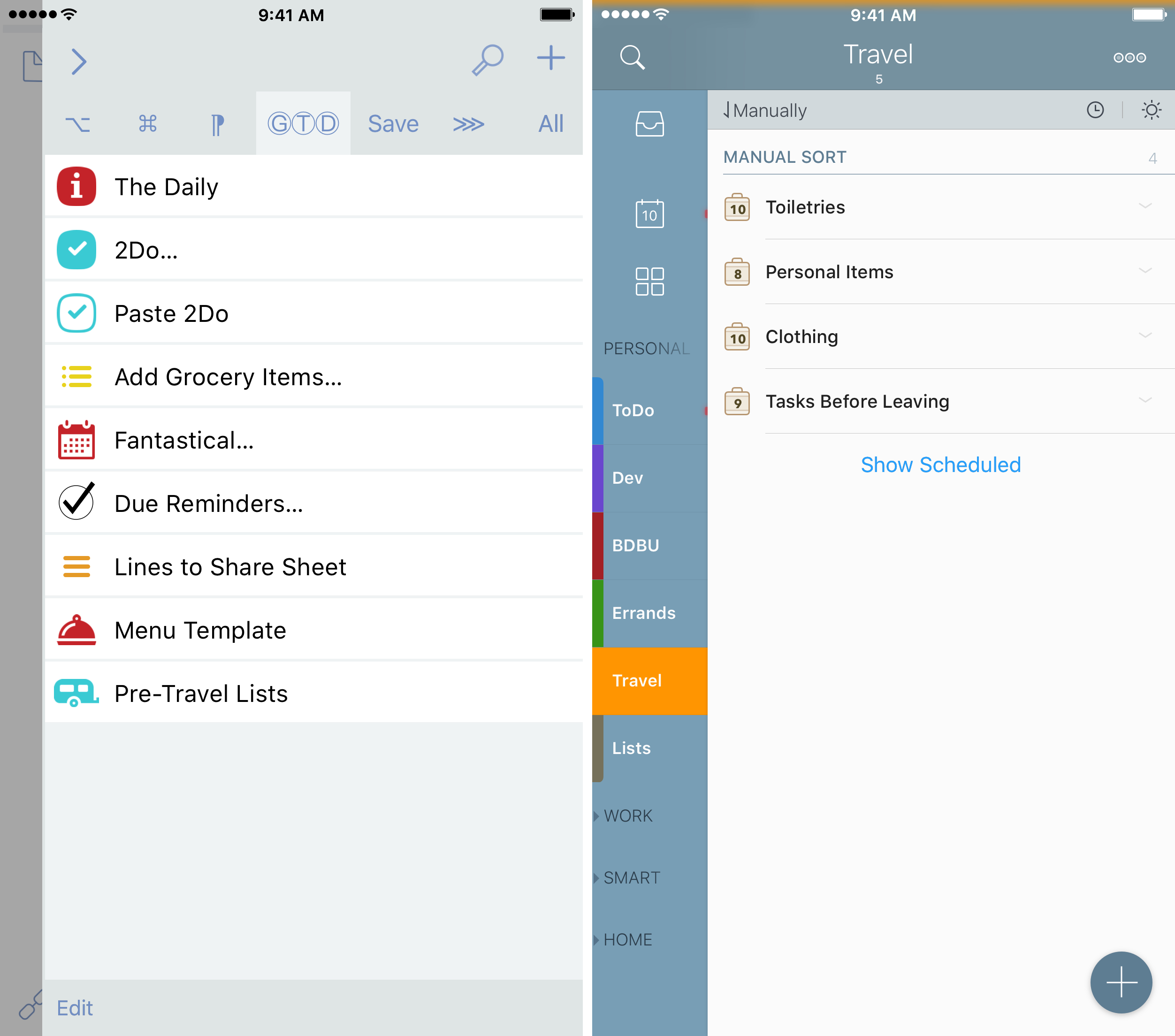
This can even be expanded to take a large list and enter it in as projects/tasks all at once. One time when my dad was visiting, he brought his hand-written checklist for travel that he had put together over years; it’s a list of things that he’s likely forgotten at one point or another on a trip.
I formatted the list using the new paste URL scheme syntax, and entered into a clipboard step. The power of the clipboard action step is that you can have a multitude of text in there in addition to what is in your draft. If I have miscellaneous things that I know I will need for the trip, I make sure add each one on a line, and indent them.
At the end of the clipboard action step text, I added a “Misc” line, with the [[draft]] tag indented. This will take the draft and add it to the Misc list, and pass it to the URL step. I added the same URL scheme as above, but added the optional forList variable and set that to “Travel”. I would have thought about doing something like this in Workflow,[3] but now entering in my pre-travel checklist is a breeze and takes almost no time at all.
Update:Michaelbrilliantly took my action and forked it. This allows for multiple instances of the packing list, and for you to identify a trip. You could even label it with the airport name you’re going to, for a short indicator. I’ve installed this one and deleted my old one.
For me, traveling has been just one thing made a little easier with these simple tools. With a little modification here and there, you can turn these same methodologies in to a template for other things.
Repeating work projects, podcast templates, or other lists can be moved into 2Do with ease. You could even take a list of things that a user sends to you for improvements to your app that they would like to see, and copy/paste them in to your development list.[4]
In the future, I’d really like to see an update to the Email 2Do functionality to add larger lists, complete with tags, due and start dates, etc. This would allow for not only checklists/projects/tasks, but even potentially allow you to move your thoughts to 2Do in one single step. Now that’s some serious automation power.
The little additions in v3.8.3 have made entering projects and tasks so much easier. The beta had only been available for a few days, and it quickly made a huge impact on my day-to-day life. I’m thankful that one of the apps I rely on is getting better with updates, has a developer who listens, and has a ton of other things coming. I’m really excited for the coming months and what’s in store for 2Do.
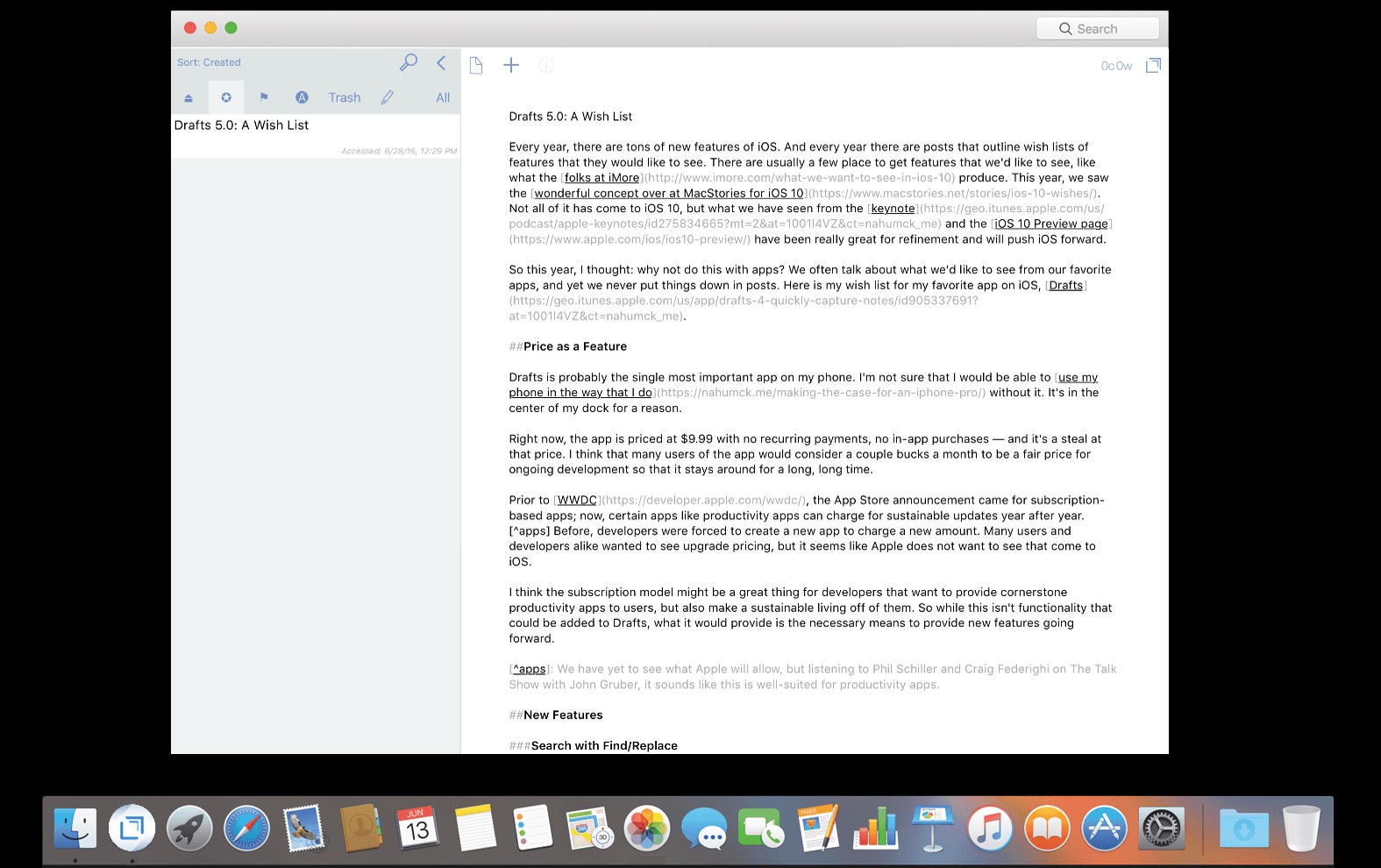
Every year, users talk about the ways their favorite apps could get better, but it’s not written about publicly or not communicated early enough to developers to include the refinements in the next release. But for iOS, the tech community talks about the improvements for iOS at length, and occasionally, we even see an awesome concept of potential new features.
If I’m using an app on a daily basis, I’m going to have some opinions on how I think it could be improved. And rather than just talking about it with some friends or not sharing it with the developer, it’s time for me to put it out there to make the software I love better.
Here’s my wish list for my favorite app on iOS, Drafts.
Price as a Feature
Drafts is probably the single most important app on my phone. I’m not sure that I would be able to use my phone in the way that I do without it. It’s in the center of my dock for a reason.
Right now, the app is priced at $9.99 with no recurring payments, no in-app purchases — and it’s a steal at that price. I think that many users of the app would consider a couple bucks a month to be a fair price for ongoing development so that it stays around for a long, long time.
Prior to WWDC, the App Store announcement came for subscription-based apps; now, certain apps like productivity apps can charge for sustainable updates year after year.[^1] Before, developers were forced to create a new app to charge a new amount. Many users and developers alike wanted to see upgrade pricing, but it seems like Apple does not want to see that come to iOS.
I think the subscription model might be a great thing for developers that want to provide cornerstone productivity apps to users, but also make a sustainable living off of them. So while this isn’t functionality that could be added to Drafts, what it would provide is the necessary means to provide new features going forward.
New Features
Search with Find/Replace
I’ve always found any “Find” action in the Drafts Action Directory to be lacking. It never works the way I want it to, and it is something that I’d like to see improved. There are other text editor apps, like Ulysses and Editorial, that do this very well.
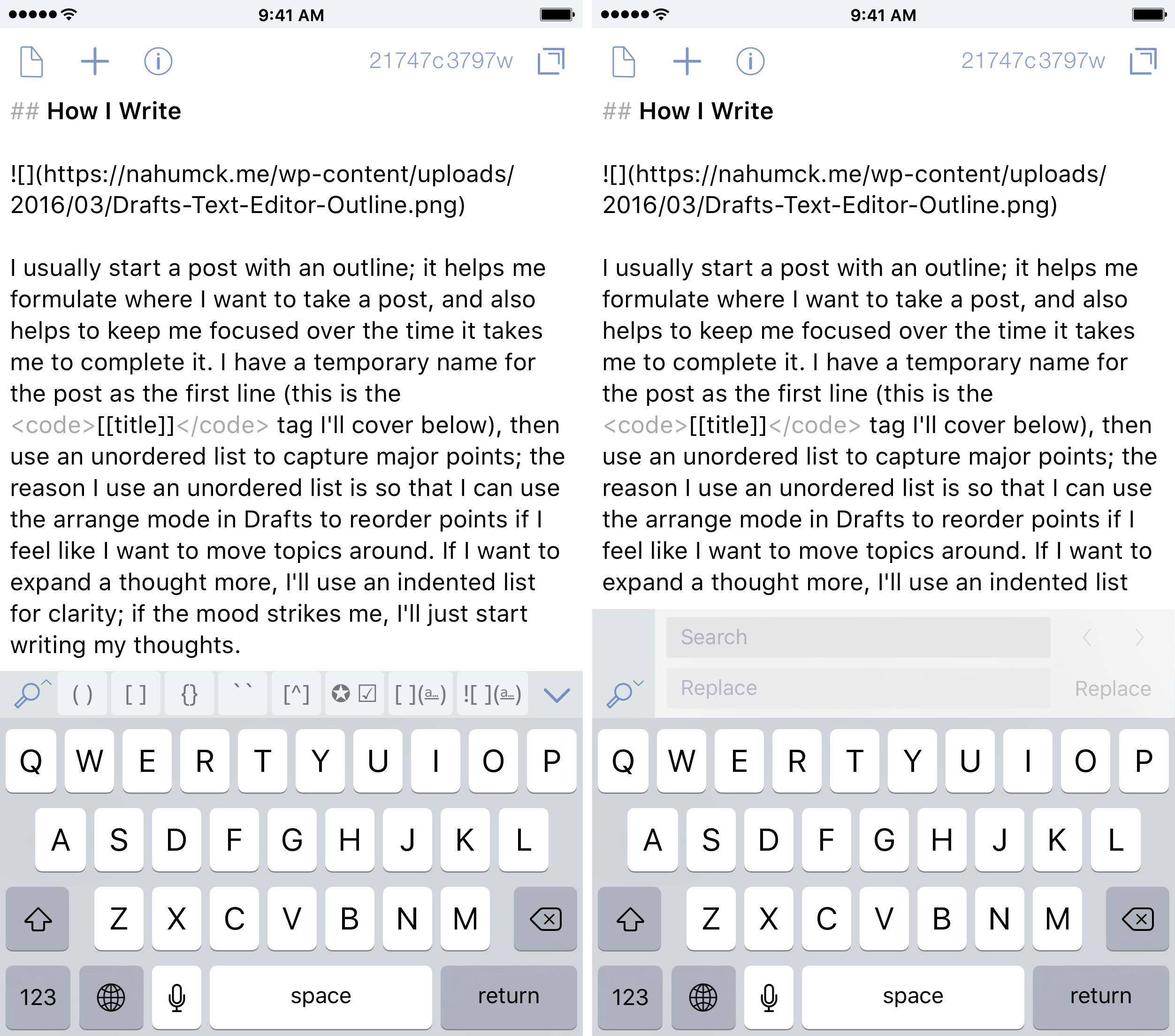
What I would like to see is this: having a dedicated search icon at the top of the editor or just above (to the left) the extended keyboard row. The search will scan the current draft for instances of the search and provide the number of matches for the search. Additionally, the replace option would be right there so you can do that within the draft without an action.
By far the best implementation of this feature on iOS has been Ulysses, and is something that I would like to see Drafts copy steal inspiration from. Editorial’s implementation is ok, but I don’t find it to be as user-friendly as Ulysses.
Folding Headers & Arrangement
Speaking of Editorial, I would love to see Drafts implement the same functionality of the folding headers and arrangement features. As I use Drafts more and more as my text editor of choice, especially for longer posts like this one, I really wish I had the ability to fold the headers. I certainly could write sections in separate drafts, and combine them at the end. But there are times that I would really like to just fold up the headers as I write.
The arrange mode in Drafts today is good, but I think that if I could drag the lines on the side of the editor, it would be better and faster for me to move things around. Where this Editorial-style arrange mode is extremely useful is when you have folded headers: you can simply drag whole sections around instead of each line.
Customizable Syntax Highlighting
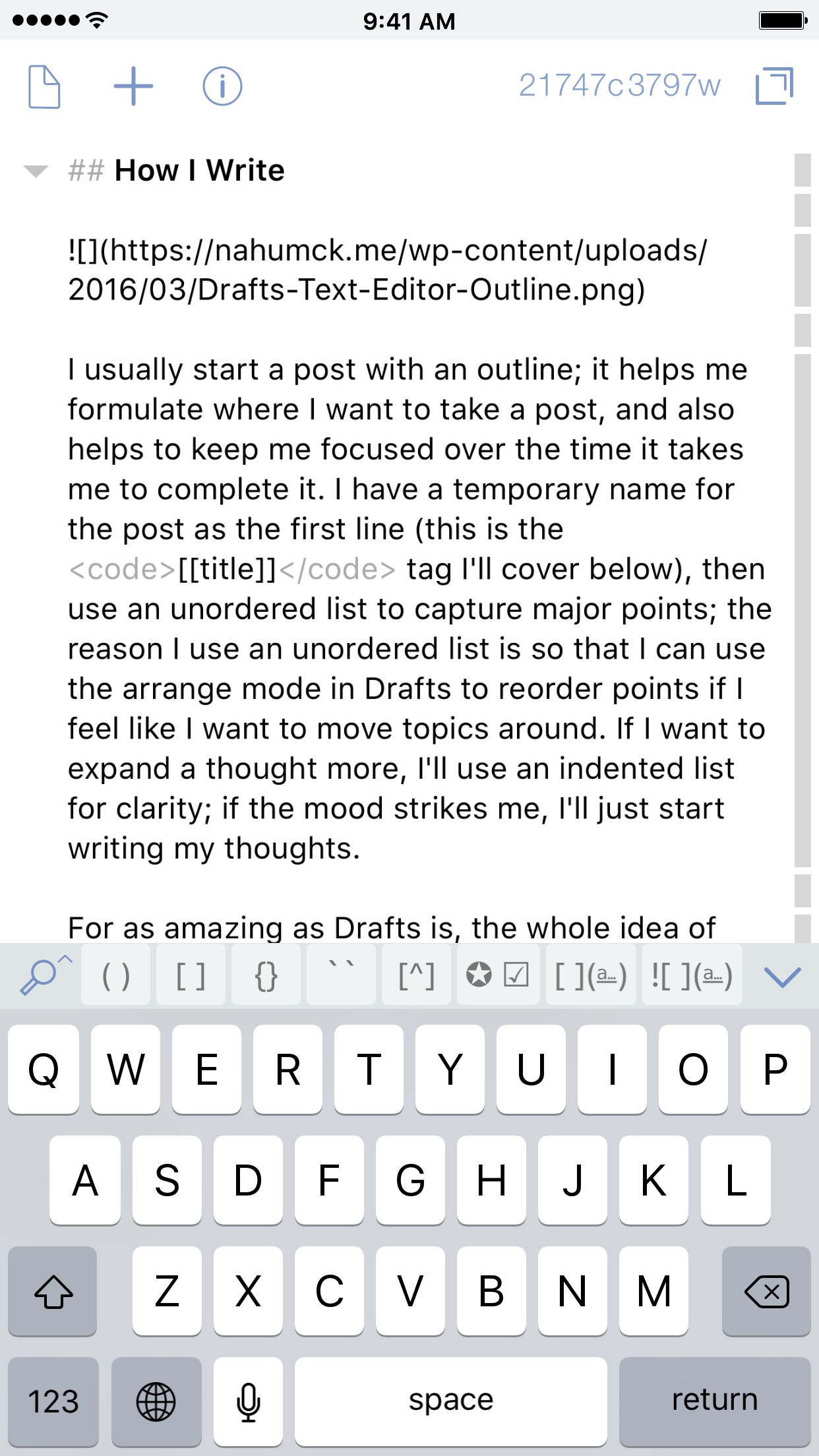
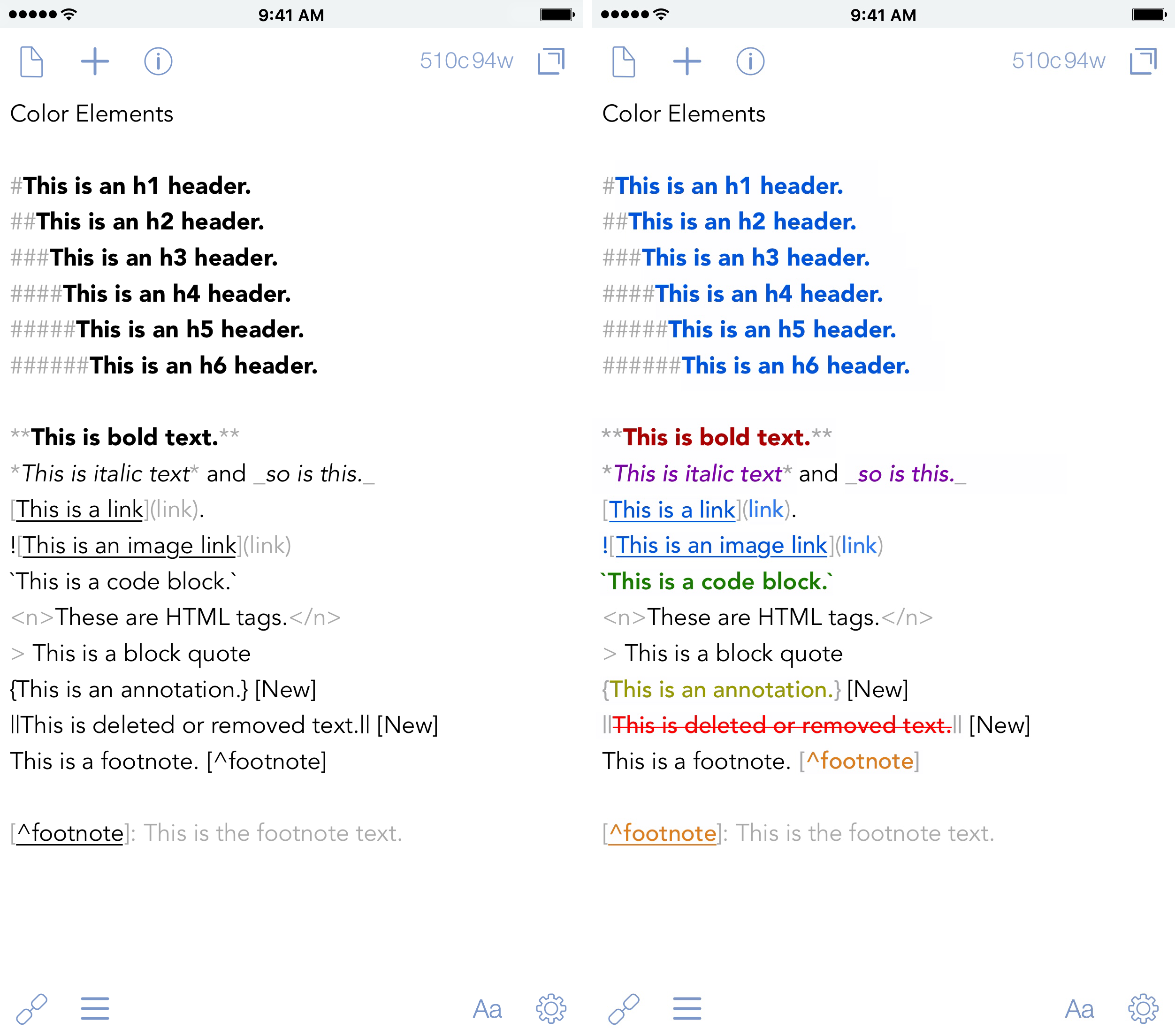
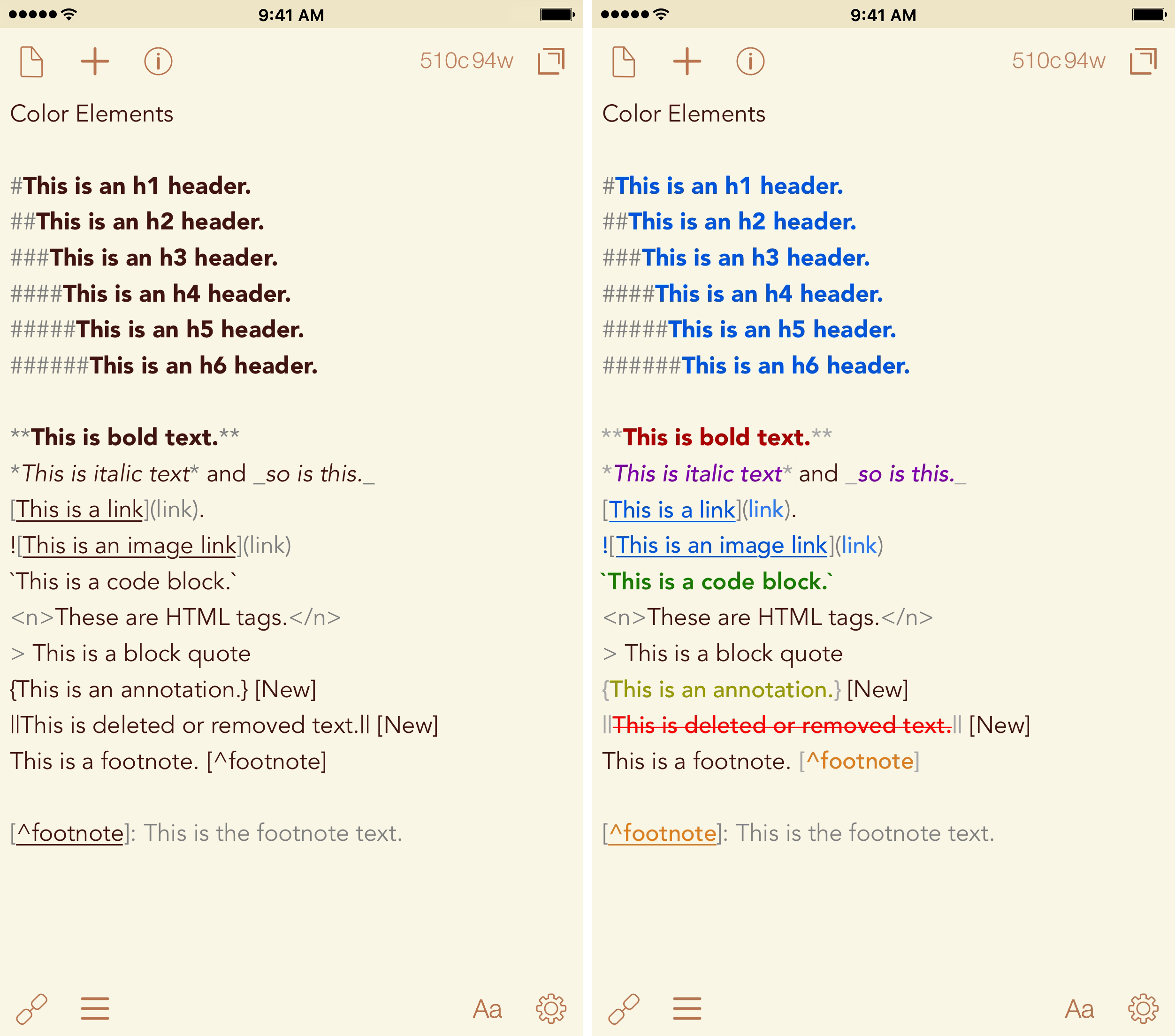
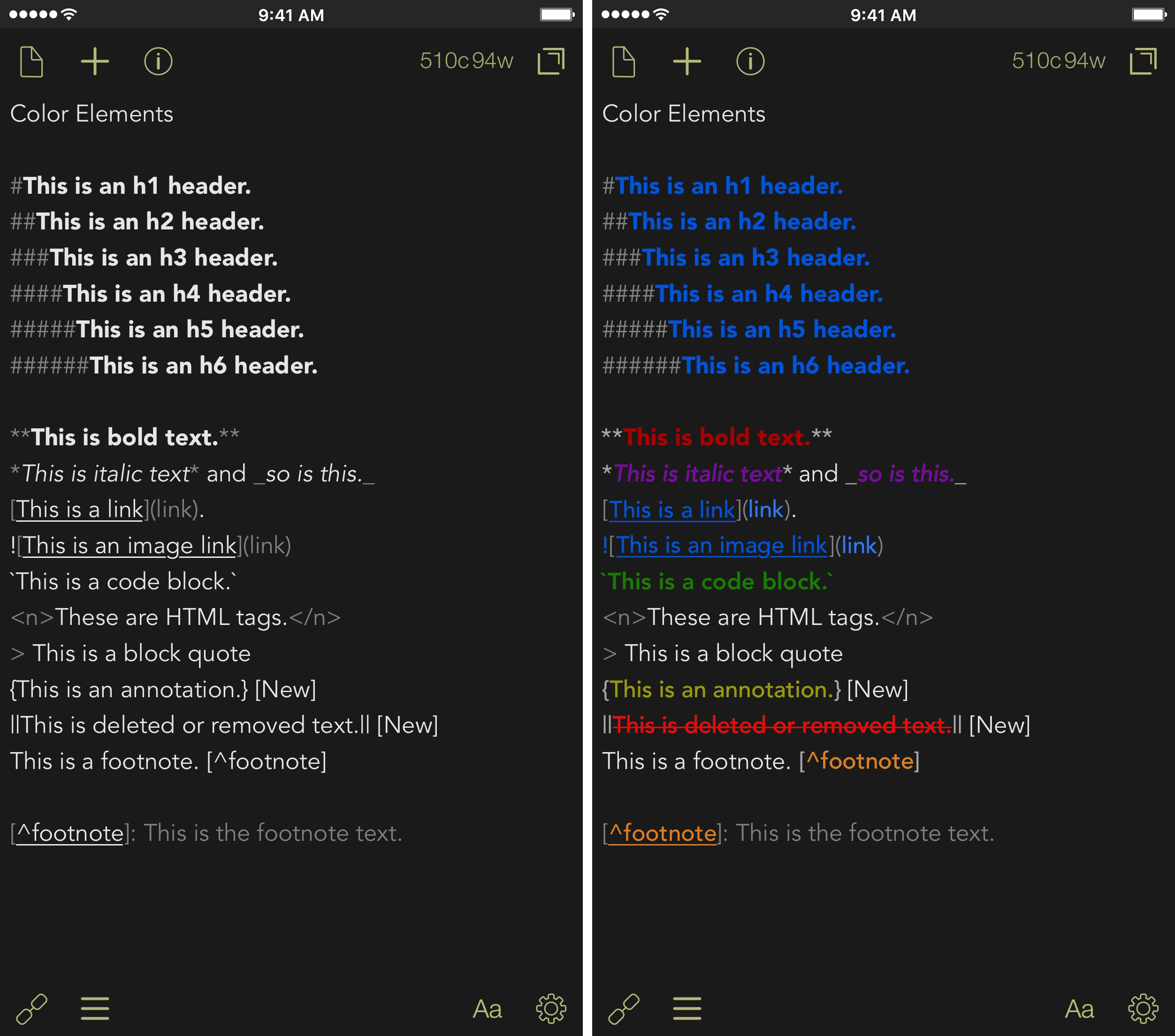
Drafts has three main color themes: light, sepia, and dark. And while I love having the option of theme, adding color syntax highlighting would help users, and is something that I think could greatly change the way in which people use Drafts for their writing.
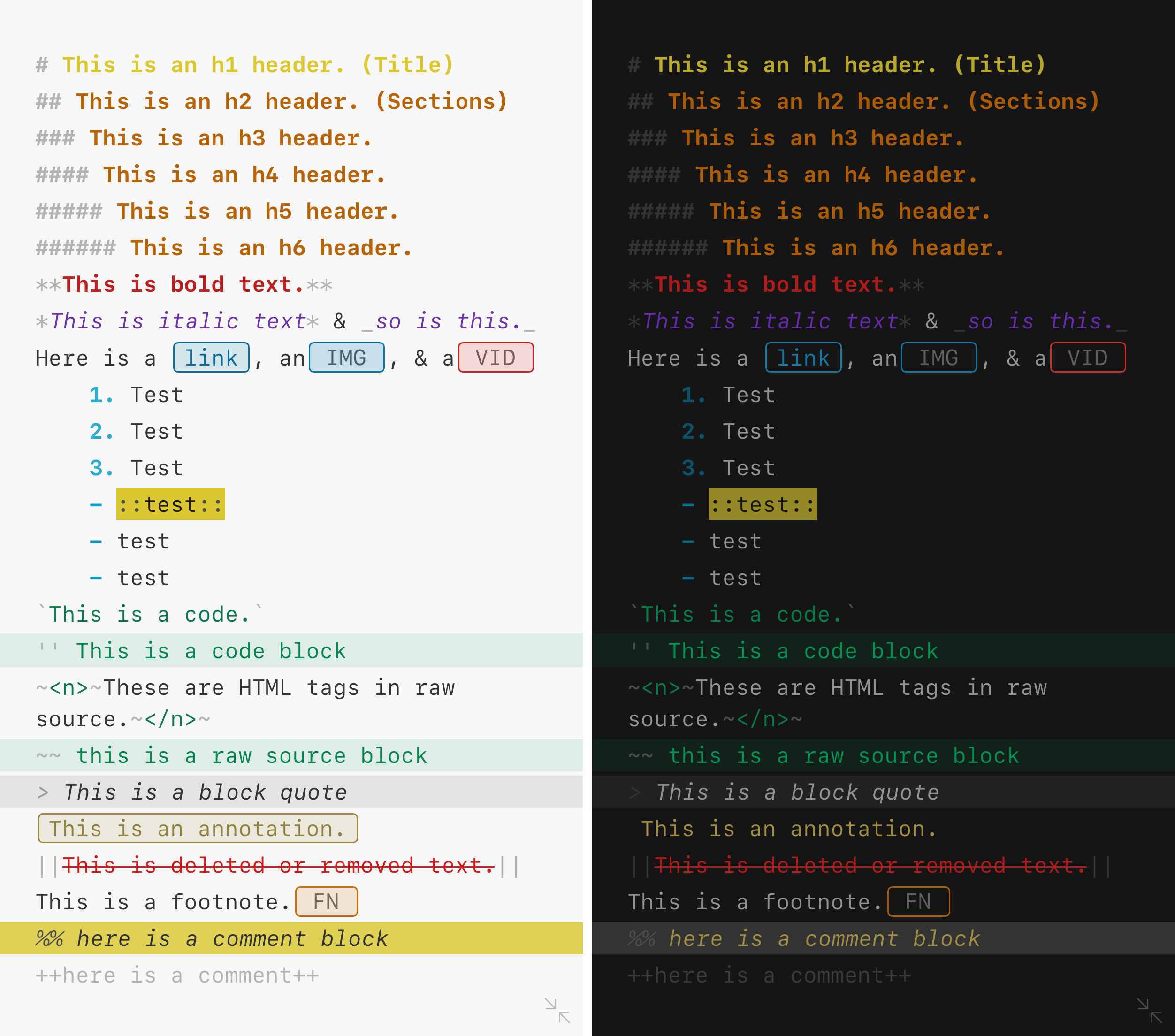
Prior to me even trying Ulysses for writing, I often found the differentiation of text vs Markdown-formatted items to be a bit difficult at times. The improvement here that I would like to see is the addition of colors for Markdown items. This is going to make it easier for users to differentiate between headers, bold or italic text, as well as highlight links or images or footnotes while writing. Again, Ulysses does a great job of this differentiation.
Using Pixelmator, I was able to conceptually visualize what this would be like on iOS. I was able to create this for all three themes, and I think the result ends up making things easier to read, better to work with, and makes me want it now now now.
I would love to see this be user customizable. If you want your links to be red instead of blue? You got it. Do you want everything to remain as it is today? You can make that happen too. And while I think this would be a lot of effort for Greg to add, I think that this would be great to implement as an in-app purchase (if the app remains a fixed price) or would be a great example if the new app becomes a sustainable subscription model.
Touch ID
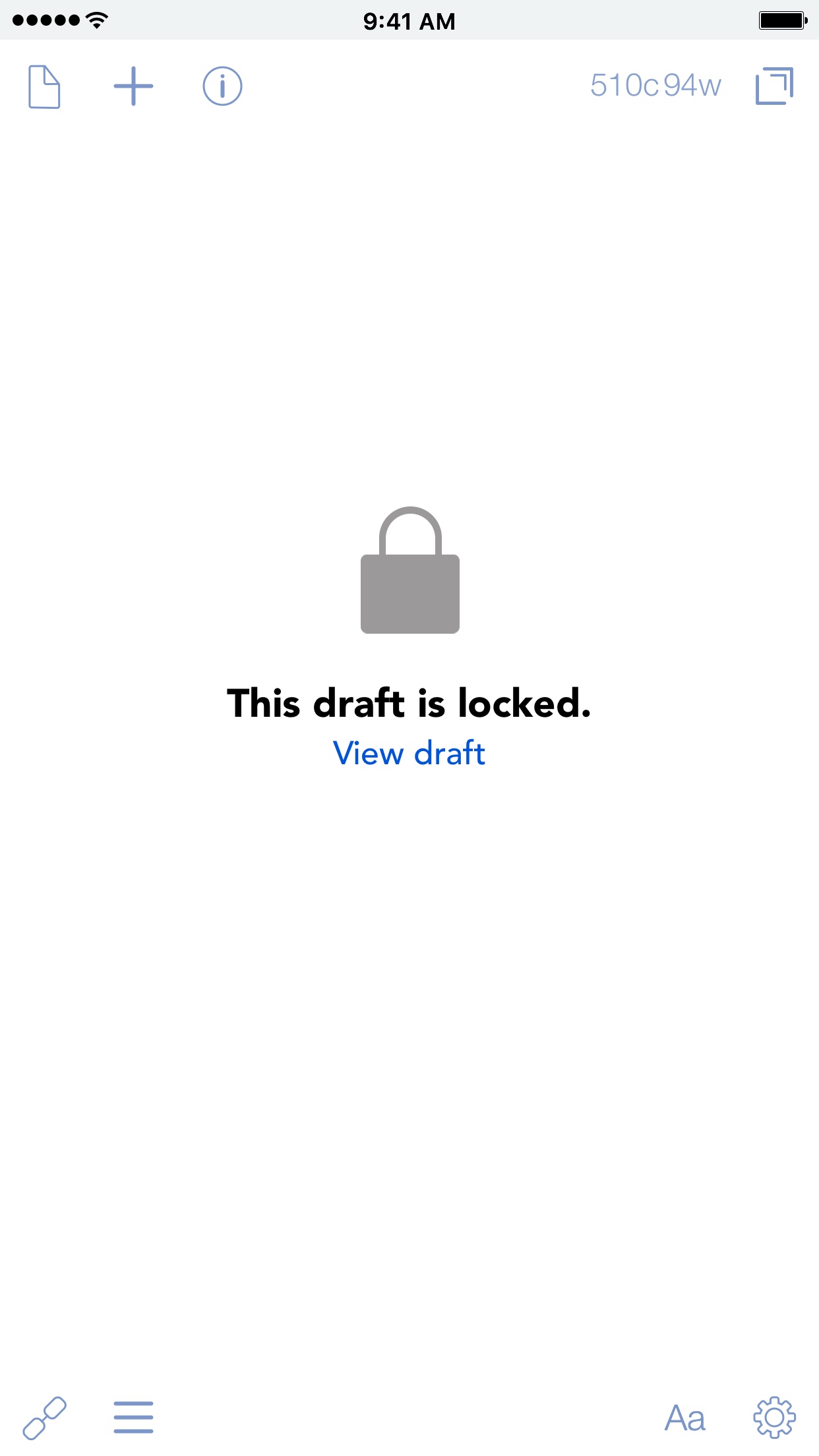
Much like Notes.app, it would be nice to bring security to Drafts. There are times that I have kept some personal information in a draft, or even something like a gift list for my wife. I don’t want her to see what I have in store for her, so the ability to do that on an as-needed basis would be great. Others might want Drafts itself to have a passcode as well. By no means a deal breaker, but it would be a nice added touch.[^2]
External Keyboard Setting
I love to use my keyboard to write with Drafts: it allows me to get out massive amounts of text and speeds up my productivity. But one thing that isn’t actionable by the keyboard is draft/action lists. My thought here: allow the arrow up/down to highlight the draft or action you want to select, and press the return key to run it.
Always On
As was suggested by my friend, a nice feature to add to Drafts would be a setting to have Drafts keep the device active when it is the active app on screen. This would be helpful for meetings, where you might need to take notes on a meeting that lasts an hour, and you don’t want to have to keep waking up the device.
This would, of course, mean a small hit to the battery. But having a small dialog box pop up to give a warning of the decreased battery life would prevent (most) complaints.[3]
Other Improvements
Action Arrangement
I often times want to re-arrange my “All” action list. And it can be tedious to do. But something that would be helpful is arranging them by name, both A to Z and Z to A.
Dropbox File System
This is something that a lot of users have asked a lot about, and while my needs are met using the current tools of today, I think this could be something that would work for a lot of people. There are ways to implement this, but is way too complex for me to even attempt to figure out. I’ll leave that to Greg, if and when he decides that’s a good idea.
Sharing Your Setup
When I am trying to get a new user to Drafts, I often get asked “how do you have it set up?” If a user is new to Drafts and I trust them, I can send them my setup. But if I am wanting to share several actions with a current user, this is cumbersome at best.
Right now, if I want to share multiple actions, I have to export each individual one. And if I want to use a short link like those from the Action Directory, I have to save each one to the directory as an unlisted action, then share it.
I would love to see the option of selectively sharing actions and keys. When you select multiple drafts, there is a way to select individual or all of them. The same approach could be taken for both the actions and keys. In an edit mode, simply tap on the ones you want to share, and share them all at once with someone else via messages/email/Slack/etc.
macOS App
I’ve thought a bit about this, and I think there could be a market for a macOS app. However, I think it would need to be limited to one thing and one thing only: a text editor. Using the features of sync via iCloud just as the iOS app does today, allowing users to edit on a Mac would make some sense. Having access to the drafts list would be nice to make multiple edits to different things.
One of the things that makes Drafts great is how well it integrates with other iOS apps. But having an action list in macOS would be overly complex, and is something I’m not even sure would be worthwhile to attempt. I’m not sure if the benefit would be worth the development time, especially when it would take away from iOS development. Thankfully, this decision isn’t mine to make.
Wrap-Up
I feel that these features, or at least some of them, would elevate Drafts further on iOS. The app can still be the simple text editor that it first appears to be, while still providing the power features we’ve come to know and love. And these are just my thoughts and mock-ups; others may have their own ideas, and I’m sure that there are a number of additional features that Greg has in store for a future update of Drafts.[4] And, to me and several others, they can’t come fast enough.[5] I’m really looking forward to seeing what is ahead.
We have yet to see what Apple will allow, but listening to Phil Schiller and Craig Federighi on The Talk Show with John Gruber, it sounds like this is well-suited for productivity apps. ↩