As I was preparing to receive my Apple Watch,1 I started gathering different information that I wanted to refer to when setting it up. I used Notes.app to make saving links a breeze, and I like the way they are saved because they are visually appealing.
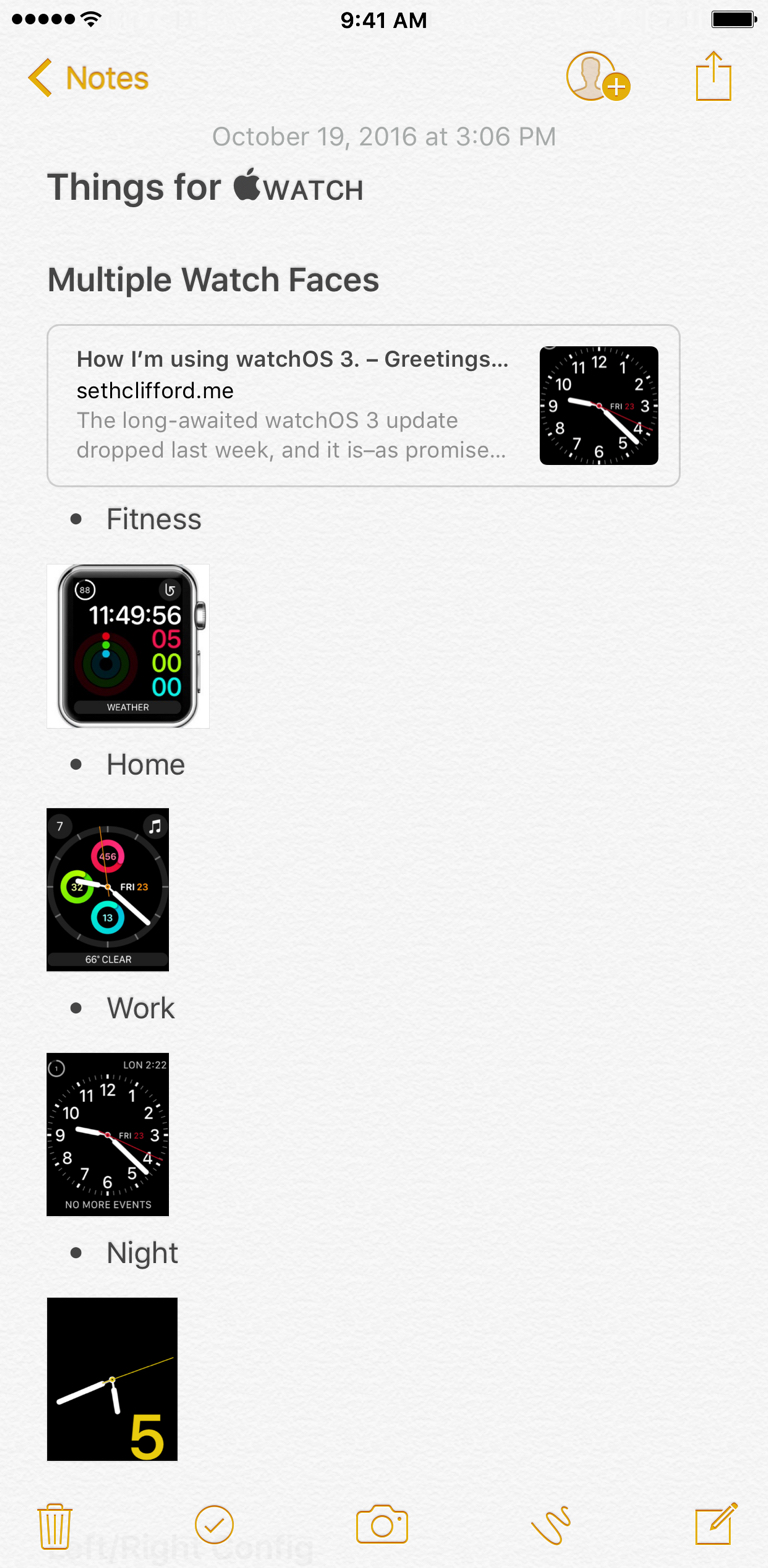
I also encountered several watch face layouts along the way that I wanted to keep in mind when setting it up. When I started adding the images, they weren't visually in the right spot; I wanted to have them indented to the right. Turns Out™, that's not possible in Notes.app.2 But I ended up stumbling on a feature of Notes.app that I didn't even know existed. Here is the view of the note that I was compiling:
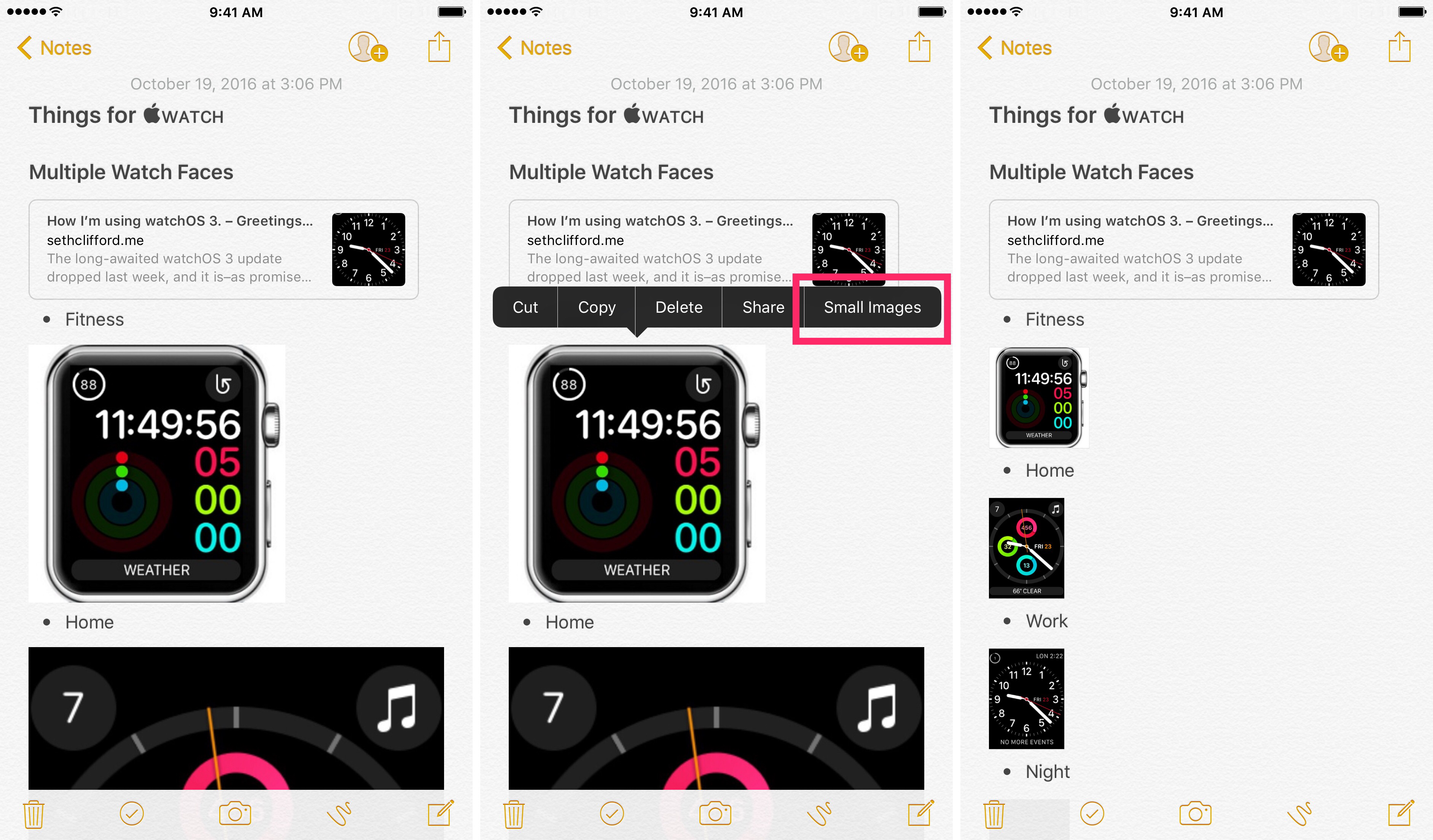
It's nice that the full resolution size is in there, but scrolling that is a pain when all I need is a quick view. But if I highlight a picture, I noticed that I can select "Small Images" from the pop-up menu, and the images are made smaller in the view.
I can still tap on them to see at full resolution, but I don't have to have that in the main view. So the long note becomes something shorter, and I'm happier.
One caveat: it's applied to all or none. You can either have small or large images. You can't apply it to each image, but I'm hopeful that Apple will include that in the future. For now, I'm happy that my original frustration yielded this feature discovery.
through some epic schemes that I won't even begin to describe ↩
Here'a some kitchen things that have piqued my interest:
Kitchen Aid Spiralizer
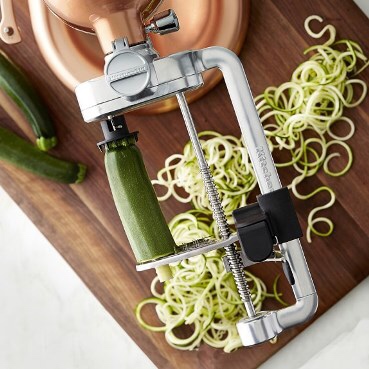
I received the KitchenAid Spiralizer as a gift from my wife. I do enjoy cooking because it's therapeutic most of the time. I'm also a sucker for good pasta,1 so getting me something that helps me make pasta alternatives is amazing.
One of the best meals I've made in a long time has been chicken zucchini pesto. It's a simple, healthy recipe; I had been attempting to make zucchini noodles by hand (with a peeler and a knife), and things turned out mostly ok.
But now that I'm using the spiralizer attachment, I do not know how I survived without it. What used to take me 45+ minutes to do by hand now takes 10 minutes, including cleanup, with this tool. It's an attachment for our KitchenAid mixer, which does all the hard work.2
This is easily my favorite thing I've had in the kitchen in a long time, and makes me want to create new things all the time. Easy set-up, easy clean-up, easy dinner - and healthier living.
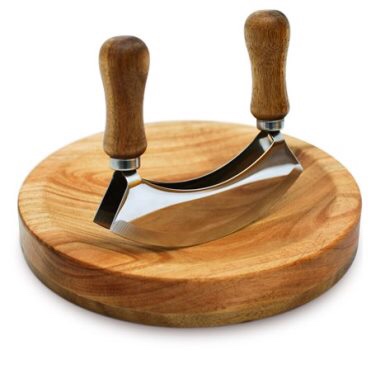
Mezzaluna Knife
I gifted this Mezzaluna Knife to my wife.3 Cutting up fresh herbs can be a [literal] pain, but this makes that process easier. We tend to do a lot with fresh herbs, and although I could use a knife and cutting board, anything to make my work easier — and safer — in the kitchen is better for me.
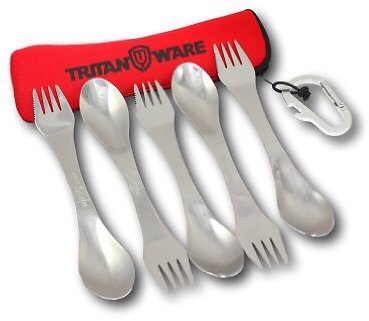
Tritanware - Camping Silverware
I usually pack food for work. Which means I go through a lot of plasticware during the week. After a few times of eating what I normally eat for breakfast (see below) and breaking my fork/spoon in it, I needed to look for something better.
This camping silverware is a combination fork, knife, and spoon all-in-one. They come in a nice carry case with carabiner in set of five - one for every day of the work week - and are machine washable. I can also use them while camping, which means they get a dual purpose. They've been outstanding for what I need. I also feel better that I'm not contributing more to the garbage pile, and that's enough for me.
Recipes
Like I said above, this dish is great. I've been able to tweak it for how I like it. You can download a printable version here.
Chicken Zucchini Pesto
Ingredients
6 zucchini (medium sized)
1-2 lbs chicken breast
4oz basil
4oz spinach
4oz arugula
1/2 cup pine nuts
1/2 - 1 cup olive oil
1/2 cup nutritional yeast
salt and pepper to taste
water
Directions
Use the spiralizer to make the zucchini noodles. Set aside.
Cook the chicken in olive oil, season with salt and pepper. Cut up into strips or cubes; set aside.
Make the pesto by combining the basil, spinach, arugula, nutritional yeast, and olive oil into a blender until smooth. Salt & pepper to taste. Note: This makes a lot of pesto, which is good for leftovers
Place 1 tbsp of olive oil in a pan on medium heat. Add zucchini and cook for 1-2 min, stirring occasionally. Add 1/4 - 1/3 (depending on portion) of water, and cook for an additional 6-8 min, until the desired firmness is achieved to be like pasta.
Add chicken and the desired amount of pesto to the meal, stir until warmed, and serve.
This is completely dairy free, and is amazingly filling.
For those that want the recipe for my breakfast, I got the inspiration from a recipe I found online and tweaked it. Hope you enjoy it. You can download a printable version here.
Breakfast To-Go
Ingredients
1 container of liquid egg whites (or 9 eggs)
2 packages of uncooked turkey breakfast sausage patties, total of 24 patties
small amount of shredded cheese of choice
salt and pepper to taste
Directions
I start off by using 12 4-oz mason jars in a 9 x 13 baking pan (to avoid spillage in the oven).
Place 2 patties in each container. Use your fingers to line the jar with the patties, making a spot for the egg to fit.
If you want to add cheese, add just a pinch to each one. You can also add a slice of mushroom, or a pinch of chives, or whatever else you'd like.
Evenly distribute the eggs, leaving about 1/4" from the top. If you are using the eggs, beat them together first.
Cover the entire baking pan with aluminum foil and put in the oven for 55 min at 375ºF.
Let them cool down and put the lid on each one. These can be refrigerated and/or frozen.
When you heat them up in the microwave, be sure to heat them all the way through with the lid off.
For how I make this recipe, it's about 120 calories or so, and it's the perfect amount to go with my coffee.
There are a lot of things during the day that I often need to remember. And most of the time, I'm trying to get things into my phone quickly without having to think too much about where it's going.
Enter Drafts.
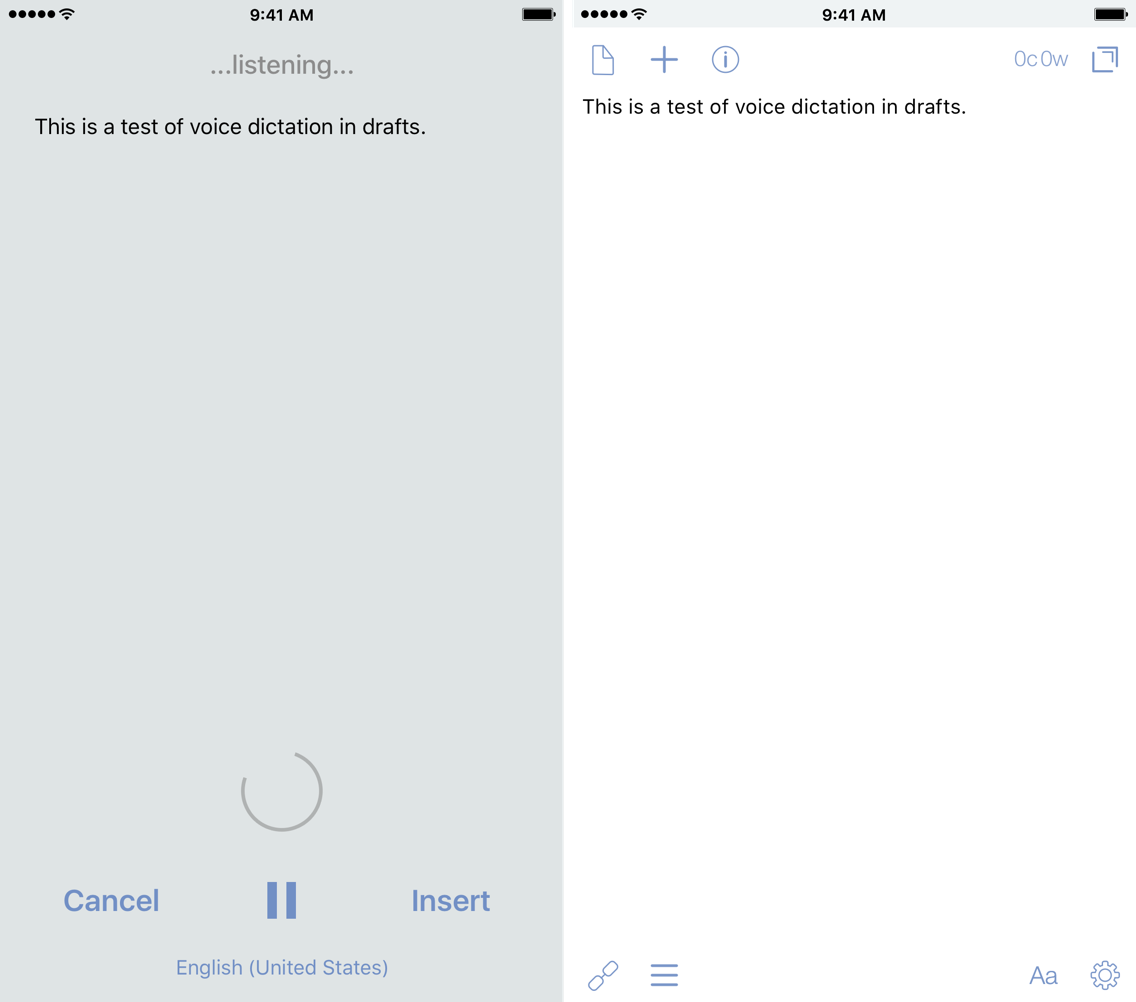
Drafts is a wonderful tool for this kind of activity. I can simply enter the text using my fingers and thumbs. Starting ideas here has been the natural place for me for a long time now. And with the latest update, it's now made even easier with the dictation feature, thanks to the changes made in iOS 10. It takes cognition-to-completion, something I first heard from Merlin Mann on Back-to-Work, down to seconds to complete. All you have to do is 3D Touch the Drafts icon on your iPhone and start talking: it's as simple as that. You don't have to tap anything to make new draft or think where the icon is on your home screen – even though it should be in your dock – and then start typing into whatever keyboard you choose. You just press and talk.
We often use technology, even if it's pen and paper, to get the thoughts from our head to paper so we can remember it later. And now with modern technology – i.e. the smartphone or smartwatch – we can really shorten the time it takes to get these things out into our digital sheets.
Back in February, Gabe at Macdrifer posted about talking to his Apple Watch. In the post, he was able to dictate the entire thing while he walked to the grocery store. If I had an Apple Watch, I would be capturing things left, right, and center with my voice — likely to the annoyance of those around me. With the improvements in iOS 10, I can turn my iPhone into the same thing, but better.
When the first beta with this feature rolled out, there was a limitation of the capture time.1 But later in the betas, Greg was able to cleverly work around this limitation, and it's a game changer. The first time I tested it, I picked up my phone when leaving work, and just talked for 20 minutes while I captured the main portion of this post. I was able to use the pause button if I needed to stop and think of how I was going to say something. This eliminates the need for creating multiple drafts and allows me to have one continuous, fluid session. With that limitation removed, I can just talk to my dingus on the way home. With this feature, I can literally complete 90% of my posts on the way home, just by talking. I can use the time to be productive, fix small mistakes or add links later, and then get posts out.
If I spoke multiple languages, dictation entry in Drafts would be the best way to do it. The official dictation support — along with all of the new features of the release — can be found here. With the new multi-keyboard feature in iOS 10, it's limited to similar languages, like English and Italian. But with the dictation feature, any language that is supported by Siri works with dictation, so you can go from English to Russian to Italian to Mandarin and back again, pausing between each, all in one session without fully stopping.2
Of course, Drafts wouldn't be complete without a custom key for dictation. This allows you to use a keyboard shortcut to start dictation on the Smart or a third-party external keyboard.3 Now even as I'm writing, I can simply activate the shortcut key and talk; it inserts the spoken text where I had my cursor. There are times that I might be cooking in the kitchen, and with this, I can hit the keyboard and just start talking while walking around, dictating my shopping list without stopping. Then I can send it along to AnyList with an action later.
If you've never used dictation, there are helpful things to know. Macworld has a good article — albeit from 2013, but it's still true — covering some key basics, including commands, that I have found to be incredibly useful:
Speak punctuation and symbols: To include punctuation in your dictation, you need to say “comma,” “period,” “hyphen,” and so on.
You can say “new line” to dictate a return character, and “new paragraph” to add two returns. You say “apostrophe” for a possessive noun, such as “Jerry Garcia apostrophe S guitar,” for Jerry Garcia’s guitar.
When you want to capitalize a word, say “cap.” If you’re sending a message to someone about a movie preference, for example, you might say “I’d like to watch cap lord of the cap rings.”
Journal entries have been made way easier now. I've been using Drafts for my journaling, and this takes it from typing to a (one-sided) conversation. The beauty of this is that it sounds more natural, more in line with how I speak, rather than me trying to perfect my words. I often just dictate the entry, save it, and move on without editing it (other than for any dictation errors). Slowly but surely, it's becoming second nature to me to start a new draft, insert the timestamp, and then start dictating the entry.
While I'm doing most of my long-form writing in Ulyssesthese days, this really has me pining for using this feature in combination with things I think about for Drafts 5. The power of Drafts really shines here by cutting down the time it takes for me to get my thoughts out, and is so much better for idea generation. If I have an idea while driving or walking around the house, I can just simply pick up my phone, 3D Touch the Drafts icon, and start talking. This makes Drafts a very compelling writing tool, now more than ever.
With this new feature in Drafts, it can turn my powerful pocket computer into a dedicated dictation dingus for me to get more thoughts out, things accomplished, and go about my day.
This summer has been a busy one. It seems like the time of year that things will always get busy for me. I'm currently working on a global launch of a product in four countries, and with all the little differences and nuances in each place, it has been difficult to keep track of all my tasks.
But this summer has been really different for me. Instead of one thing to focus on, I have a bunch more. More than I've ever had to keep straight. And it's made even further complicated by personal life stuff. So there's been a need to re-evaluate what I'm doing, and how I'm doing it. Luckily, I have some amazing friends, and one in particular that has had similar issues and feelings this summer. Seth and I have had many conversations about this, and he's had a lot of sage-like insight on the topic. In fact, he's written a three-partsummerseries on it, and I highly recommend that you take the time to read it (if you're in to the nerdy stuff we're in to). It's some magnificent writing, and I couldn't have said it better if I had tried.
I can manage a lot with 2Do. In fact, I can typically manage everything with it. It's the central hub, the central nervous system to my task management. But this summer has shown me one thing: I often need to split stuff in my brain and do things differently. Sure, I can filter what I'm looking at, but it was starting to not feel like enough. Earlier this year, I tried some new things as experiments to see what else was out there, and how it could better serve me. Ultimately, I came back to where I started, and things were working OK. Kinda.
What I was noticing for work is that I wouldn't always see everything that I needed to do. I was managing my work tasks on my personal phone so that I could keep track of them, and keep them close at hand. But then I would forget to add an email to follow up on, or not remember to enter something from the chat system we use at work. If I'm missing tasks that others are depending on me to get done, then I need to fix something.
I don't use a Mac at work, but rather the eight pound monstrosity that is my laptop. So I needed something that talked between iOS and my PC, but only for work. For many reasons, I'm not going to keep my personal life on my work computer, but I didn't mind the reverse.
So I once again tried Todoist. But rather than moving over everything and having the app on my first home screen, I put only work tasks in it and moved it into a folder on my second screen; this allows me to be able to access it, but it's not in my face. As Seth said:
Now I’ve realized with all the things I’m tracking, the best way to do that and accommodate my personal wishes to keep work and personal life connected but separate means I take that information and split it right down the middle.
Now, I really didn't like this to start. Not at all. It broke my brain. Give it more time: it will be OK, I was told. So I did. And as I continued, I had the same feeling as he did:
For the next 36 hours or so, I had all of my life in those two apps. And then I just freaked out. No, seriously, I did. I had a baby anxiety attack, quickly righted the ship, realized I’m a total asshole, thanked the heavens that this was my biggest problem right now, and just said fuck it, it’s going to be [my app] again, and that’s that.
After about a week, I began to see how much I actually really love this. I've been able to install the Outlook add-on for Todoist, so that it's completely integral to my workflow. And that's been a game changer. In fact, it's been a huge boost in productivity for me. I was originally going to wait until I had my new job,1 but the suggestion that I set this up now instead of when I'm in my new role was a great idea.
So here's my current setup: I'm still using 2Do for my personal tasks. But I'm also using Todoist for work. And this bifurcation is working. I'm still as just productive as using one app, if not even more so with two. I can use the right app, at the right time, in the right place.
The big thing with all of this: you shouldn't worry about what app(s) others are using, but rather you should focus on what makes sense to you and how it makes you feel. If your work and personal life need a specific solution, whether that is one or more apps, it just needs to help you stay focused, feel OK, and allow you to take care of your needs.
I'm really glad I'm not alone in this. Not by a long shot. I have made several friends specifically because of this condition line of thinking. We're not in the same physical space, but at least we have a way to talk about it. As Seth put it:
If you’ve made it this far, I truly am sorry. And thankful. We should hang out.
We should. And we will. But for now: we'll continue to talk frequently about things like this, commiserating, changing, learning, and sharing our experiences. And that's good enough... for now.
Oh, did I not mention that? Yeah, I got a new role at work. It's going to be great. ↩
I really like the Reply All podcast from Gimlet Media. If you haven't listened to that show, make sure you go listen to it. At the end of episode #71, they had a preview of the second season of a podcast I had never heard of, Science Vs I listened to the preview, which was the first half of the "Fracking" episode, and I was hooked.
Hosted by Wendy Zuckerman, the whole idea of this show is to take a topic, break down the key points, and scientifically back-up or refute the validity of said points. The topics range from fracking to diets to medical marijuana. In the latest episode and first in a two-part series titled "Guns", she tackles a fiercely debated topic dealing with guns in America. It points out where some of the groups that use statistics get it wrong, and shines some light on how some of these figures get collected. The difference the podcast brings to the debate is that it's not from a passionate point of view, but rather a scientific one to help understand what is really going on. Is it a problem? Is it a problem with incorrect statements of fact?1 I'm really looking forward to part two.
A nice touch in the beginning of the episode: she gives the telephone numbers for two suicide prevention and crisis hotlines, and even more in the show notes. This is a touch of class that I have not experienced while hearing another podcast, and given the subject matter, was the perfect way to start the show. Bravo, Wendy.
I'm happy that Reply All featured a segment, and I'm going back now to binge-listen to season one. I highly recommend you do the same.
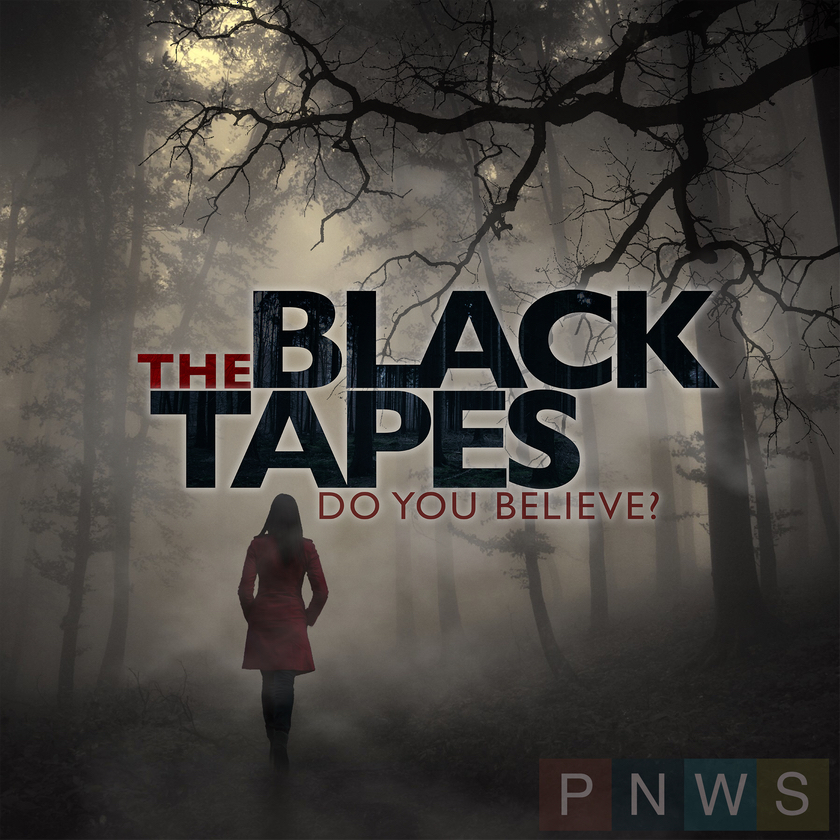
I don't remember how I heard of The Black Tapes, but ever since listening to the first few episodes, I've been enjoying this serialized docudrama. The show features Alex Reagan sharing her journey, along with her producer Nick and the focal point of the show, Dr. Richard Strand, through a complex web of a story. The show deals with the "Black Tapes", a series of tapes that cannot be scientifically explained. It covers elements of the supernatural, demons, the occult, and other topics; some of the are downright terrifying, and often makes me thankful this is an audio-only show.
I should state now that this is not a show for kids, or even listening to it with kids in the car. It can be more intense than other docudrama podcasts, with the background soundtrack adding effects that can make you feel a bit uneasy (but adds to the ambiance of the show). The story starts from the first episode, so if you want to get into the show, you really do need to start with episode one. I've really enjoyed this podcast, and if you enjoy Lore, I would definitely give it a shot.