There are two certain things in this world: death and taxes. And since I'm not dead yet, I'll have to do some adulting on a yearly basis and do my taxes. I'm not upset about paying taxes; in fact, I'm one of those people that likes knowing how my taxes work and figuring it out myself, because it's my money. And sometimes, doing some tedious tasks bring me joy. It's a sickness really. But I digress…
Let me get this out of the way: there is nothing wrong if you want to pay someone else to do your taxes.1 It might save you time, you can deduct the fees on the next year's taxes, and you have piece of mind that things [hopefully] didn't get screwed up to avoid an audit; if something does happen, at least there's some recourse in getting it taken care of without cost to you. You may have more complex taxes because you run your own business or whatever. And there is zero wrong with paying someone who is well-versed in tax filing to do this work for you.
But rather than pay $150 (or more) a year, I fill out my own forms. For my adult life, I have done my own taxes almost every year, save two: the year we bought a house and got married, and the year right after that. The years prior to us getting married, I was able to fill out the EZ forms, which are just as they sound: easy. The tricky couple of years, especially the second, laid the foundation for me to be able to handle more complexity with taxes with a house and family. The only other big life event that influenced our taxes was the birth of our youngest son, which from a tax perspective, only adds another dependent. We've had miscellaneous forms here and there to fill out for credits when we've purchased energy efficient windows or new appliances, but nothing has been so complicated that I can't figure it out.
For the last few years, I have downloaded the documentation and forms that I needed, filled out everything, and printed it all from iOS. I usually make a checklist in my task management app for the things I need. But this year, because I've been using Reminders.app for the last several months and it is limited in structure, I needed a different way to keep track of my taxes.
In general terms, I need to do the following:
Make a checklist of personal information and documentation to gather like W2s, taxes paid, etc.
Make a list of forms and instructions to file.
Store gathered documents in a single place, so I know right where to go.
Fill out the forms and store the completed, signed versions for my records.
File my taxes.
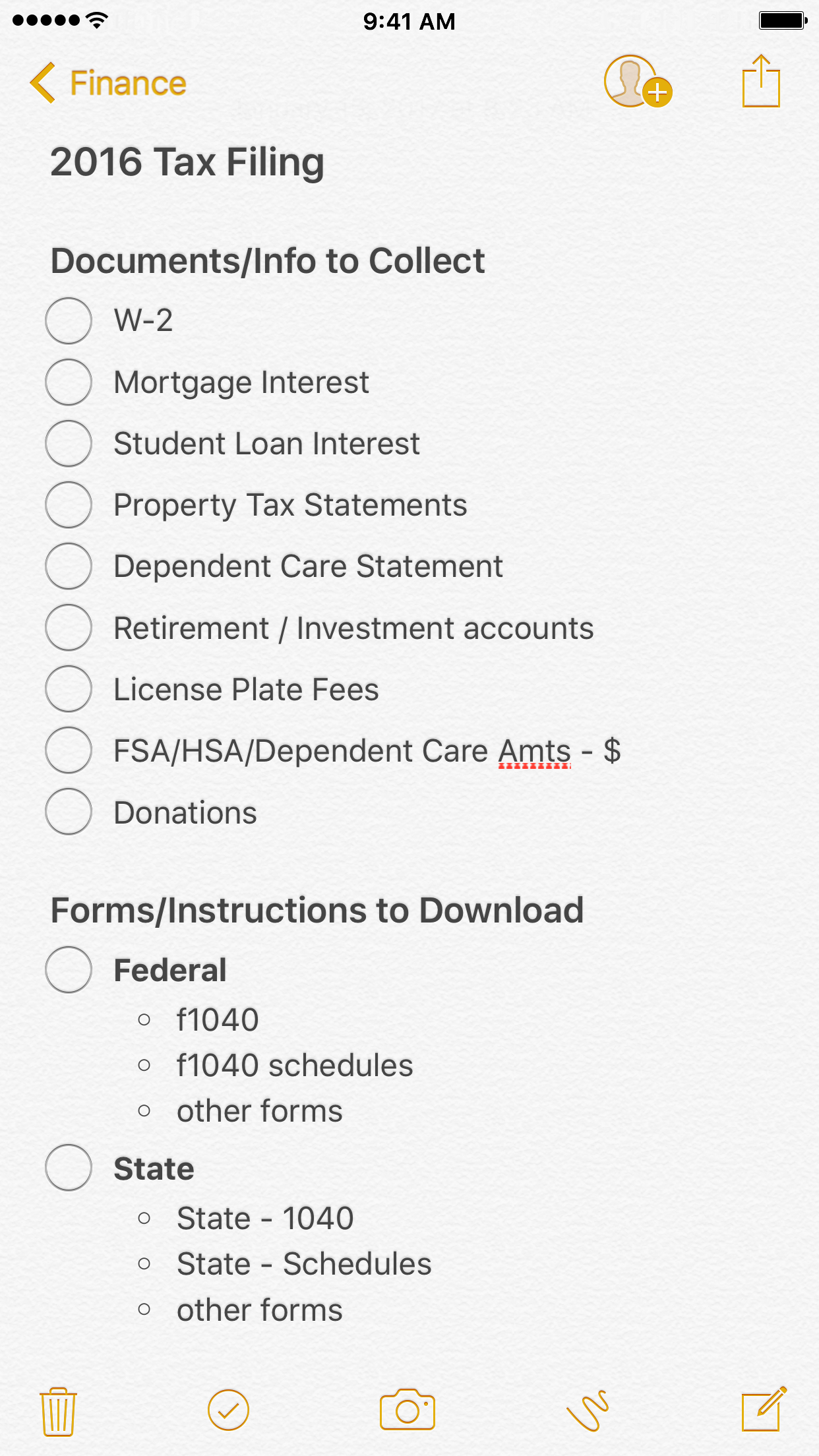
This year, I'm going to use Notes.app for getting my taxes done. There are a lot of benefits now that Notes.app has been improved starting with iOS 9, and is flexible enough to handle this. My taxes are relatively simple, and I can follow along with the information I needed from the year prior to see what I need to gather. I entered everything into a new note, capturing everything as plain text; then I formatted a note like this:
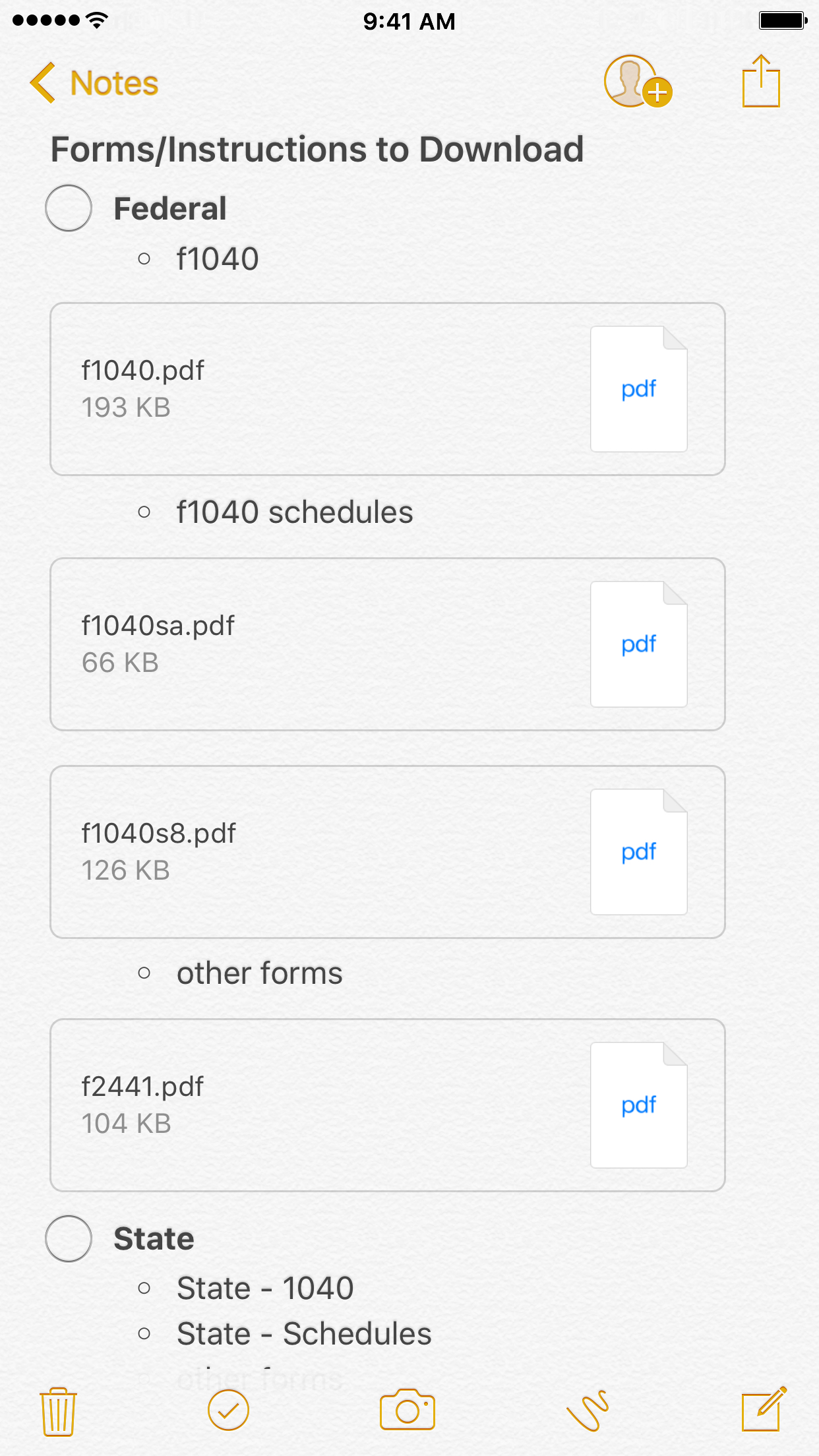
Now that I know what I need, I can start gathering the information into the note. I can include images of my license plate fees, and store them directly into the note. I can download the other documentation and forms as PDFs, so that everything is in one convenient place.2 And, I can also lock the note, so that my personal information won't be easily accessible.
For completing my tax forms, I use PDF Expert to fill out all my forms. I also use the wonderful PCalc for my calculator, especially in the widget: utilizing the copy/paste functionality there helps me as I go line-by-line when I'm filling out the forms. I always fill the forms out at least twice: the first time to fill it out, the second time to double check that I'm right. If there is a discrepancy, I'll fill it out another time to reconcile the other two. Repeat as needed. Again, my taxes are relatively simple, so doing this work just takes a bit of my time. But if I have everything I need right there in a note, it's a breeze to go through.
When I know that I'm done and it's ready to send out, my wife and I will digitally sign the forms in PDF Expert, and I'll save a flattened PDF into the note. I'll print it out, and send it in. Yes, I'm one of those people also. I could e-File my taxes, but I have envelopes, so I might as well just print it out and mail it in. If you do mail it in, send it in USPS certified mail. It will cost you a minimum of $7.54 total for both Federal and State taxes,3 but it means that if it gets lost in the mail, you won't be assessed late fees on your taxes.4
I already made a note template so that next year, I can copy it, and then easily change the tax year; I can also save things in there as the year progresses, which will be super helpful for me. Doing your own taxes can be tricky, and it's not for everyone. But it's made that much easier when I have one place to look for everything, and it's even easier when the tool I need is natively there in iOS. Notes.app has really come a long way, and I'm hopeful that it keeps improving.
Note: this is for the US tax system. So if you're outside the US and reading this, I have no idea if this is done in the same way. ↩
I would, however, love the ability to edit the PDFs in place in Notes. If I can fill out forms and sign them right from Notes.app, that would be amazing. ↩
Depending on how thick the stack of paper is to mail, your postage may be more. ↩
Just make sure you keep a copy of your receipt(s) for this. Pro tip: take a picture or scan, and add that to your note. ↩
Normally when I have an idea, I'll write about it. This past time, I decided to do something a bit different, and write more about how I felt rather than explain it. But, I also realize that this new-to-me idea might need a bit of help and guidance for those that aren't well versed in the subject, like me. So I'll do my best here to explain.
Full disclosure: I'm not a programmer, I'm not a developer, I'm not an expert. So don't rely on this post for complex methods.
Dictionaries
In simple terms, dictionaries are a place to store information in a tabular-like format, similar to a database or an array.1 The difference with dictionaries is that they use key/value pairs: using "keys", you can call specific "values" for each item. An example of something you might want to put into a plain-text dictionary would be a rating system:
Rating
Number
Poor
1
Marginal
2
Acceptable
3
Good
4
Best
5
If you are given a descriptor of "Acceptable", you can understand this numerically on a 1-5 scale. Using a table is great for viewing. But if you want to actually use that data, then changing the table to a plain-text dictionary will allow you to pull information out of it based on a search string.
Entering Dictionaries
Plain-text dictionaries follow the following format:
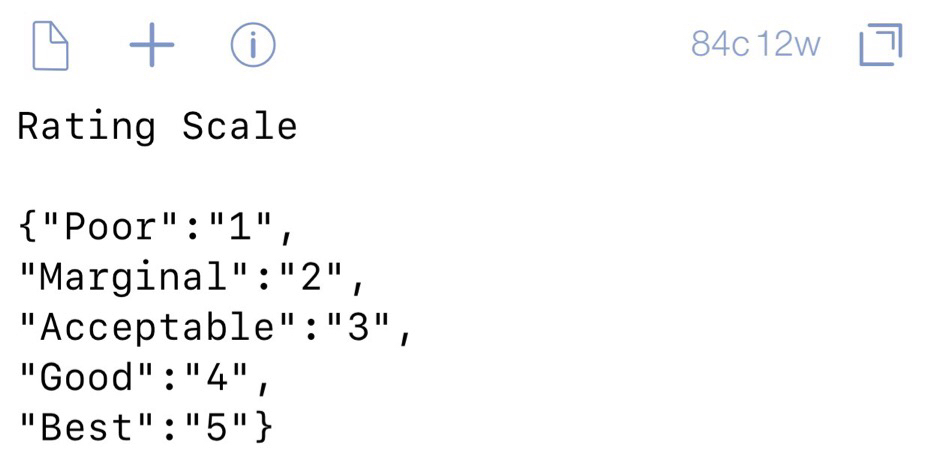
For every line, you'll need to follow the quotes, colons, and commas exactly as above for it to work.2 So for the example Markdown table above, I can write that in plain text like so:
Once you have everything in that format, you can place this simple dictionary either as a text block or a .txt file that you can call out of iCloud Drive or Dropbox in Workflow.
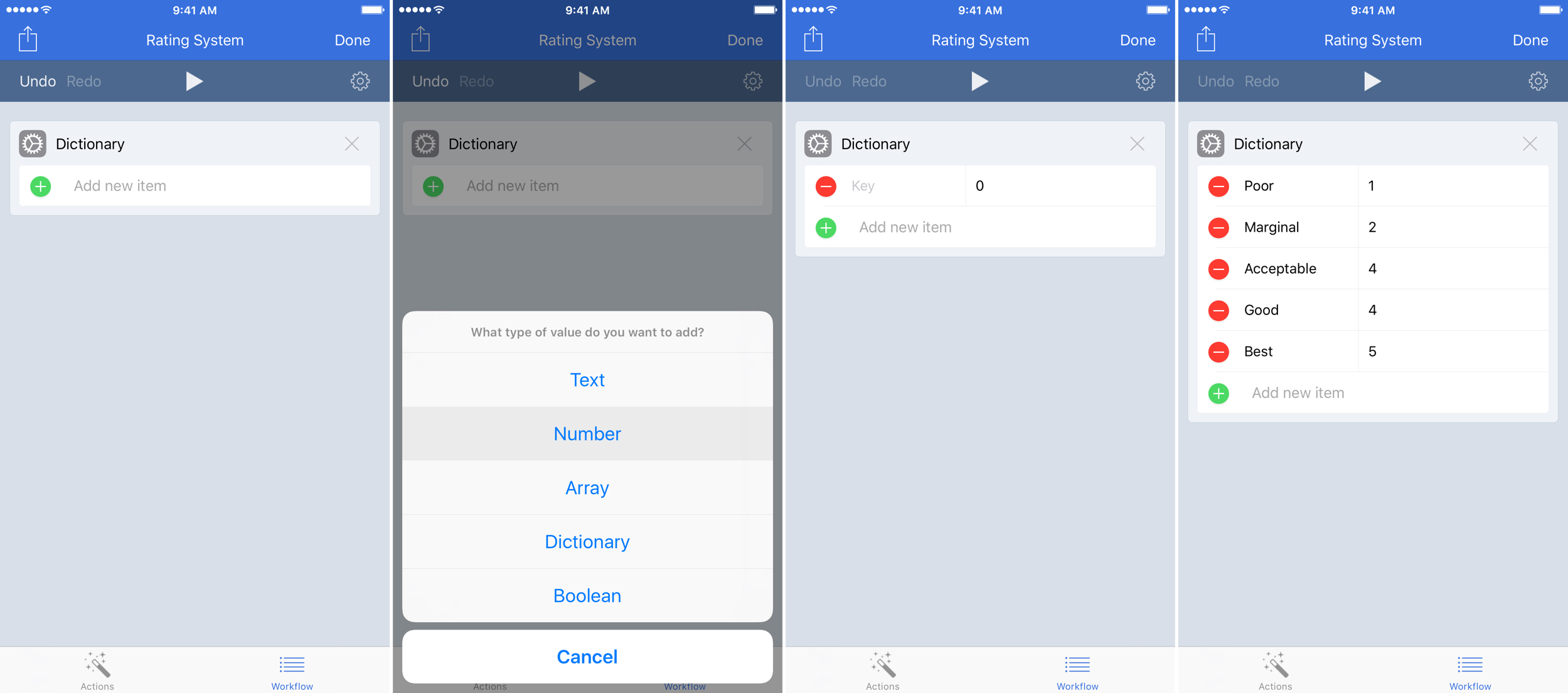
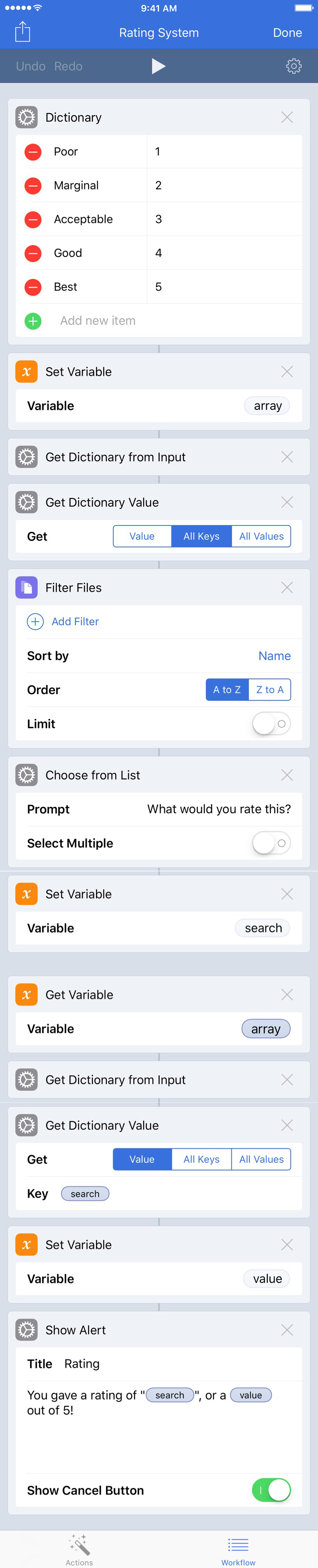
Workflow also has the capability of entering in a dictionary. Workflow asks for different types of values; it can get complex, and I'm not going to cover that here. But to enter this simple dictionary, we can use the Dictionary step as follows:
Once completed for any of the methods — TextGet File or Dictionary action blocks — be sure to include a Set Variable step so that you can call it later.
Personally, while Workflow is very powerful for this type of thing, I would prefer to enter my dictionaries in plain-text form. This allows me to duplicate workflows more easily while calling a different directory. It also means that I can edit them quickly in a text editor like Drafts and save them. What I do for files in Drafts is use the [[title]] for the name of the file and [[body]] for the dictionary, like so:
Pulling Out Information
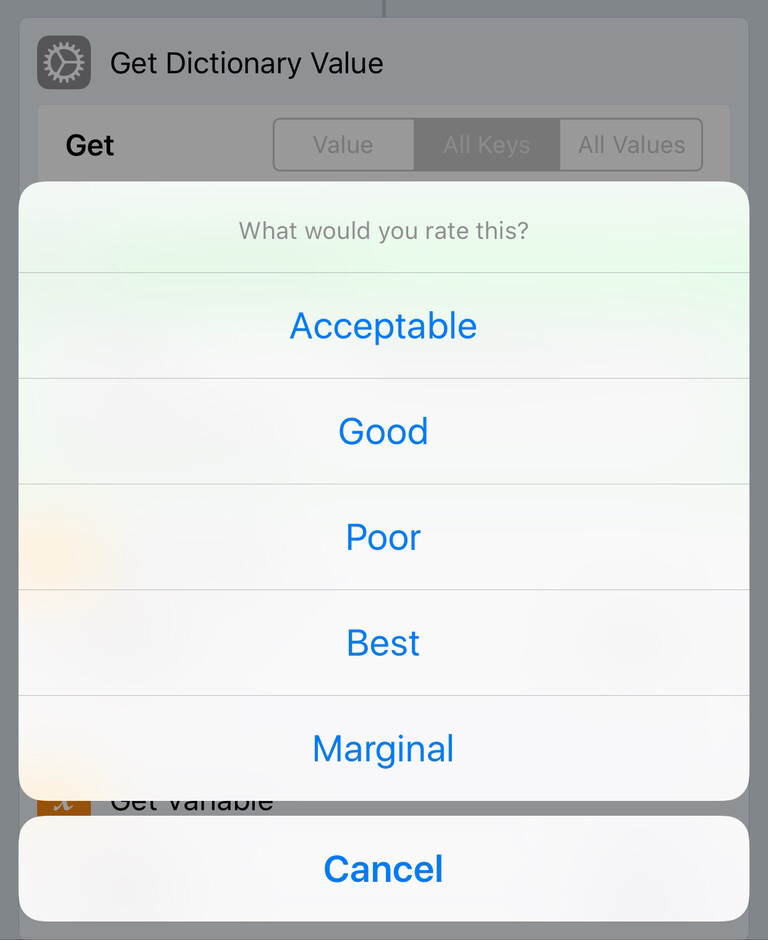
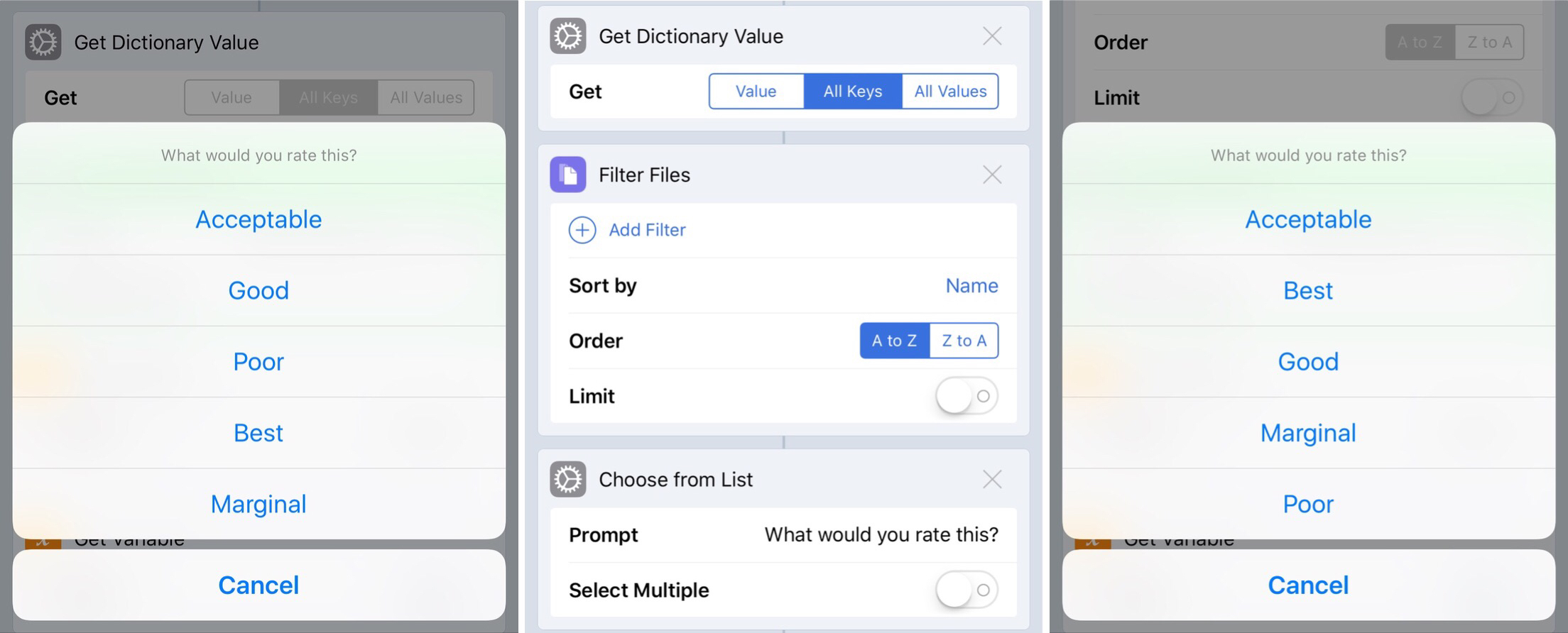
Now that the dictionary is set, we can pull out specific information. For example, you can call out a list of the keys you have stored in the dictionary. Once the dictionary is called using the Get Dictionary From Input step, place a Get Dictionary Value block with All Keys selected. What this will do is provide a list of the keys, which you can call using a Choose From List block. One thing that calling dictionaries doesn't do well is give you the values the way you have them stored. For example, the stored rating list is presented like so:
The list is out of order. Unfortunately this is an inherent thing with dictionaries, and slightly aggravating to someone like myself who likes things orderly. However, there is a small thing that can be done: using a Filter Files block after the Get Dictionary Values, you can sort by Name and select A → Z; this sorts the list alphabetically, which is more helpful to find what you're looking for instead of a random list.
Then, set that chosen value as a variable. This will become the variable that you look up in the dictionary. Use the Get Variable and Get Dictionary From Input blocks to call it again, along with a Get Dictionary Value. This time, however, use Value and put in your search variable in the Key field. This will search the dictionary for the given key, and give you the value associated with it. What you do with that value is up to you.
Say I switch companies and start using a different rating scale that goes from 1 - 10, along with a change in descriptors. I can simply go to my draft, edit the plain text, save the file, and I'm all set; there's nothing to change in the workflow.
Reminders Example
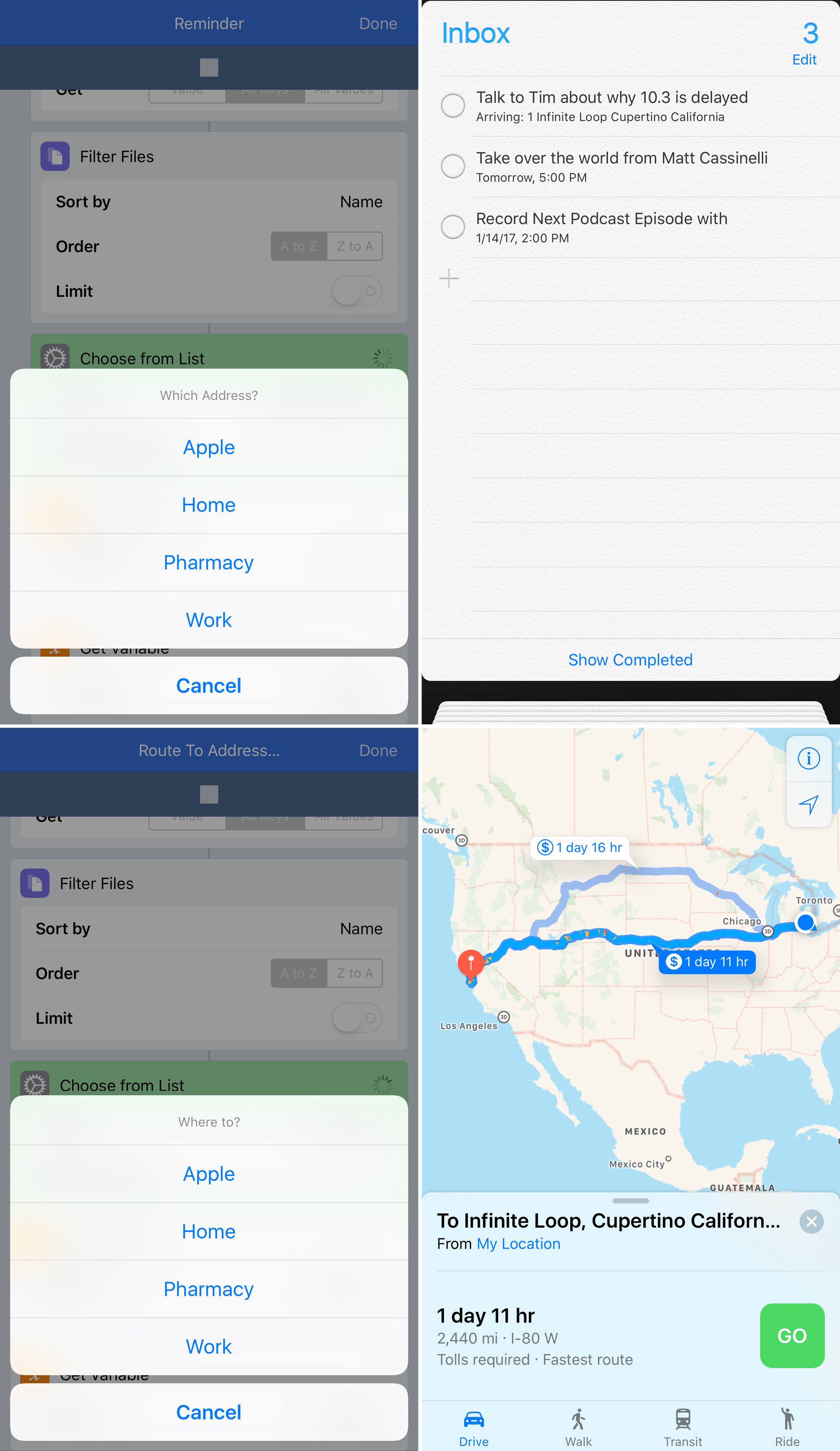
I've been using Reminders a lot more lately for tasks. The Siri input is really great from the iPhone and the Watch. But there are times that I need to be silent, and can't say "Siri, remind me to [do something] when I get [home/work/etc]." I've been using this workflow for a while to do just that.
However, I can have one master contact file for frequent addresses I might need, and use it for two purposes:
While these workflows are different in what they produce, at the core, they call the same information to be used in different ways.
Advantages
Through the Reminders example, you can start to realize the big benefit of using the plain-text dictionaries stored in your file system: using one file in multiple workflows.3 I can change the text file one time, and my workflows will pull in the updated information when it runs. Did one of the frequent addresses change? Edit in one place, use in multiple workflows, all with minimal effort. For automation, a write-once-use-anywhere mentality is ideal.
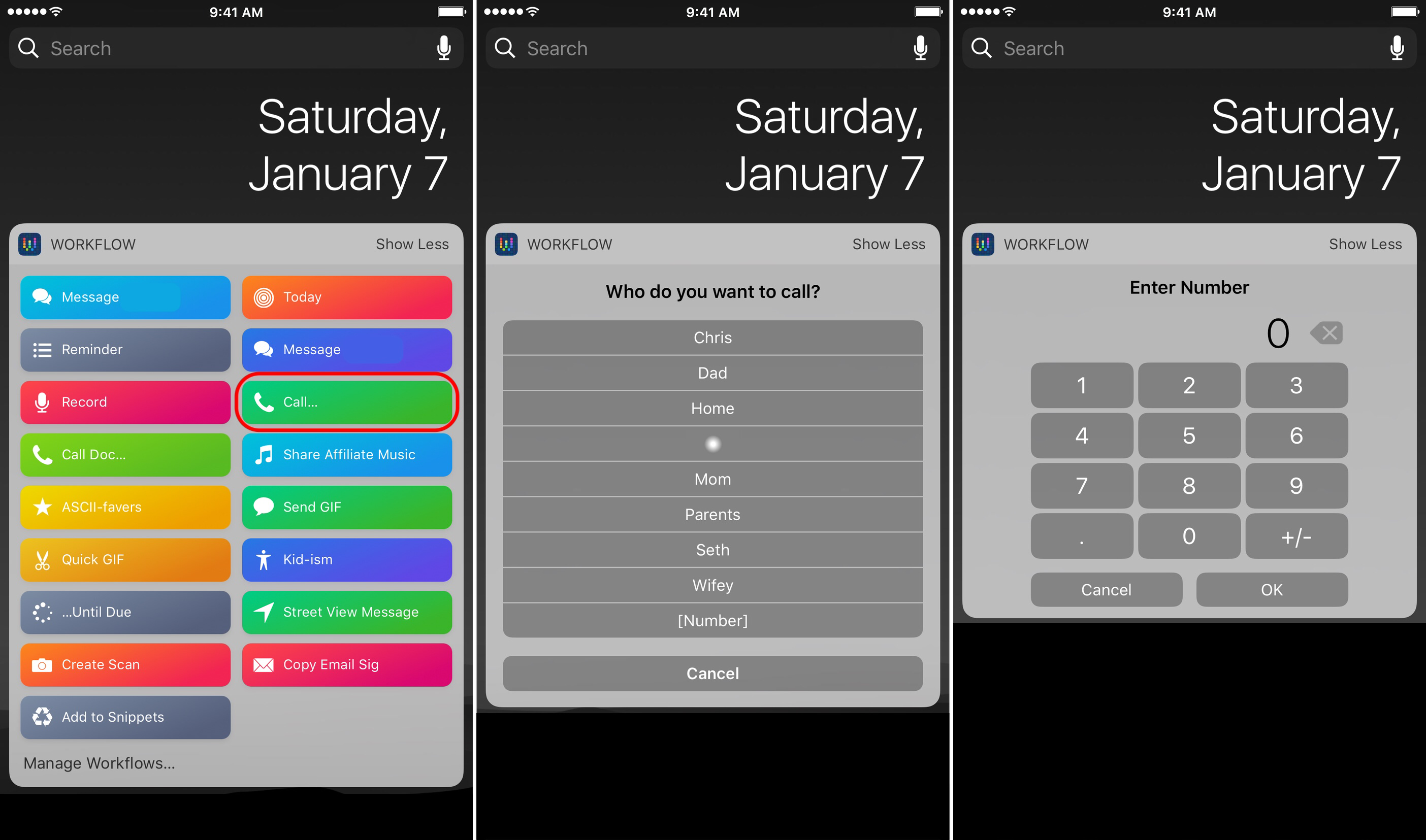
If I move or change roles at work, things that I regularly access are easily modified by typing, instead of duplicating the work again in another workflow. Need to add or change an address? An email address? Or maybe add or change [phone number](https://workflow.is/workflows/2563ac9600dc4ba5b474f3e7f80f545a ""Call…" Workflow")? Type in the change to your text file, save the file to your system of choice, and you're done.4
When I worked with Seth on creating some workflows, I didn't realize that it would allow me to expand what I'm doing with Workflow. I plan to explore further, perhaps going deeper into more complex dictionaries. But that time will come. For now, using these simple dictionaries to give me the flexibility to create has been fun. I hope you enjoy them as well. If you come up with something cool, hit me up.
One thing that tripped me up was putting a comma at the end of the last line. If you do that, nothing gets passed into the dictionary, and your workflow will crap out. If you experience that error, check it out. ↩
I do wish, however, that I could copy a block of commands from one workflow to another. Looking at you, Workflow 2.0… ↩
Just make sure you follow the syntax from above. It does require a bit of caution, after all… ↩
There are a lot of times where I seem to create good workflows or actions. They sometimes come out of nowhere, and really elevate some of my productive life. And sometimes I create them for friends based on their original ideas.
Recently, I was helping Seth work through an idea, and it turned into an awesome evolution clipboard management. There's a lot of useful tips in there and new ways of using Drafts and Workflow, so go read it. Now. I'll be here when you get back…
Being that Seth and I talk often — OK, a LOT — and we often bounce these things back and forth, I helped to create some actions and workflows to make those ideas become a reality. One of the important parts I came up with in the article he posted was the use of a dictionary to produce a list, which is helpful in so many things and a "damned creative" way of doing it, as he put in. Using this same idea, I improved a workflow that I had made for my frequent contacts, pulling from a plain-text dictionary of names and numbers instead of listing out a menu and contacts, while also leaving the option to input a number to call. I made an additional one for the doctors and pharmacies we use. And I plan on creating more.
I was really pleased with myself for coming up with this idea. But here's the thing: I have done this kind of list lookup before, however, it was used for a completely different purpose. I had previously posted about a Today workflow that helps me see my daily agenda ok my Apple Watch. In that workflow, I had a part that used a dictionary which formatted the time of events or reminders: it would change a give time of 12:00 AM to 12⁰⁰a. I did this because, well, that's just how I like to see the times. As I was working the idea of these clipboard snippet workflows out in my head, it dawned on me to try the same method to replace text with a link. After trying some different things, I ended up creating something that was even better than I had hoped. I had taken something from before, changed it up, and made it work for me in a new way. Keeping text files that I can change and pull from in iCloud Drive isn't a new concept, but using it in this way has elevated what I'm doing and made it more powerful for many other productivity workflows.
When I was a kid, I thought my dad was the smartest technical person I knew. He had such a breadth of knowledge about a lot of things: cars, home repair, gardening, etc. And while I know my dad is incredibly smart, what I've come to learn as I've gotten older is that he has the intelligence as well as the experience. Having the experience from previous situations or obstacles and knowing how those were solved before can make all the difference in the world. He could look at anything like a puzzle, break it down to its parts, and then work to build it up and make it a functioning whole. And I feel like I have learned a lot from him in this regard, and still often learn now that I'm older.
Now, I have a wonderful community of like-minded nerds who challenge me and help me to learn new things or new methods of working. And some of them have become great friends - even best friends — that foster the creativity within me to use the tools that I already have or learn new ones to apply in different ways, create new methods, and solve other problems. The reality of my circle of friends and the greater productivity world I poke around in: I'm not the smartest person when it comes to this stuff, nor will I ever claim to be. There are otherhighly-capable, intelligentindividuals who have more experience than me at putting the pieces together to create amazing workflows. But I'm always gaining the experience necessary to improve, put things together into something new, and be able to create some useful workflows of my own. I started out not knowing what I could do with Drafts and Workflow to using it daily, unsure of how I'd live without them. They really have taken my personal productivity to another level.
As Seth said:
I realize it seems circuitous and somewhat silly, but the whole point of all of this is to play and learn. … these small excursions also allow me to think through problems and find new ways to solve them. … These are the little puzzles I like to solve.
Personal growth can come from a lot of different places. And in my life thus far, nothing has made me grow more as a person than gaining experience. It has allowed me to learn as I go and further my personal and professional lives in positive ways. It allows me to have new insight into different puzzles that need to be solved, and I can't wait to see what my experience helps me do for the next one.
I don't often take requests for creating actions or workflows. If I did that for everyone, I wouldn't be able to get anything done at all. But, there are times that I have a good friend in need, and I'm willing to help them in any way that I can.
Jeff, one-half of the team behind TapCellar — pour one out — and the Nerds on Draft podcast, asked me a few questions one day about the possibility of re-creating the basic information from TapCellar, but in a text document format. There were several different fields that he wanted:
Beer Name
Beer Style
Brewery Name
Grade
ABV / IBU
Notes
We went back and forth on a few different iterations. Then I had a follow-up request from another friend Nate. He wondered if it was possible to get the text input or the button that is pressed in a prompt step within Drafts. It took me a little bit to figure out how, but by placing a script after the prompt step, I was able to extract either the button selected or the text passed from the prompt step. I could go on about how useful this is for other multi-step actions, but I'll save that for a different day. You can view the example of just that part here if you want experiment.
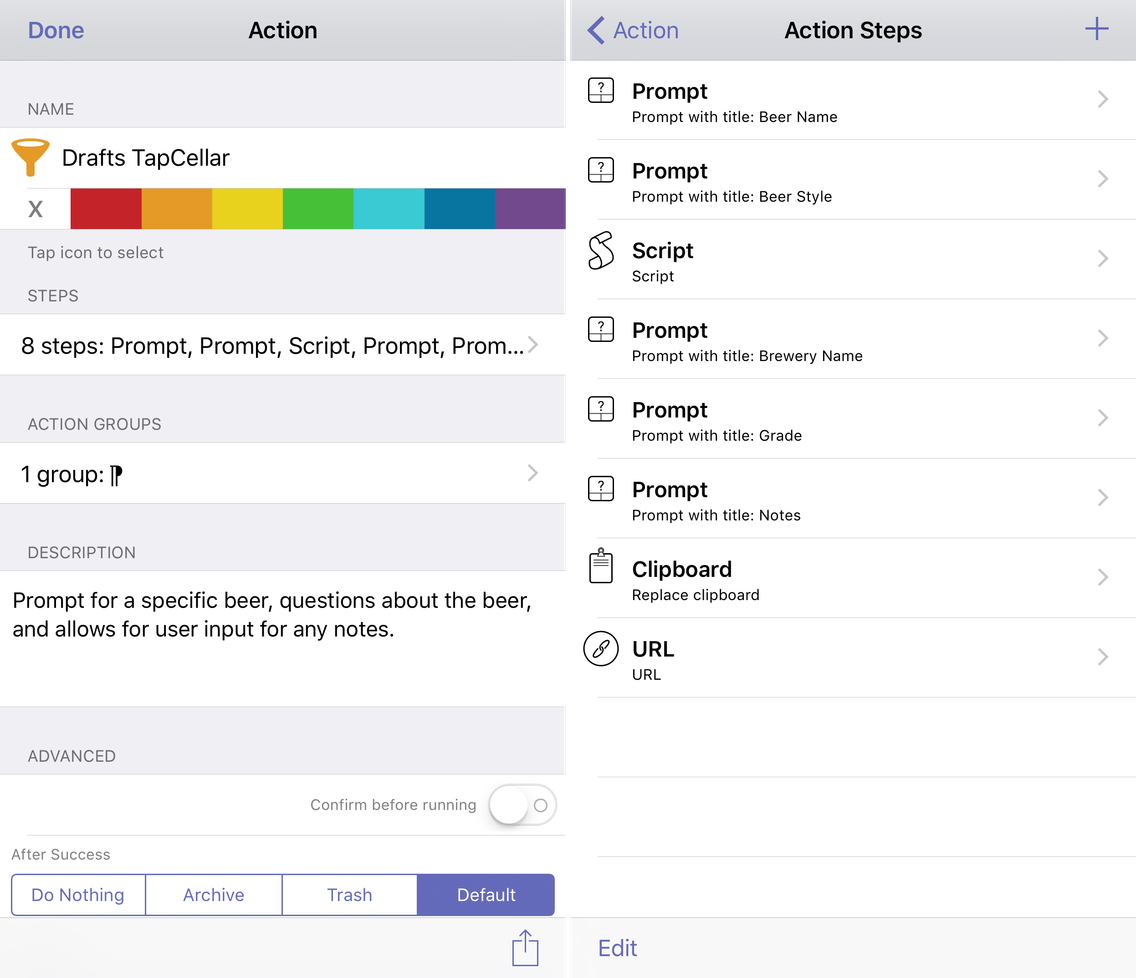
What I ended up creating was an action containing multiple prompt steps that recreates some of the text fields of TapCellar, using Drafts and Dropbox.1 If you follow how I set up the action, you can easily add additional prompt steps to further add information you'd like to have. Additionally, I've formatted it the way I like it, and made it so that when the image links are appended, they are at the end of the draft; this can, however, be changed to suit your needs as well.
In addition to creating a draft with the information, I can use an action that I tweaked from my daily journaling that utilizes Workflow to take an image, upload it to Dropbox, and save the link into Drafts. This workflow allows me to add images and keep it all in the same space.2 I can preview the entry if I wish in HTML, which will give me the text along with an inline image.
I did also work to create a workflow that will do all of this, however, the preview of it is not as good. As a person who uses Drafts every day, I'd prefer using the separate actions. Additionally, if you keep the entries in Drafts and apply a filter, you can search within Drafts for them, rather than having to view them in Dropbox, which won't give you the preview. If you are interested in the workflow I created, you can find it here.
I'm sad to see TapCellar go. I'm not a beer guy in the slightest and the app wouldn't have been useful to me, but I like it when people who make great software succeed. It was fun to help my friends re-create part of the system in Drafts, an app that we all use and love. I hope all of them find it useful going forward.
Cheers, Gents!
I use Dropbox for now, but you can use iCloud Drive, Box, or One Drive - any of the systems that Drafts supports. ↩
Note: You'll need to create a folder in Dropbox called TapCellar, along with a sub-folder called Images for this to work. ↩
This summer opened my eyes to trying new things with task management. I had a great, wonderful system, and then split it in two. Then I tried Reminders instead, and loved it even more when I got my Apple Watch. And life as I knew it was going along just fine. Until something just felt off.
I couldn't put my finger on it. I was accomplishing what I needed, and there wasn't really a hole in my system. Life had just gone from chaotic to simplistic. And maybe that's why things felt wrong. I can't explain why, but it just didn't feel right anymore. I'm sure it's a bit of a sickness, but I have come to realize I need to have some complexity in my life.
So I started thinking of what to do next. Did I need to try a new system? I've tried OmniFocus, Things, Due, etc. and nothing really stuck, despite those apps being great in their own ways. I thought about what made the Reminders experiment so great: the simplicity. But yet, when I needed to look at everything going on, it was cumbersome at best. I tried to make something work, but it just felt wrong to me. So maybe it wasn't a problem of the tools I have and what I'm using, but rather how I'm using them (or not).
And it's led me to a strange, crazy place.
The New System
So, this system I've developed uses four — yes, you read that right, four — different applications: Drafts, Reminders, Fantastical, and 2Do. I know, I know: this is NUTS. Why on earth would anyone want to use FOUR apps when you can use ONE task management system? I'm clearly off my rocker here. But here's the thing: it's really using one task management system — Reminders — all while giving me the flexibility I want while keeping the simplicity. So let me break it down.
Drafts
Drafts is the place where a majority of my tasks start anyway. It may be something I'm quickly thinking of, it might be grocery items, it might be a one-off thing that my boss said I need to get done. But it still goes to Drafts first.
The beauty here is that it's one main point for entry, with the exception of capturing anything with Siri. Now that I have my Apple Watch, I find myself using Siri to do just that, and I've realized I need to have some sort of Reminders integration into my system. And because Drafts can also hook into Reminders, it's an integral part of the system, even beyond everything else that I use it for already.
Fantastical
One area where Reminders.app falls short is input. I have, for a long time, loved the natural language parsing (NLP) capability of Fantastical. And I use that a lot for calendar entries for both work and home.
But one place I wasn't using it before was for reminders. When I was using a dedicated app for task management before, I was using Dropbox to sync it all. I had a vastly different need then. I was using it for work and home, and Dropbox was the only way to have everything that I needed fully backed up if something bad were to happen to my device. But since I have made that split, my home task list became much easier to manage, and I don't really need it.
Using NLP, I can send text from Drafts in a specific format to create a reminder at a specific time, set a repeat, set a list using the / followed by the list name, or even a priority by adding up to three ! marks after it. The best part of this is that I can quickly take a list that I've entered into Drafts, add some key information about due dates/times, priority, or whatever - and send it along to get into my system. The parsing is flexible enough to handle the simple stuff all the way up to the more complex task entry.
Reminders
Reminders.app by itself is an OK app. There are a lot of improvements that could be made to make it better for most people - just like Apple did with Notes. But it does a lot of things really well. Notifications are really great with it because they stay persistent on the lock screen, even if I am turning on/off my screen; think of it like nagging alerts, but without the repeating sounds or occasional bugs of it not working. Reminders can really be what I need: simply a collection of lists, each with tasks that may or may not have a due date.
But the biggest power of using Reminders lies in the backbone that is the CalDav sync. And because Apple has made this something that developers can tap into, it allows you to use the simplicity of Reminders, while adding some layers of complexity if another app provides it. It allows me to enter in tasks from various sources, and have it show up in one place. And this is primarily how I was enjoying life since summer.
I still use the watch app to quickly check off a task, as the native watch app is really great. This may change in the future if a certain app gets a certain update that I want to see, but for now this is good enough for my wrist.
But the Reminders.app on the phone viewing wasn't doing it for me. I needed to see everything in my system at once, and you simply can't do that in Reminders. But, I know a few places that can. And that's where an old friend comes in…
2Do
I have long loved2Do, as you all well know. And somewhere beginning in the fall, I decided to start trying other things. I wanted to try them to gain perspective, and because I truly want the app to be better; trying out other apps allows me to gain insight on how it improve something and make it even more vital to my system. And as Fahad can attest to by my numerous messages and lengthy notes on what I would love to see going forward in the app, my passion for it has not dwindled at all. In fact, some of the experimentation of other apps has actually made me appreciate it more. Recently with my uneasy feeling, I've been pulled back to 2Do more and more.
And so I was torn: I like a lot that Reminders has to offer, but I like a little more complexity like 2Do can provide. I like Reminders, I like Fantastical, I love 2Do. I like Drafts + Reminders, I love Drafts + Fantastical, I love Drafts + 2Do.
Drafts + Reminders.
Drafts + Fantastical.
Drafts + 2Do.
Drafts + Fantastical + Reminders + 2Do.
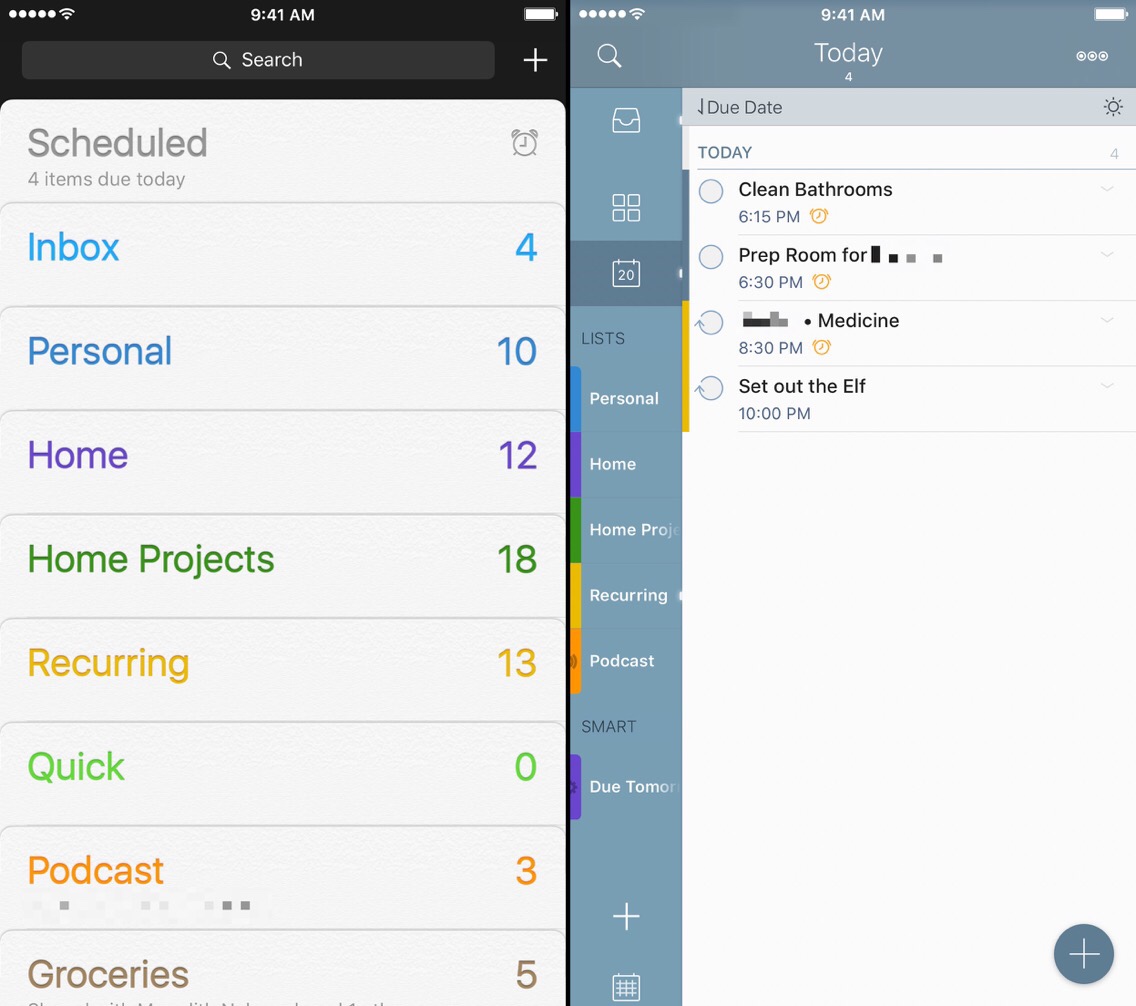
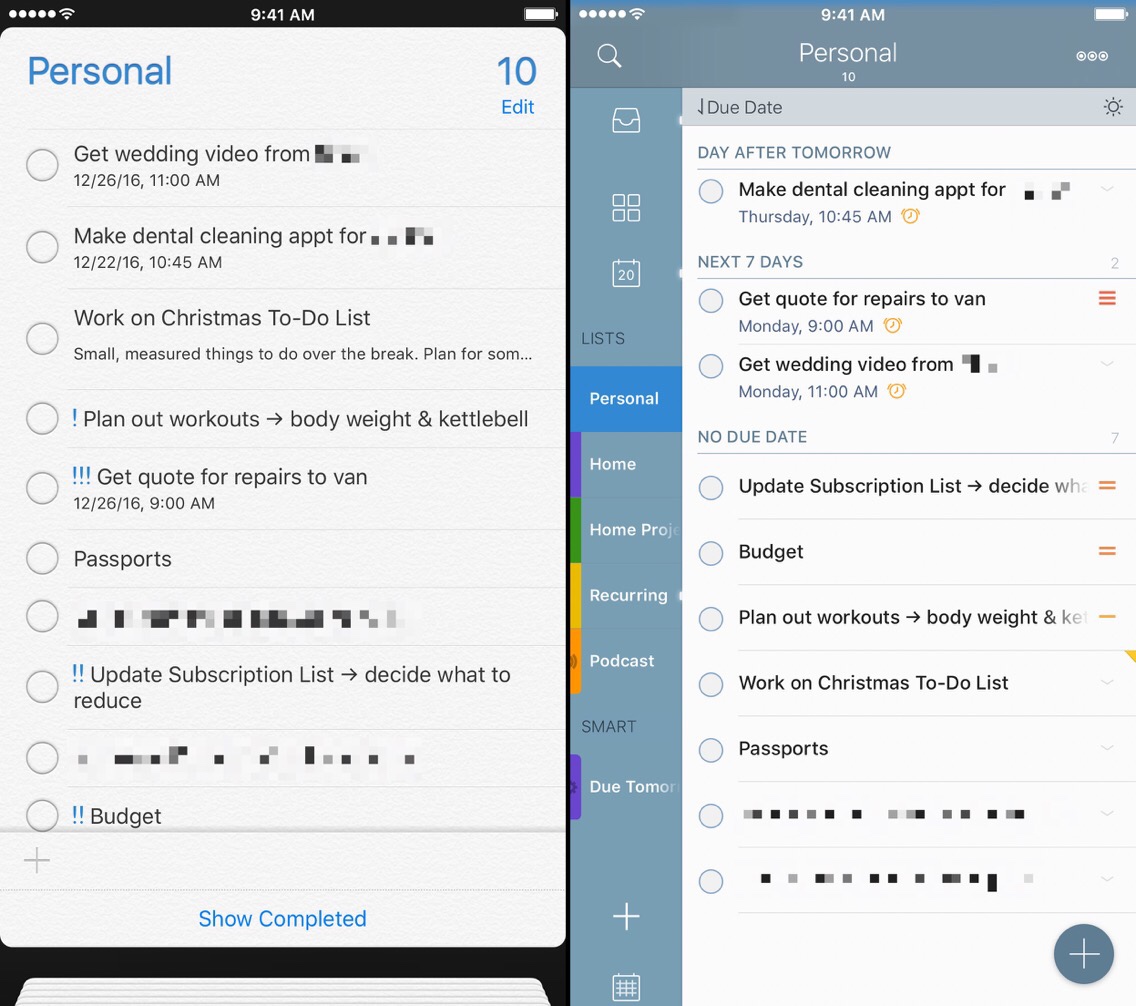
There was the answer I was looking for, and I had it in my grasp at any point in time. 2Do has Reminders Sync capability. I previously was using Dropbox to get all of the benefits of 2Do, but now that my needs are simplified, it's possible for me to use 2Do with Reminders Sync to bring the system together, without having to worry about the caveats. I get the benefits of Siri, Drafts, Fantastical, and 2Do, all in one system.
I think a big part of why this make so much sense to me is the GTD mentality of "review". Using 2Do as the window into my tasks, and having the ability to tap an icon to view all of my lists at once, it's basically the Review feature I was missing from my system. I tried to simulate this by keeping a big list in Drafts, but there are times that I need to have everything in one place, and using two different apps wasn't working. I struggled to get my arms around it all, noticing that things would slip through here and there. I can also create smart lists, which can really bring it all together.
I can also sort the tasks in my lists in 2Do, which is something greatly lacking in Reminders. I can look at the Scheduled view in Reminders.app, sorted by due date, but it's not what I need from my other lists. There are times I want to see everything by priority or by a location or by due date. There are other times I want to take my entire list and focus on what's really important. And using 2Do features on top of Reminders allows me that window into my life.
A New Way Forward
So, I now have Drafts as my entry point. Fantastical, Siri, and 2Do can handle the processing of tasks that I throw their way. Reminders will give me the notifications I need, except the badge count. And 2Do will give me the viewpoint into what the overall landscape of my personal task life will be, including the badge count, so I know if I haven't gotten something done. And even though it sounds crazy to say that using four apps is better than using two, it's 100% true for me. I'm entering tasks in a few different ways, being notified by persistent reminders, but my viewport into all of it is in one spot. And it's a place I feel extremely comfortable in.
I've been using this system for only a short time. I'm sure that things will change. But I haven't been this excited about my tasks in a while. Reminders is great, but it needed a little bit of help, and it came from an amazing, familiar place that I love. And even though I'm only a short time in — I can already tell that this is going to be something that I am extremely happy with for a while.1
The sum of the parts really makes this system feel whole. It's making me feel better about the things I'm doing. It's helping me see what might have slipped my mind, or what glaring items I have that need to get done. It's taken some time to get to this point, and I cannot believe that I wasn't using this sooner. I guess all good things come to those who wait, right? I'm glad I took the time to wait for this to happen. And now starts the count of how long it will be until I change my mind again…
Until 2Do 4.0 happens. But, maybe even then, it won't change my system much. Who knows. ↩